Remote Location Setup
20
Step 9 Configuring the On-screen Remote Control
Pre-release version
The system attempts to establish a connection.
When the connection is established, the base station begins to buffer and
transmit video signals, and they appear in your window.
If you cannot establish a connection, refer to “Troubleshooting” (
1
page 36).
Step 9 Configuring the On-screen Remote Control
If you installed the supplied IR Blaster on your external tuner (such as a set-top
box) or if you installed it on a device connected to the base station, you can
display a remote control on your screen and control the display with it.
Configuring the TV Remote Control
Before performing the following steps, click [Connect] to connect to the base
station.
1
Click anywhere inside the window.
The index appears.
2
Click [TV].
3
Click [Settings] at the right bottom of the window.
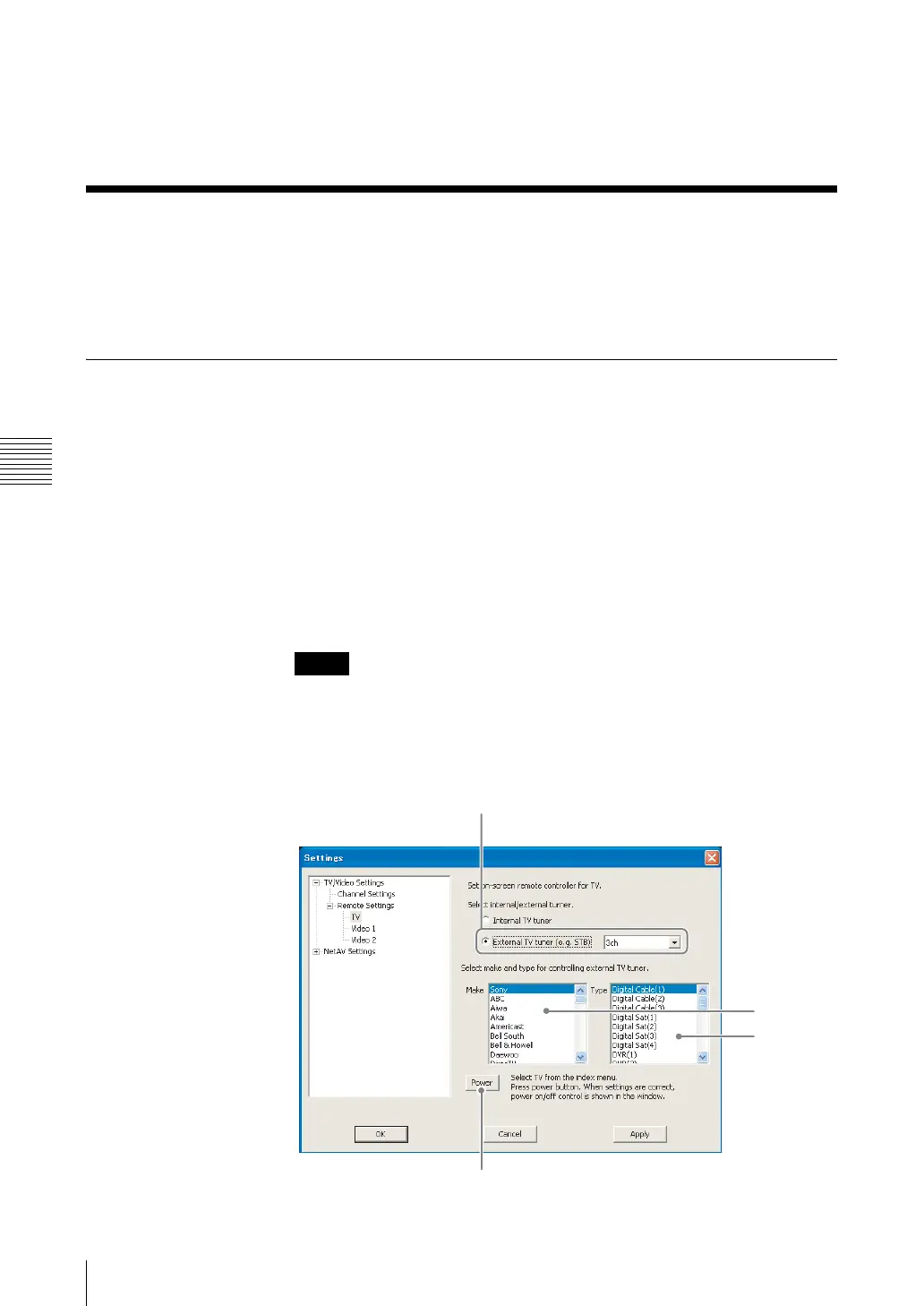
The [Settings] screen appears.
If the [Settings] button does not appear, enlarge the window until it does
appear.
4
Click [TV/Video Settings], [Remote Settings], and then [TV].
Note
(1)
(2)
(3)
(4)



 To Next Page