17
Step 6 Configuring TV Channels
Preparations Prior to Access from a Remote Location
Pre-release version
z Tip
When connected to the base station, this screen cannot be displayed.
(1) Type the password that you received in step 4 of “Getting the Base
Station Ready to Register Your Computer” (1 page 12).
(2) Type a name for the computer you are registering (no more than 20
alphanumerical characters).
The name you type here appears in the [Registered monitors] list of the
[Register Other Monitors] screen on the LF-X1 or LF-X5 monitor.
4
Click [Start].
The message “Registering this monitor to the base station?” appears.
5
Click [OK].
When the registration succeeds, the message “Registration completed”
appears.
6
Click [OK] or [Apply].
Step 6 Configuring TV Channels
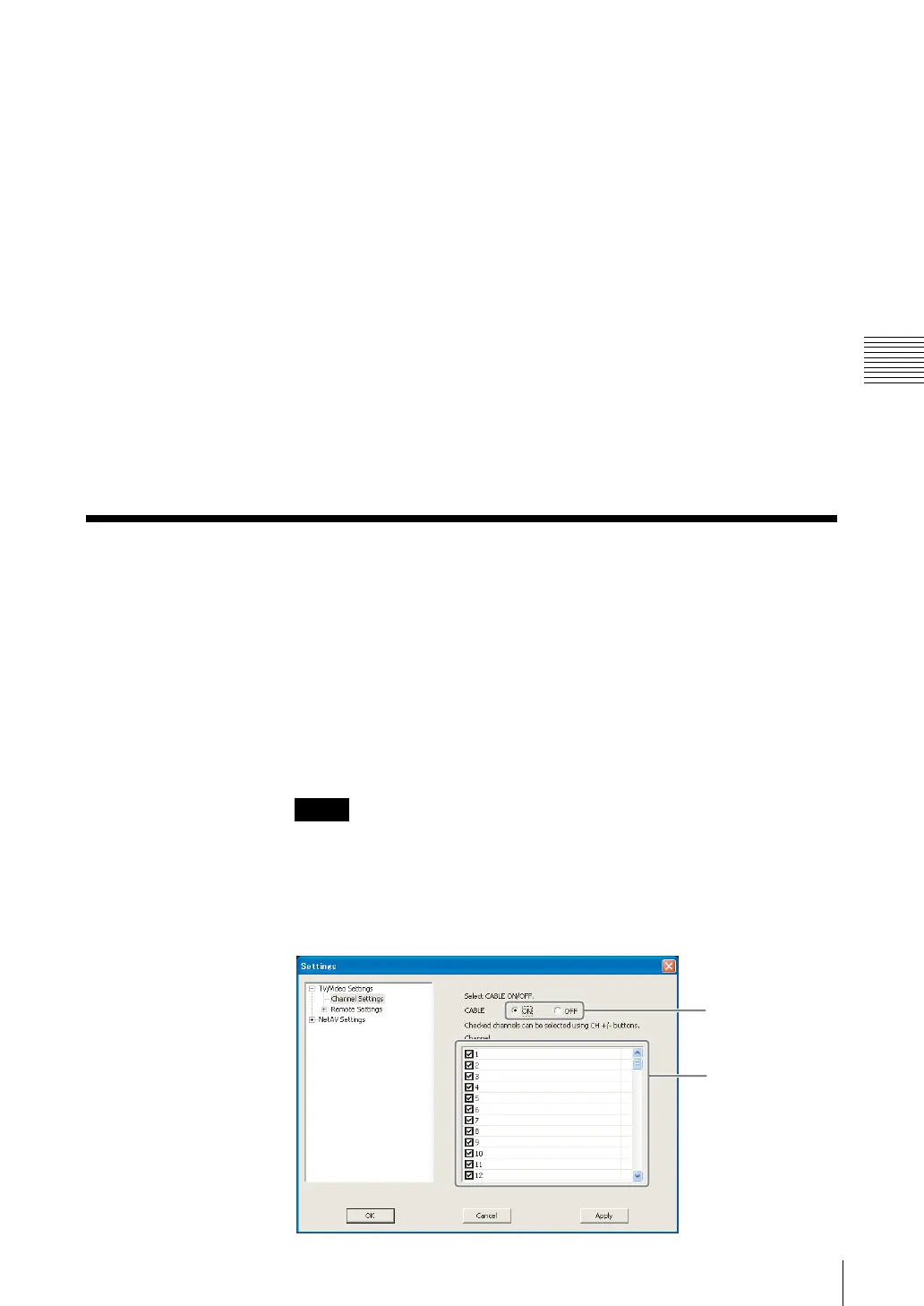
This step explains how to configure the TV Channels.
You can confirm which TV channels are available by selecting [Settings], [TV/
Video], [Channel Settings] on the LF-X1 or LF-X5.
1
Click [Settings] at the right bottom of the window.
If [Settings] is not present in the window, click anywhere in the window to
display it.
The [Settings] screen appears.
If the [Settings] button does not appear, enlarge the window until it does
appear.
2
Click [TV/Video Settings], [Channel Settings], and then configure all the
settings.
Note
(1)
(2)



 To Next Page