VAIO® Notebook User Guide
92
1
Click the Shake tab.
2
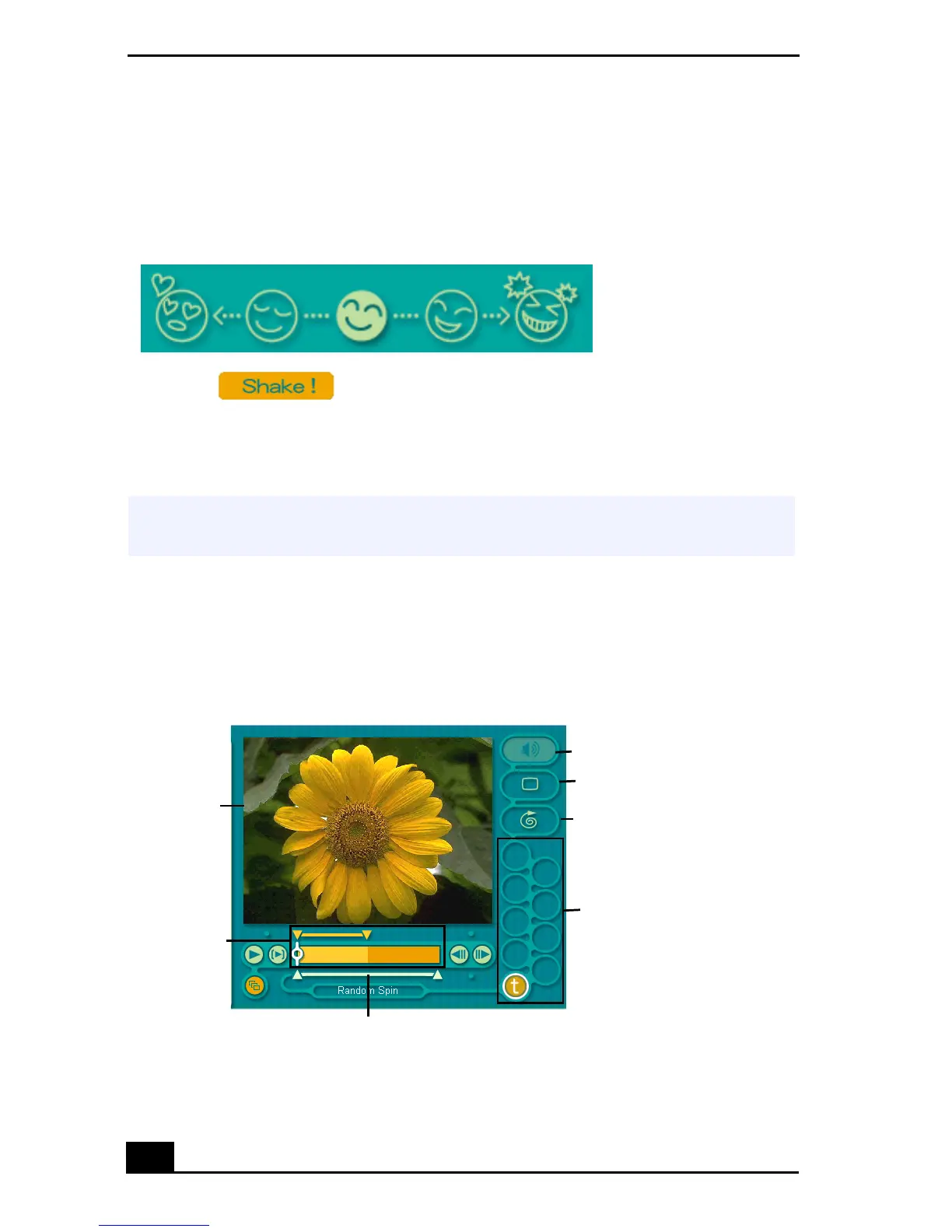
Select a mood by clicking a face in the Shaker tray.
3
Click . A thirty second scene is automatically generated and
saved to the Product tray.
4
To preview, switch the Work Panel to Product tray mode and press play.
Editing Clips and Scenes
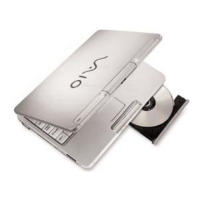
You can edit your movie by adding effects and text, adjusting the color and
contrast, and modifying the length of clips.
Shaker Tray
✍
Scenes created with Shaker begin with black frame and after processing are placed
in the first available slot on the Product tray.
Working Panel
Sound
Color
S
eed
Effect Palette
Trim Palette
Monitor
Effect Knobs





 To Next Page