1-5
DVP-NS72HP/NS77H/NS77HP/NS78H/NS78HP
19
Hookups
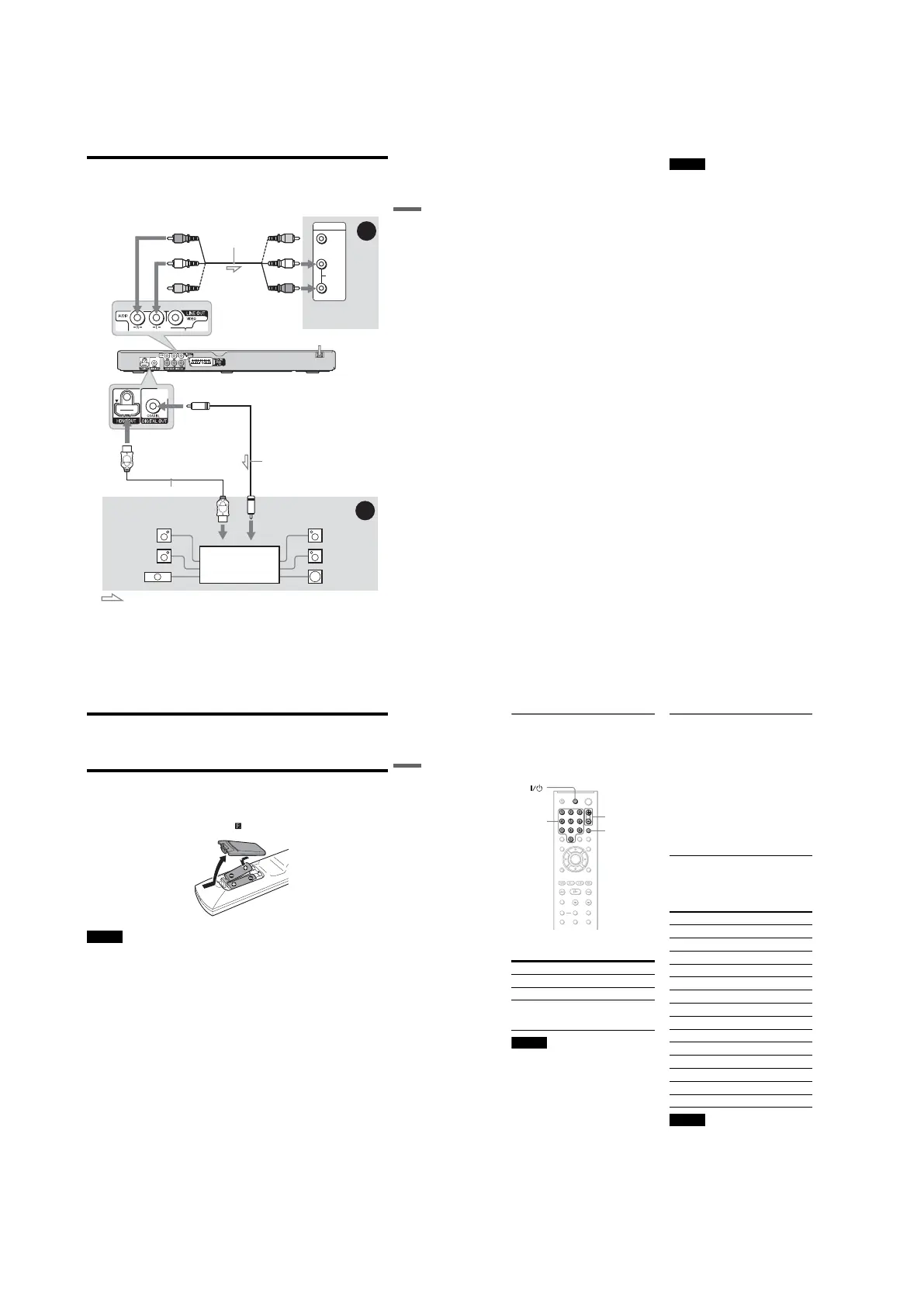
Step 2: Connecting the Audio Cords
Select one of the following patterns A or B according to the input jack on your TV monitor,
projector, or audio component such as an AV amplifier (receiver). This will enable you to listen
to sound.
z Hint
For correct speaker location, see the operating instructions supplied with the connected components.
L
CENTER
VIDEO
AUDIO
INPUT
L
R
B
A
HDMI cord (not supplied)
(red)
TV, projector, or
audio component
Audio/video
cord (supplied)
: Signal flow
to DIGITAL OUT (COAXIAL)/HDMI OUT
to LINE OUT L/R (AUDIO)
Rear (L)
CD/DVD player
(white)
(yellow)*
(yellow)*
(white)
(red)
[Speakers]
Front (L)
[Speakers]
Rear (R)
Front (R)
Subwoofer
Centre
Coaxial digital cord
(not supplied)
to coaxial/HDMI
digital input
Audio component
with a decoder
* The yellow plug is used for video signals (page 15).
,continued
20
A Audio L/R input jacks
This connection will use your TV’s or audio
component’s two speakers for sound.
B Digital audio input jack
If your audio component has a Dolby*
1
Digital, DTS*
2
, or MPEG audio decoder and
a digital input jack, use this connection. You
can enjoy Dolby Digital (5.1ch) and DTS
(5.1ch) surround effect.
If you connect to a Sony audio component
that is compatible with the HDMI
CONTROL function, refer to the operating
instructions supplied with the audio
component.
*1
Manufactured under license from Dolby
Laboratories.
Dolby, Pro Logic, and the double-D symbol are
trademarks of Dolby Laboratories.
*2
“DTS” and “DTS Digital Out” are registered
trademarks of DTS, Inc.
Notes
• After you have completed the connection, be sure
to set “DOLBY DIGITAL” to “DOLBY
DIGITAL” and “DTS” to “ON” in Quick Setup
(page 23). If your audio component has an MPEG
audio decoder function, set “MPEG” to “MPEG”
in Audio Setup (page 63). Otherwise, no sound or
a loud noise will come from your speakers.
• When you connect an audio component that
conforms to the 96 kHz sampling frequency, set
“48kHz/96kHz PCM” in “AUDIO SETUP” to
“96kHz/24bit” (page 63).
• The TVS effects of this player cannot be used
with this connection.
• When you connect the player to an audio
component using an HDMI cord, you will need to
do one of the following:
– Connect the audio component to the TV with the
HDMI cord.
– Connect the player to the TV with a video cord
other than HDMI cord (component video cord or
audio/video cord).
• When connecting to the HDMI OUT jack,
carefully align the HDMI connector with the jack.
Do not bend and apply pressure to the HDMI
cord.
21
Hookups
Step 3: Connecting the Mains Lead
Plug the player and TV mains lead (power cord) into a mains.
Step 4: Preparing the Remote
You can control the player using the supplied remote. Insert two R6 (size AA) batteries by
matching the 3 and # ends on the batteries to the markings inside the compartment. When
using the remote, point it at the remote sensor on the player.
Notes
• Do not leave the remote in an extremely hot or humid place.
• Do not drop any foreign object into the remote casing, particularly when replacing the batteries.
• Do not expose the remote sensor to direct light from the sun or a lighting apparatus. Doing so may cause a
malfunction.
• If you do not use the remote for an extended period of time, remove the batteries to avoid possible damage
from battery leakage and corrosion.
,continued
22
Controlling Your TV with the
Supplied Remote
You can control the sound level, input source,
and power switch of your Sony TV with the
supplied remote.
You can control your TV using the buttons
below.
Note
Depending on the connected unit, you may not be
able to control your TV using all or some of the
buttons on the supplied remote.
Controlling other TVs with the
remote
You can control the sound level, input source,
and power switch of non-Sony TVs as well.
If your TV is listed in the table below, set the
appropriate manufacturer’s code.
1 While holding down TV [/1, press the
number buttons to select your TV’s
manufacturer’s code (see the table
below).
2 Release TV [/1.
Code numbers of controllable TVs
If more than one code number is listed, try
entering them one at a time until you find the
one that works with your TV.
Notes
• When you replace the batteries of the remote, the
code number you have set may be reset to the
default setting. Set the appropriate code number
again.
• Depending on the connected unit, you may not be
able to control your TV using all or some of the
buttons on the supplied remote.
By pressing You can
TV [/1 Turn the TV on or off
2 (volume) +/– Adjust the volume of the TV
t (TV/video) Switch the TV’s input source
between the TV and other
input sources
TV
2 +/–
t
Number
buttons
Manufacturer Code number
Sony 01 (default)
Aiwa 01 (default)
Grundig 11
Hitachi 24
JVC 33
LG 06
Loewe 06
Panasonic 17, 49
Philips 06, 08
Samsung 06, 71
Sanyo 25
Sharp 29
Thomson 43
Toshiba 38



 To Next Page