the background, you can continue where you left off the next time you open the
application.
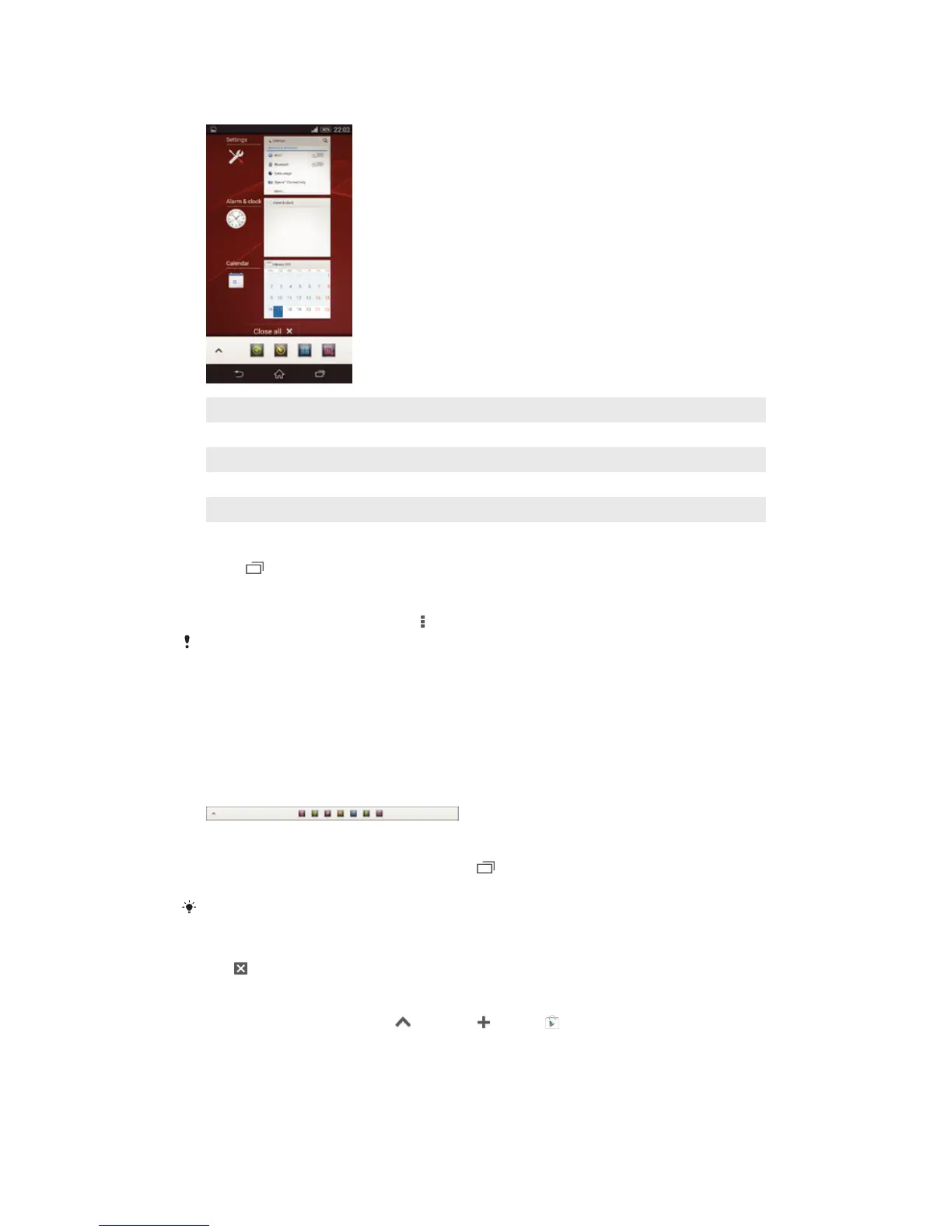
1 Recently used applications window – Open a recently used application
2 Small apps bar – Open a small app
3 Task navigation key – Open the recently used applications window and the small apps bar
4 Home navigation key – Exit an application and go back to the Home screen
5 Back navigation key – Go back to the previous screen within an application or close the application
To open the recently used applications window
• Press
.
To open a menu in an application
• While using the application, press .
A menu is not available in all applications.
Small apps
You can get quick access to several small apps at any time using the small apps bar. A
small app only takes up a small area of your screen, so you can interact with a small app
and another application at the same time on the same screen. For example, you can
have a web page open and then open the Calculator small app on top of it and perform
calculations. You can download more small apps from Google Play™.
To open a small app
1 To make the small apps bar appear, press
.
2 Tap the small app that you want to open.
You can open several small apps at the same time.
To close a small app
• Tap on the small app window.
To download a small app
1 From the small apps bar, tap
, then tap and tap .
2 Search for the small app that you want to download, then follow the instructions
to download it and complete the installation.
16
This is an Internet version of this publication. © Print only for private use.













 To Next Page