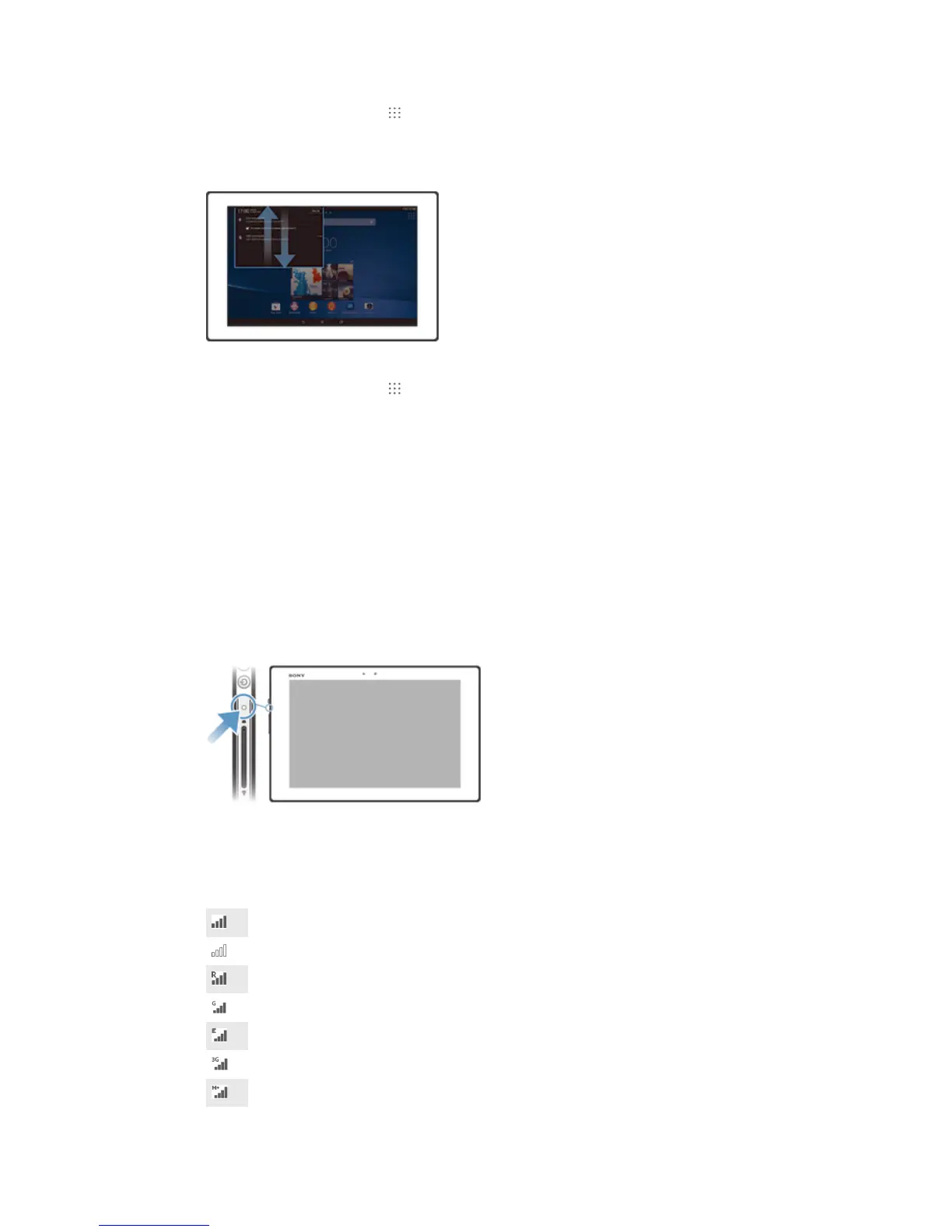
To select which system icons to display in the status bar
1 From your Homescreen, tap .
2 Find and tap Settings > Personalization > Status bar icons.
3 Select the icons you want to display.
To open or close the Notification panel
To select the apps allowed to send notifications
1 From your Homescreen, tap .
2 Find and tap Settings > Personalization > Manage notifications.
3 Select the apps that are allowed to send notifications.
To take action on a notification
• Tap the notification.
To dismiss a notification from the Notification panel
• Place your finger on a notification and flick left or right.
To clear all notifications from the Notification panel
• Tap Clear.
Notification light
A notification light informs you about battery status and other events.
Icons in the status bar
Status icons
Signal strength
No signal
Roaming
GPRS is available
EDGE is available
3G is available
Mobile data network is available
20
This is an Internet version of this publication. © Print only for private use.













 To Next Page