Photos and videos in Album
Viewing photos and videos
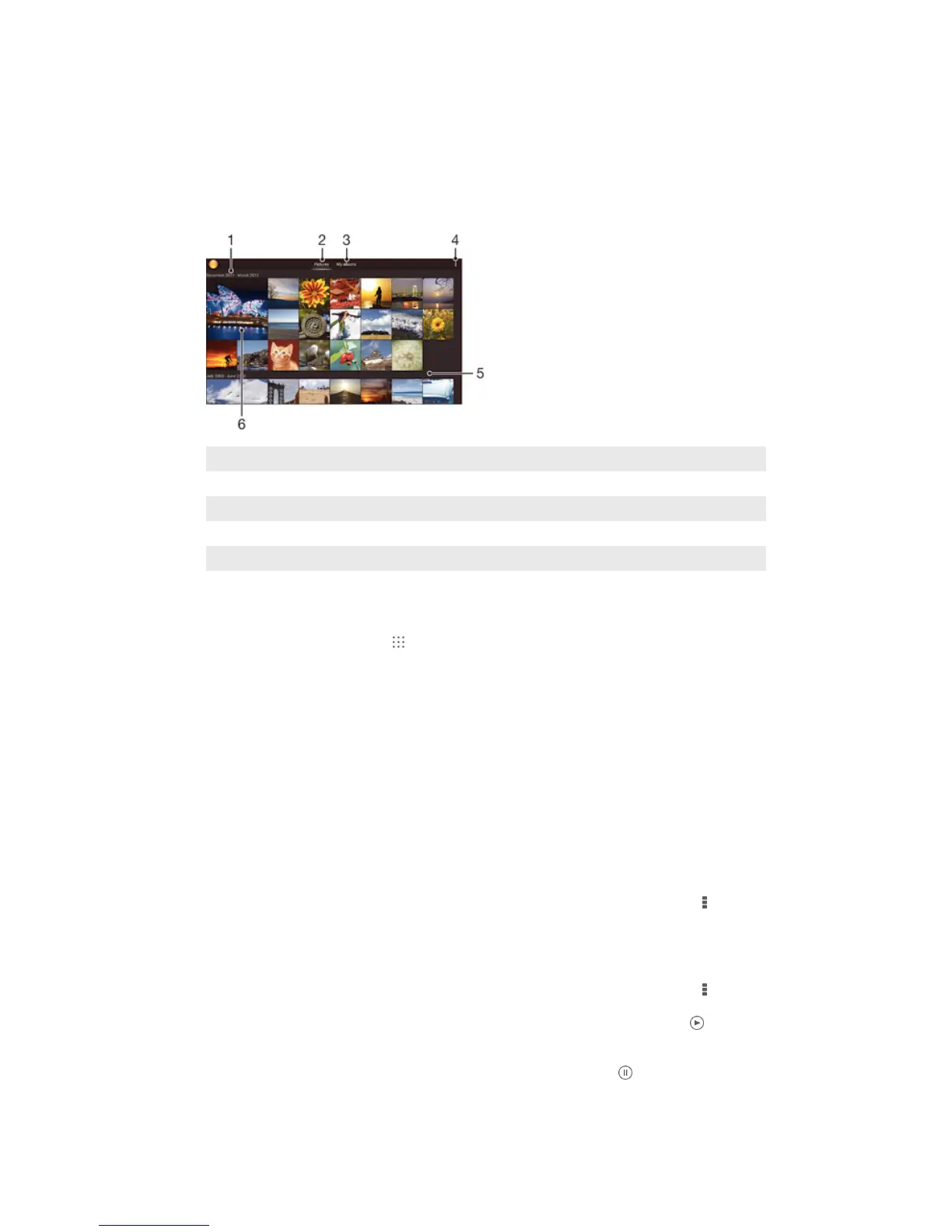
Use the Pictures tab in the Album application to view photos and play videos that you’ve
taken with your camera, or to view similar content that you've saved to your device. All
photos and videos are displayed in a chronologically ordered grid.
1 The date of items in the group
2 View photos and videos in the Pictures tab
3 View photos and videos in the My albums tab
4 View menu options
5 Scroll up or down to view content
6 Tap a photo or video to view it
To view photos and videos
1 From your Home screen, tap
.
2 Find and tap Album.
3 Tap a photo or video to view it.
4 Flick left to view the next photo or video. Flick right to view the previous photo or
video.
To change the size of the thumbnails
• When viewing thumbnails of photos and videos in Album, spread two fingers apart
to zoom in, or pinch two fingers together to zoom out.
To zoom a photo
• When you are viewing a photo, spread two fingers apart to zoom in, or pinch two fingers
together to zoom out.
To watch a slideshow of your photos
1 When you are viewing a photo, tap the screen to display the toolbars, then tap
>
Slideshow to start playing all the photos in an album.
2 Tap a photo to end the slideshow.
To watch a slideshow of your photos with music
1 When you are viewing a photo, tap the screen to display the toolbars, then tap
>
SensMe™ slideshow.
2 Select the music and theme that you want to use for the slideshow, then tap
.
The Album application analyses your photos and uses SensMe™ music data to
play a slideshow.
3 To pause playing, tap the screen to display the controls, then tap
.
70
This is an Internet version of this publication. © Print only for private use.













 To Next Page