Music
Transferring music to your device
There are different ways to get music from a computer onto your device:
• Connect the device and computer using a USB cable and drag and drop music files
directly into the file manager application on the computer. See
Managing files using a
computer
on the 103 page.
• If the computer is a PC, you can use the Media Go™ application from Sony and organize
your music files, create playlists, subscribe to podcasts, and more. To learn more and
download the Media Go™ application, go to http://mediago.sony.com/enu/features.
• If the computer is an Apple® Mac®, you can use the Sony™ Bridge for Mac application
to transfer your media files from iTunes to your device. To learn more and download
Sony™ Bridge for Mac, go to
www.sonymobile.com/global-en/tools/bridge-for-mac/
.
Listening to music
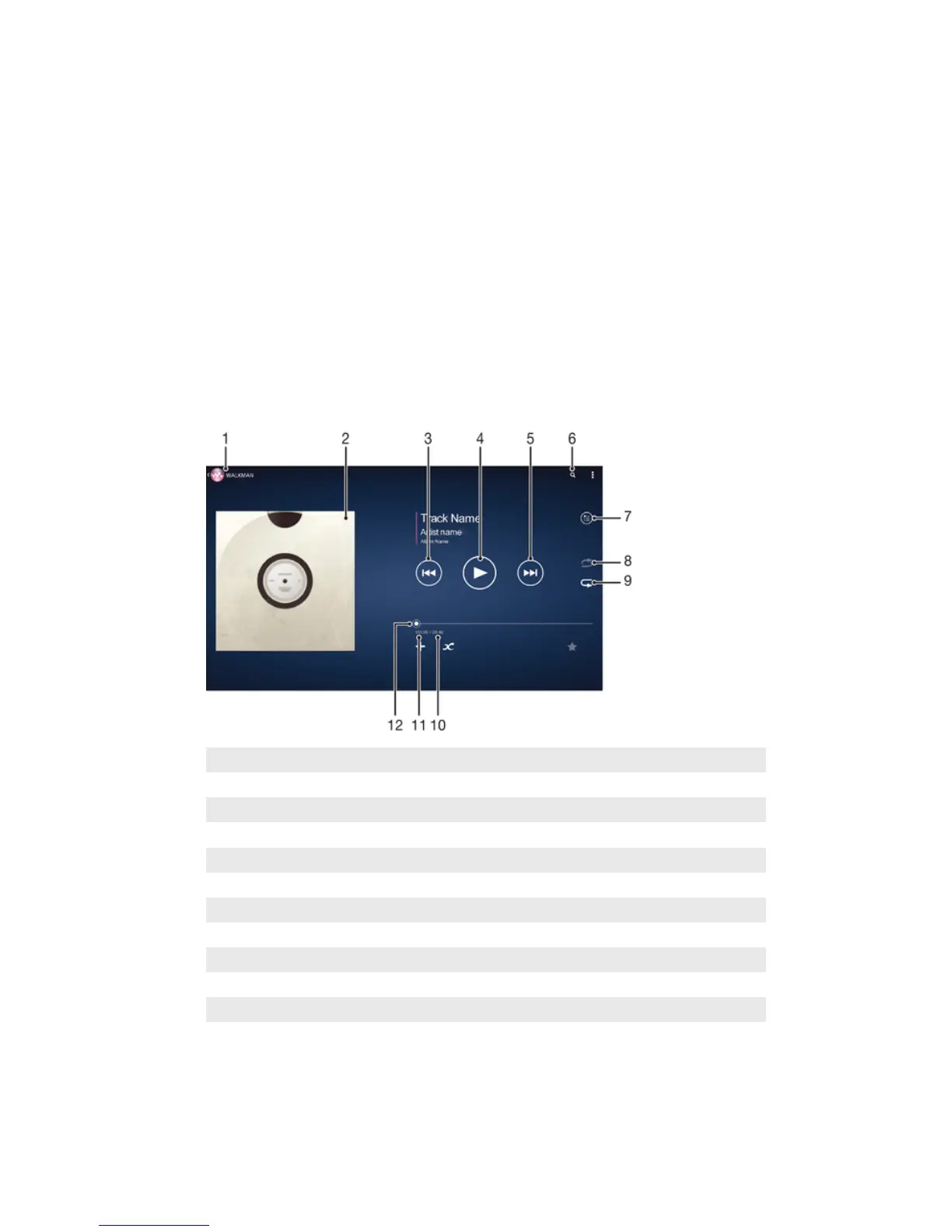
Use the "WALKMAN" application to listen to your favorite music and audio books.
1
Browse your music
2 Album art (if available)
3 Tap to go to the previous song in the play queue Touch and hold to rewind within the current song
4 Play or pause a song
5 Tap to go to the next song in the play queue Touch and hold to fast forward within the current song
6 Search songs on Music Unlimited and all songs saved to your device
7 View the current play queue
8 Shuffle songs in the current play queue
9 Repeat all songs in the current play queue
10 Total time length of current song
11 Elapsed time of current song
12 Progress indicator – Drag the indicator or tap along the line to fast forward or rewind
53
This is an Internet version of this publication. © Print only for private use.













 To Next Page