EasyManua.ls Logo

Sony SLV-E170EE - Page 12

Sony SLV-E170EE
116 pages
Print Icon
To Next Page IconTo Next Page
To Previous Page IconTo Previous Page
Loading...
eA
I
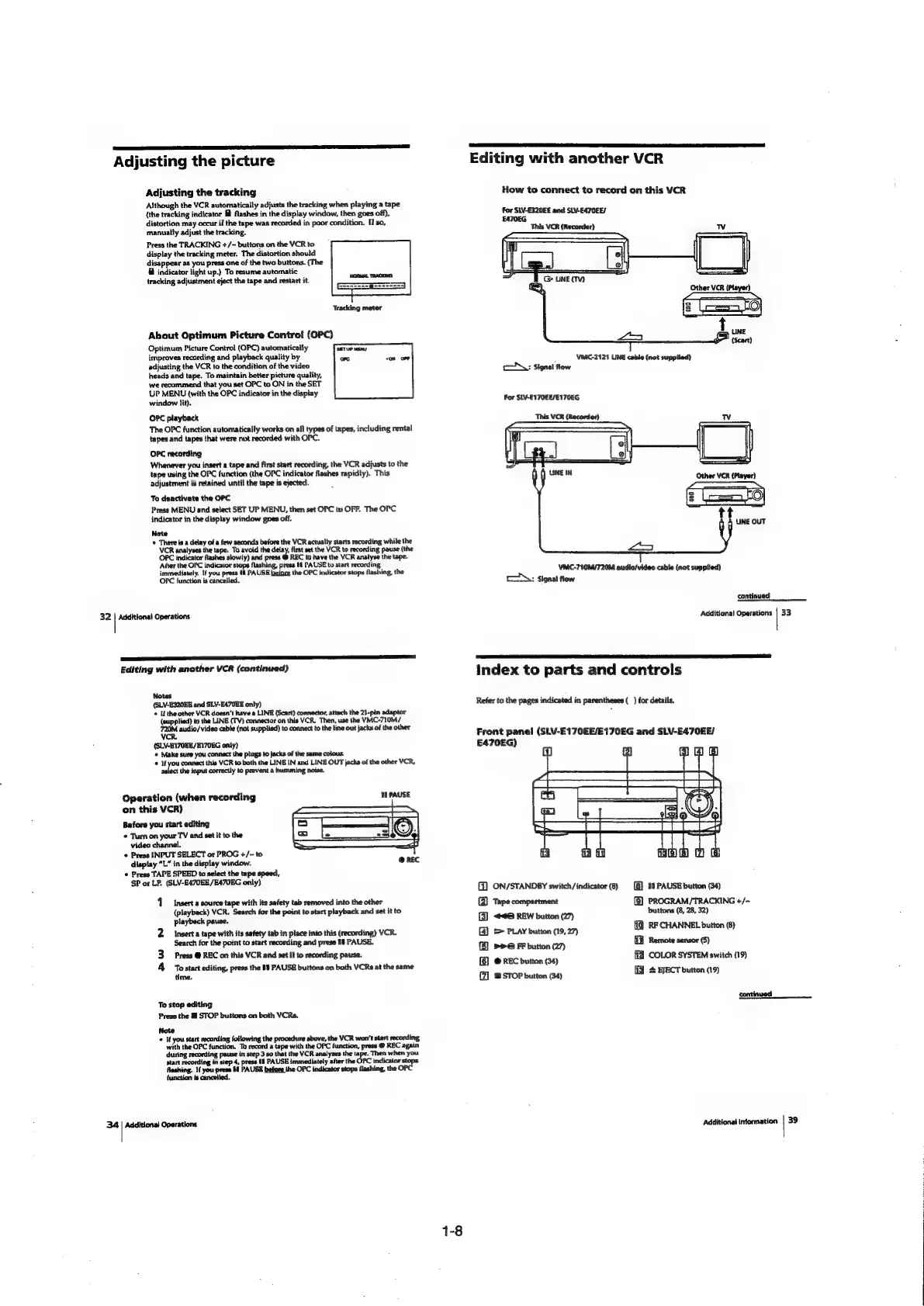
Adjusting
the
picture
Adjusting
the
tracking
Although
the
VCR
automatically
adjusts
the
tracking
when
playing
a
tape
(the
tracking
indicator
@
flashes
in
the
display
window,
then
goes
off),
distortion
may
occur
if
the
tape
was
recorded
in
poor
condition.
If
so,
manually
adjust
the
tracking.
Press
the
TRACKING
+/-
buttons
on
the
VCR
to
display
the
tracking
meter.
The
distortion
should
disappear
as
you
press
one
of
the
two
buttons.
(The
@
indicator
light
up.)
To
resume
automatic
tracking
adjustment
eject
the
tape
and
restart
it.
E===s==-8--<-----)
Tracking
meter
About
Optimum
Picture
Contro!
(OPC)
Optimum
Picture
Control
(OPC)
automatically
"SEY
UP
Ma
improves
recording
and
playback
quality
by
owe
adjusting
the
VCR
to
the
condition
of
the
video
heads
and
tape.
To
maintain
better
picture
quality,
we
recommend
that
you
set OPC
to
ON
in
the
SET
UP
MENU
(with
the
OPC
indicator
in
the
dispiay
window
lit),
OPC
playback
The
OPC
function
automatically
works
on
ail
types
of
tapes,
including
rental
tapes
and
tapes
that
were
not
recorded
with
OPC.
OPC
recording
Whenever
you
insert
a
tape
and
first
start
recording,
the
VCR
adjusts
to
the
tape
using
the
OPC
function
(the
OPC
indicator
flashes
rapidty).
This
adjustment
is
retained
until
the
tape
is
ejected.
o
To
deactivate
the
OPC
Press
MENU
and
select
SET
UP
MENU,
then
set
OPC
to
OFF.
The
OPC
indicator
in
the
display
window
goes
off.
Note
©
There
is
a
delay
of
a
few
seconds
before
the
VCR
actually
starts
recording
while
the
VCR
analyses
the
tape.
To
avoid
the
delay,
first
set
the
VCR
to
recording
pause
(the
OPC
indicator
flashes
slowly)
and
press
@
REC
to
have
the
VCR
analyse
the
tape.
After
the
OPC
indicator
stops
flashing,
press
It
PAUSE
to
start
recording
immediately.
If
you
press
Ul
PAUSE
before
the
OPC
indicator
stops
flashing,
the
OPC
function
is
cancelled.
32
|
Additional
Operations
ETL
EE
TI
Editing
with
another
VCR
(continued)
Notes
(SLV-E320EE
and
SLV-E470EE
only)
©
Ifthe
other
VCR
doesn’t
have
a
LINE
(Scart)
connector,
attach
the
21-pin
adaptor
(supplied)
to
the
LINE
(TV)
connector
on
this
VCR.
Then,
use
the
VMC-710M/
oo
audio/video
cable
(not
supplied)
to
connect
to
the
line
out
jacks
of
the
other
(SLV-E170EE/E170EG
only)
©
Make
sure
you
connect
the
plugs
to
jacks
of
the
same
colour.
‘¢
If
you
connect
this
VCR
to
both
the
LINE
IN
and
LINE
OUT
jacks
of
the
other
VCR,
select
the
input
correctly
to
prevent
a
humming
noise.
TL
PAUSE
Operation
(when
recording
on
this
VCR)
Before
you
start
editing
¢
Turn
on
your
TV
and
set
it
to
the
video
channel.
©
Press
INPUT
SELECT
or
PROG
+/-
to
display
“L”
in
the
display
window.
¢
Press
TAPE
SPEED
to
select
the
tape
speed,
SP
or
LP.
(SLV-E470EE/E470EG
only)
‘1
Insert
a
source
tape
with
its
safety
tab
removed
into
the
other
(playback)
VCR.
Search
for
the
point
to
start
playback
and
set
it
to
Playback
pause.
Insert
a
tape
with
its
safety
tab
in
place
into
this
(recording)
VCR.
Search
for
the
point
to
start
recording
and
press
If
PAUSE.
Press
@
REC
on
this
VCR
and
set
it
to
recording
pause.
To
start
editing,
press
the
11
PAUSE
buttons
on
both
VCRs
at
the
same
time.
ew
To
stop
editing
Press
the
&
STOP
buttons
on
both
VCRs.
Note
©
If
you
start
recording
following
the
procedure
above,
the
VCR
won't
start
tecording
with
the OPC
function.
To
record
a
tape with
the OPC
function,
press
@
REC
again
during
recording
pause
in
step
3
so
that
the
VCR
analyses
the
tape.
Then
when
you
start
recording
in
step
4,
press
1
PAUSE
immediately
after
the
OPC
indicator
stops
flashing.
If
you
press
1d
PAUSE
before
the
OPC
indicator
stops
flashing,
the
OPC
function
is
cancelled.
34
|
Additional
Operations
Editing
with
another
VCR
How
to
connect
to
record
on
this
VCR
For
SLV-£320EE
and
SLV-E470EE/
EATOEG
This
VCR
(Recorder)
wv
>
UNE
(TV)
VMC-2121
LINE
cable
(not
supplied)
ooN\:
Signal
flow
For
SLV-E170EE/E170EG
This
VCR
(Recorder)
wv
VMC-710M/720M
audio/video
cable
(not
supplied)
oN:
signal
flow
continued
Additional
Operations
|
33
index
to
parts
and
controls
Refer
to
the
pages
indicated
in
parentheses
(_
)
for
details.
Front
pane!
(SLV-E170EE/E170EG
and
SLV-E470EE/
E470EG)
(0)
ON/STANDBY
switch
/
indicator
(8)
(2)
Tape
compartment
G)
<<@
REW
button
(27)
(4)
&
PLAY
button
(19,
27)
>>
FF
button
(27)
@
REC
button
(34)
{7]
m
STOP
button
(34)
49
PAUSE
button
(34)
[8]
PROGRAM/TRACKING
+/—
buttons
(8,
28,
32)
RF
CHANNEL
button
(8)
{f]
Remote
sensor
(5)
COLOR
SYSTEM
switch
(19)
4
EJECT
button
(19)
Additional
Information
|
39

Table of Contents

Related product manuals