Operation
Printing
24
Printing
Before printing
• Ensure that the unit is properly connected to the LAN.
(Page 17)
• Ensure that the film sheets are properly loaded in the
film tray. (Page 19)
1
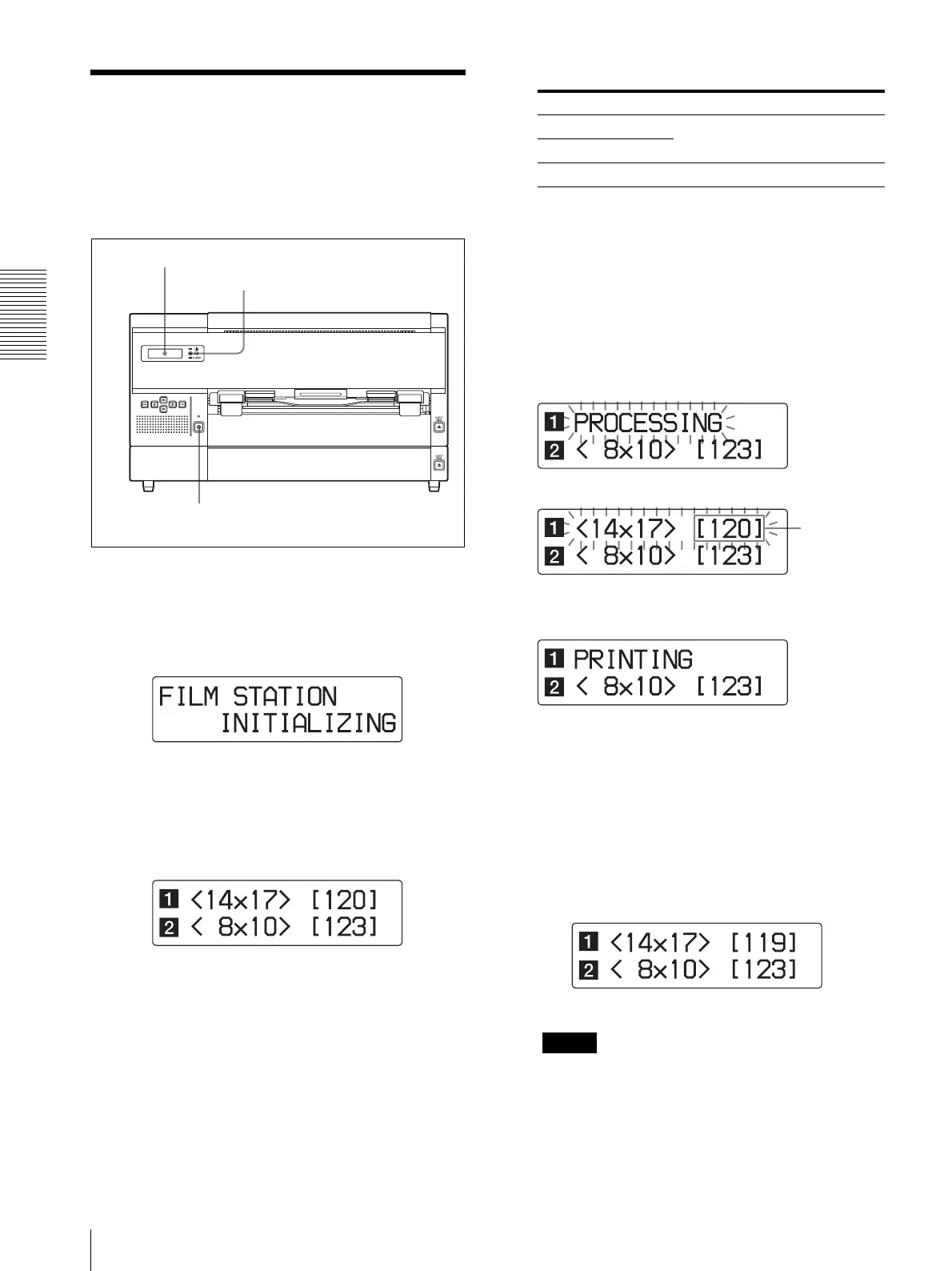
Press the 1ON/STANDBY switch to turn the unit
on.
After turning on the power, the message below
should appear as shown on the LCD.
After a few minutes, the message should appear as
shown here.
When the size and remaining amount of film sheets
are displayed, the printer is ready to print.
2
Send the image data from the modality.
The message changes on the LCD as the unit status
changes:
The message and the size and remaining amount of
film sheets blink alternately on the row
corresponding to the film currently being used.
Example: When the image data is
transferred and UPT-517BL film sheets are
loaded in film tray 1
During printing, the message “PRINTING” is
displayed.
It takes about 70 seconds for a printout to emerge
from the film outlet. Once printing has been
completed, the PRINT indicator goes off, and the
unit returns to the standby status. The size and
remaining amount of each film type appears on the
LCD.
Notes
• During printing, do not open the covers.
• To prevent film jamming, do not allow more than
30 printouts to remain on the film output slot (on
the output tray for film sheets loaded on film tray
2 and on film tray 1 for film sheets loaded on film
tray 1 when placing the unit horizontally, and
PRINT indicator
1
LCD
Message Printer status
PROCESSING The image data is being processed.
RESERVED
PRINTING The printer is printing.
The following message and the film size and remaining
amount of film sheets blinks alternately.
When the
message
“PRINTING”
is displayed,
the number
indicating
the
remaining
amount of
film sheets
decreases
by one.
The size and remaining amount of film
sheets loaded in film tray 2 remains as it is.


 To Next Page