Setup
Setting up the Personal Computer to be Used for Setup / About the Setup Window
50
Setup
Setting up the Personal
Computer to be Used for
Setup
1
Start the personal computer to be used for setup.
2
Open the TCP/IP setting page.
3
Enter the following IP address of the computer and
the sub-net mask.
IP address of the computer: NNN.NNN.NNN.nnn
NNN.NNN.NNN: Use the same numbers as
those of the IP address
a)
assigned to the UP-
DF550 on the network from the first NNN to
the third NNN.
nnn: Use any numbers from 1 to 254. However,
you should not use the same numbers as the
numbers of the fourth NNN of the IP address of
the UP-DF550.
a)IP address assigned to the UP-DF550 on the
network: NNN.NNN.NNN.NNN
Sub-net Mask:255.255.255.0
4
Restart the personal computer.
5
Connect the UP-DF550 and the personal computer
to be used for setup using the network cross cable.
About the Setup Window
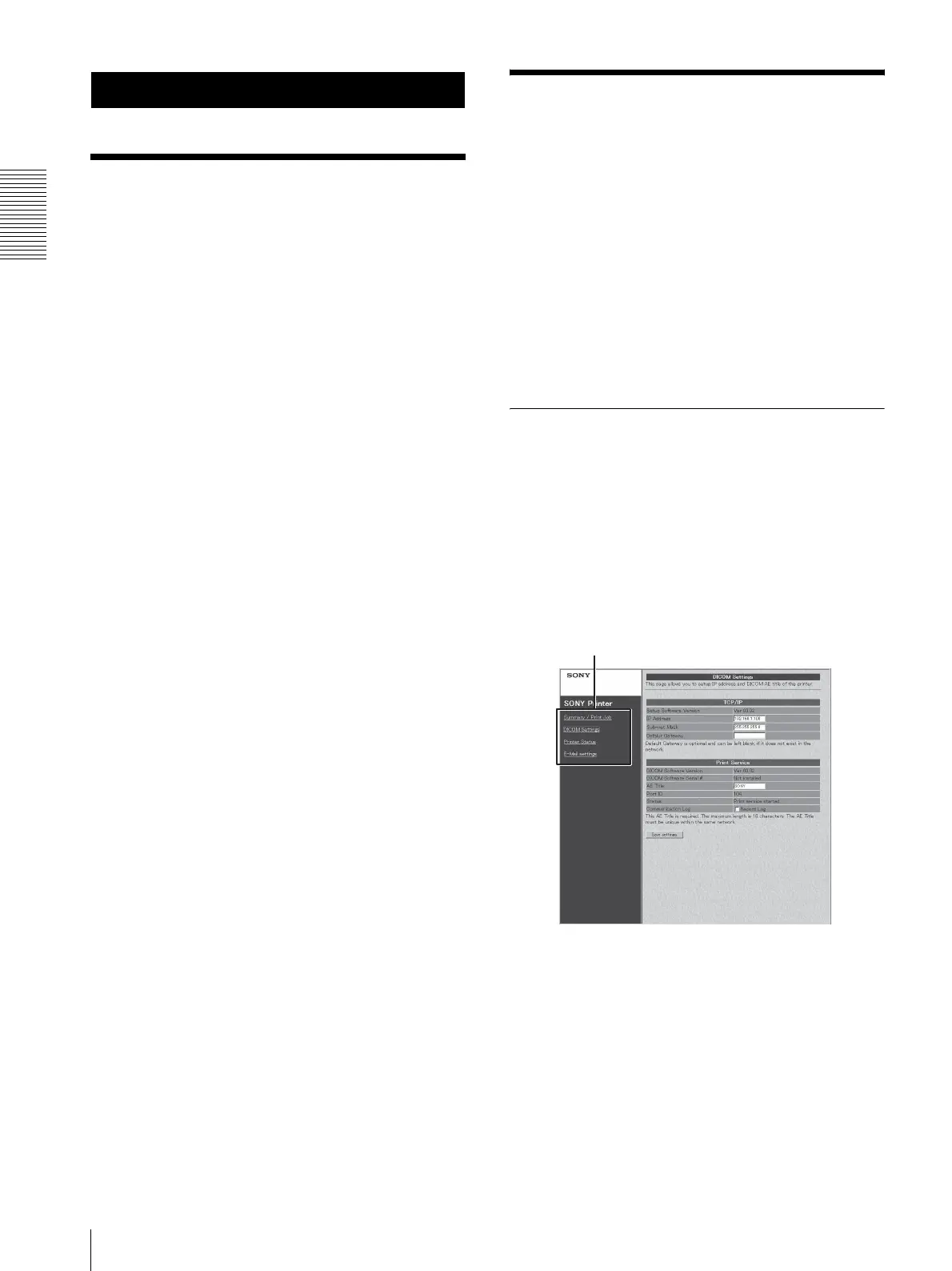
The UP-DF550 can be set up on the setup window
displayed on the Web browser of the personal computer
to be used for setup.
The setup window has the following pages:
• Summary/Print Job page
Displays the summary and print job status of the UP-
DF550.
• DICOM Settings page
Sets up the IP address, DICOM AE title, and so on.
• Printer Status page
Displays the status of the UP-DF550.
• E-Mail Settings page
Sets up the items related to E-Mail.
Opening the Setup Window
1
Start the personal computer to be used for setup,
and then start the Web browser software.
2
Enter the following address.
http://NNN.NNN.NNN.NNN
This is the IP address assigned to the UP-DF550 on
the network.
3
Click the desired page in the page selection area.
The desired page opens.
Page selection area


 To Next Page