EasyManua.ls Logo

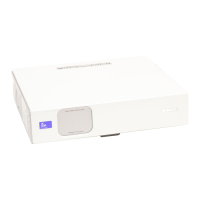
Sony VPL-CX70 - User Manual

Sony VPL-CX70
180 pages
Print Icon
To Next Page IconTo Next Page
Loading...
GB
FR
ES
Data Projector VPL-CX75/VPL-CX70
© 2004 Sony Corporation
2-149-997-13 (1)
Data Projector
Operating Instructions
Mode d’emploi
Manual de instrucciones
VPL-CX75
VPL-CX70

Table of Contents

Other manuals for Sony VPL-CX70

Questions and Answers

  • W
    William LewisSep 4, 2025
    What to do if the image extends beyond the screen on my Sony Projector?
    • D
      Darrell MoralesSep 4, 2025
      If the image extends beyond the screen on your Sony Projector, and there are black edges around the image, display the full image on the screen and press the APA key. Then, adjust “Shift” in the INPUT SETTING menu.
  • P
    Patricia RossSep 5, 2025
    Why is the picture from INPUT A connector colored strange on my Sony VPL-CX70 Projector?
    • A
      awardSep 5, 2025
      If the picture from the INPUT A connector is colored strangely on your Sony Projector, select “Computer,” “Video GBR” or “Component” correctly according to the input signal in the “Input-A Signal Sel.” setting in the SET SETTING menu.
  • R
    robert63Sep 5, 2025
    Why does “Please check Input-A Signal Sel.” appear on my Sony VPL-CX70?
    • A
      Alicia BrandtSep 5, 2025
      If “Please check Input-A Signal Sel.” appears on your Sony Projector, even when inputting the correct signal from INPUT A, select “Computer,” “Video GBR” or “Component” correctly according to the input signal in the “Input-A Signal Sel.” setting in the SET SETTING menu.
  • J
    Janet CraneSep 6, 2025
    Why is the picture noisy on my Sony VPL-CX70 Projector?
    • B
      Brian JonesSep 6, 2025
      If the picture on your Sony Projector is noisy, especially in the background, try changing the desktop pattern on the connected computer.
  • T
    Tammy ThomasSep 6, 2025
    How to turn on on-screen display on Sony VPL-CX70?
    • J
      John McneilSep 6, 2025
      If the on-screen display does not appear on your Sony Projector, set “Status” in the MENU SETTING menu to “On.”
  • D
    Daniel MorrisonSep 7, 2025
    Why do the powered tilt adjuster and the lens protector not close on my Sony Projector?
    • A
      Amanda GalvanSep 7, 2025
      If the powered tilt adjuster and the lens protector do not close on your Sony Projector, it might be because the AC power cord was unplugged while the projector was on. Connect the power cord to the AC outlet again, turn on the power of the projector, then turn it off.
  • A
    Austin EricksonSep 7, 2025
    What to do if the lens protector cannot open on my Sony VPL-CX70 Projector?
    • W
      wardalexisSep 7, 2025
      If the lens protector cannot open on your Sony Projector due to an electrical system breakdown, slide the lens protector by hand, and then press the I/1 key to use the projector in case of emergency.

Summary

Precautions

Installation and Usage Notes

Connecting the Projector

Computer Connection Guide

Guides for connecting the projector to a computer via USB and video cables.

Projecting the Picture

Initial Power On and Setup

Steps for powering on, initial setup, and input source management.

Picture Adjustments and Positioning

Correcting focus, size, tilt, keystone, and side shot distortions.

Menu Operations and Settings

The PICTURE SETTING Menu

Adjusting picture mode, volume, contrast, brightness, and color.

The INPUT SETTING Menu

Configuring input signals, aspect ratio, and signal adjustment.

Installation and Maintenance

Lamp and Air Filter Maintenance

Procedures for replacing the lamp and cleaning the air filter.

Troubleshooting Guide

Power and Picture Issues

Solutions for power, display, and image quality problems.

Product Specifications

Sony VPL-CX70 Specifications

VPL-CX75

Optical IconOptical
projection system3 LCD panels, 1 lens projection system
panel0.79-inch XGA LCD panel with Micro Lens Array
projection lens1.2 times F1.6 to 1.78, f23.5 to 28.2 mm
lamp165 W/135 W UHP
screen coverage40 to 300 inches (measured diagonally)
keystone correction rangeMax. ±30° vertical, ±20° horizontal
light output2500 ANSI lm (lamp mode high)
General IconGeneral
speakerMono 1 W (max.) x 1
power requirementsAC 100 to 240 V, 50/60 Hz
power consumptionMax 240 W
standby power consumption9 W (standard), 0.5 W (low)
operating temperature0 to 35 ºC (32 to 95 ºF)
operating humidity35% to 85% (no condensation)
dimensions298 x 69 x 244 mm
massApprox. 2.9 kg
heat dissipation819 BTU
Input/Output IconInput/Output
video inputS Video Y/C Mini DIN 4-pin, Composite RCA pin jack
audioStereo mini jack
input ARGB/Component Analog RGB/Component (HD D-sub 15 pin female x 1)
USBUpstream (B type, female x 1)
wireless LANWireless LAN card slot x 1
memory stickMemory Stick media slot x 1

VPL-CX70

Optical IconOptical
projection system3 LCD panels, 1 lens projection system
panel0.79-inch XGA LCD panel
projection lens1.2 times F1.6 to 1.78, f23.5 to 28.2 mm
lamp165 W/135 W UHP
screen coverage40 to 300 inches (measured diagonally)
keystone correction rangeMax. ±30° vertical, ±20° horizontal
light output2000 ANSI lm (lamp mode high)
General IconGeneral
speakerMono 1 W (max.) x 1
power requirementsAC 100 to 240 V, 50/60 Hz
power consumptionMax 240 W
standby power consumption9 W (standard), 0.5 W (low)
operating temperature0 to 35 ºC (32 to 95 ºF)
operating humidity35% to 85% (no condensation)
dimensions298 x 69 x 244 mm
massApprox. 2.9 kg
heat dissipation819 BTU
Input/Output IconInput/Output
video inputS Video Y/C Mini DIN 4-pin, Composite RCA pin jack
audioStereo mini jack
input ARGB/Component Analog RGB/Component (HD D-sub 15 pin female x 1)
USBUpstream (B type, female x 1)

Related product manuals