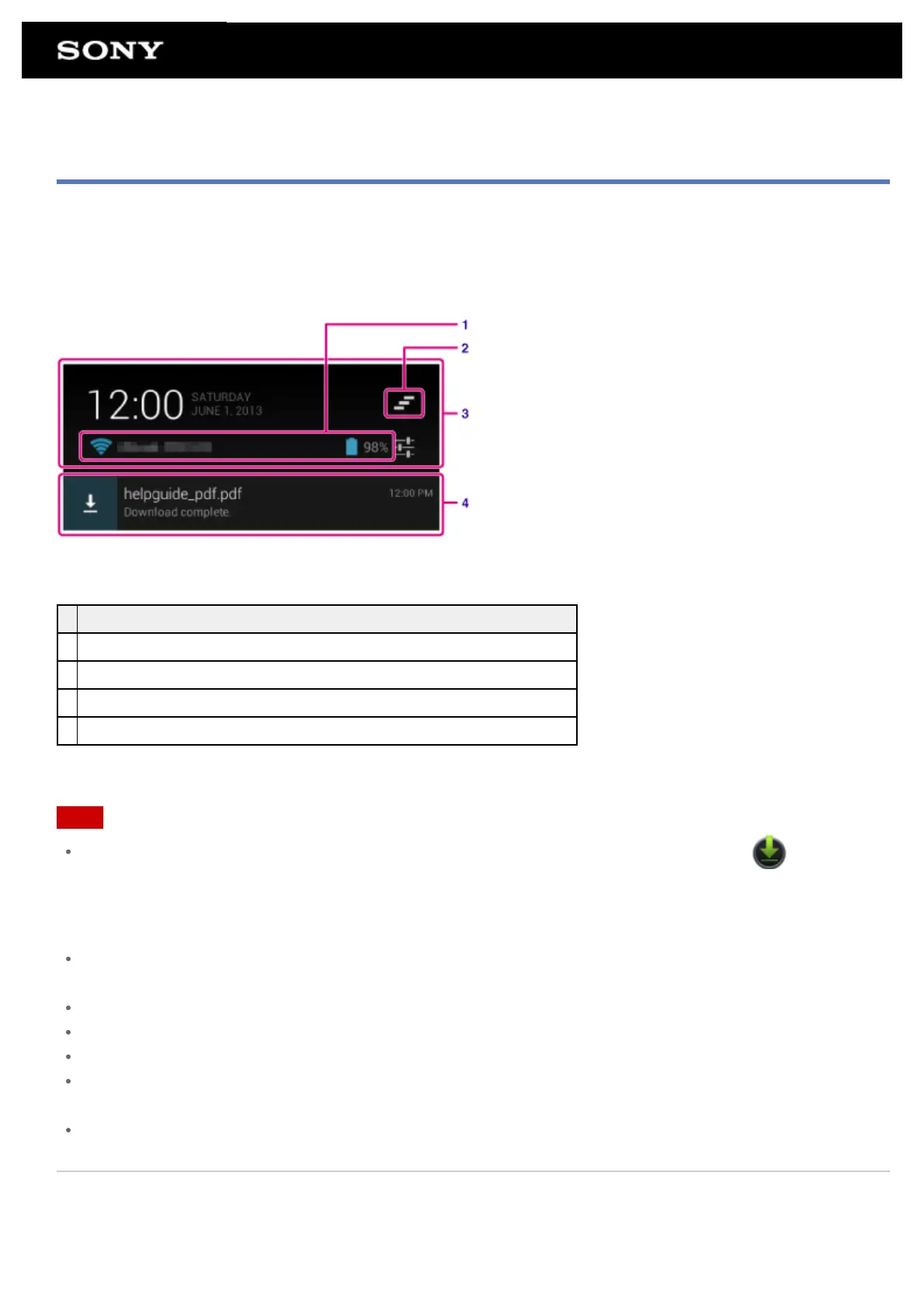
Confirming Download or Update Information on the Status Bar
The notification icons tell you that downloading is complete, you have e-mails, or updates are available. By
tapping the status bar, you can display the notification panel. You can display the control panel and open
downloaded files directly from the notification panel.
Tap somewhere on the screen other than the notification panel to close the notification panel.
Description
1 Displays the status of the battery and Wi-Fi connection.
2 Tap to delete the notification and close the notification panel.
3 Tap to display the control panel.
4 Tap to open items you are notified about and related apps directly.
Note
Even if you have deleted the notification, you can display the downloaded content from the [ Downloads]
app.
You can control the following items from the control panel.
Airplane mode: Turns on/off airplane mode. When this mode is turned on, wireless communications are turned
off.
Wi-Fi: Displays the Wi-Fi setting screen [Details].
Auto-rotate screen: Locks the screen so it does not rotate automatically [Details].
Brightness: Adjusts the screen brightness [Details].
Notifications: Turns on/off notifications. If you turn this off, the notification icons will not appear on the status
bar.
Settings: Displays the settings screen.
Related Topic
Changing the Settings






 To Next Page