Shooting Photos/Movies
You can shoot photos and movies using the built-in front and rear cameras. Various shooting settings such as
image size are also available. Location information also can be recorded to photos.
1. Tap [
Apps & Widgets] - [ Camera].
The [Camera] app starts.
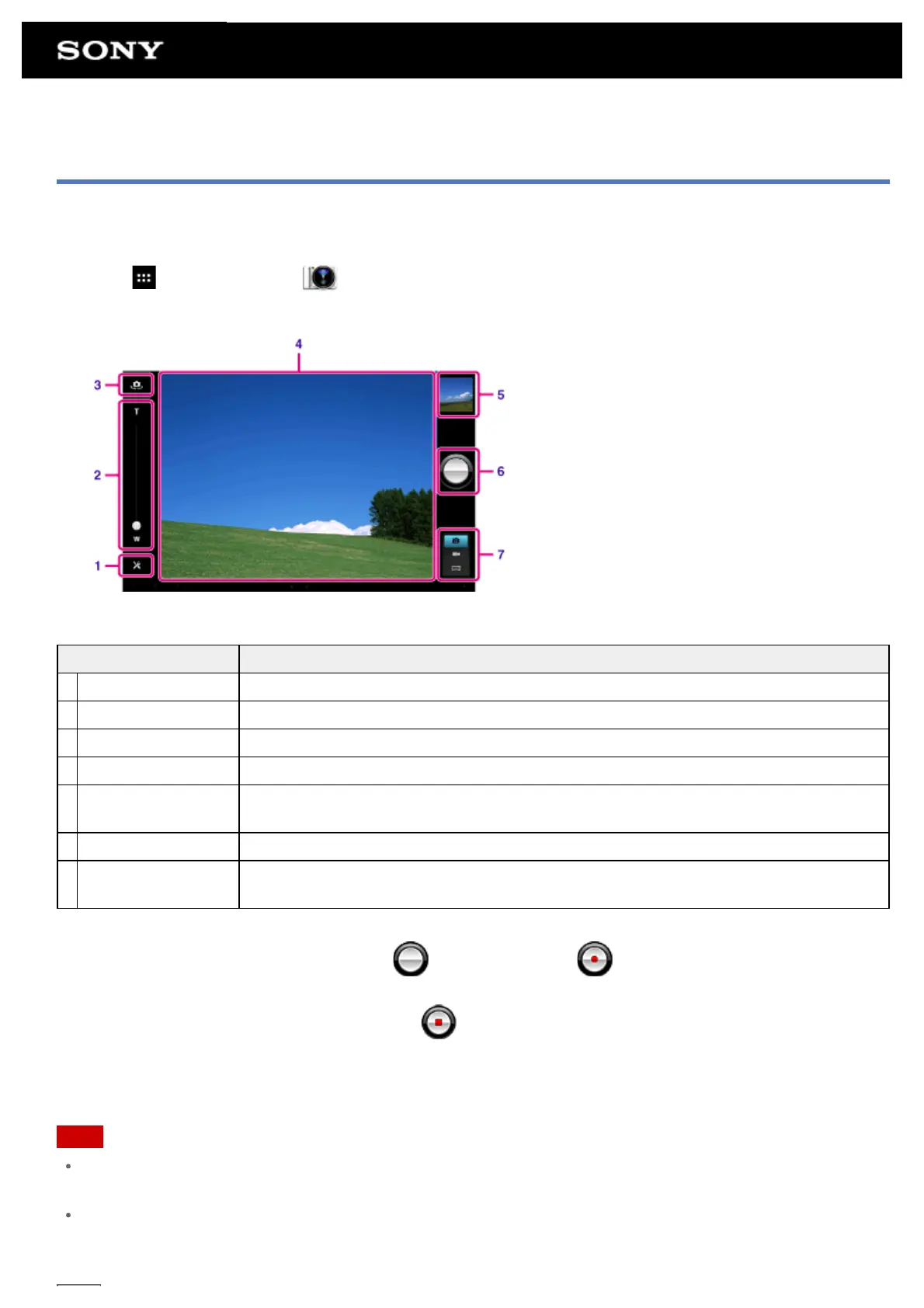
Display on the screen Description
1 Detailed settings Makes detailed settings for recording photos or movies.
2 Zooming Zooms in or out the image.
3 Camera switching Switches between the front camera and rear camera.
4 Preview screen Previews the subject you are aimed at.
5 Recording history
Displays a thumbnail of the last recorded photo or movie. Tap a thumbnail to start an
app that plays content.
6 Recording button Starts recording a photo or movie.
7
Switch recording
mode
Switches the recording mode among photo, movie, and panoramic photo.
2. Aim the camera to your subject, and tap
to shoot a photo or to shoot a movie.
For photos: A photo is taken.
For movies: Movie recording starts. Tapping
again stops recording.
You can play the recorded photos or movies using apps such as [Gallery] and [Album].
Note
Do not touch the lenses of the built-in cameras. If the lenses become dirty or scratched, image quality may be
affected.
Do not let direct sunlight enter the lenses of the built-in cameras regardless of whether your tablet is turned on
or off. Doing so may cause the camera to malfunction.






 To Next Page