Using the “Calendar”
You can manage your schedule on your tablet. By registering your Google account, you can sync your Google
Calendar and your schedule data.
1. Tap [
Apps & Widgets] - [ Calendar].
The [Calendar] app starts.
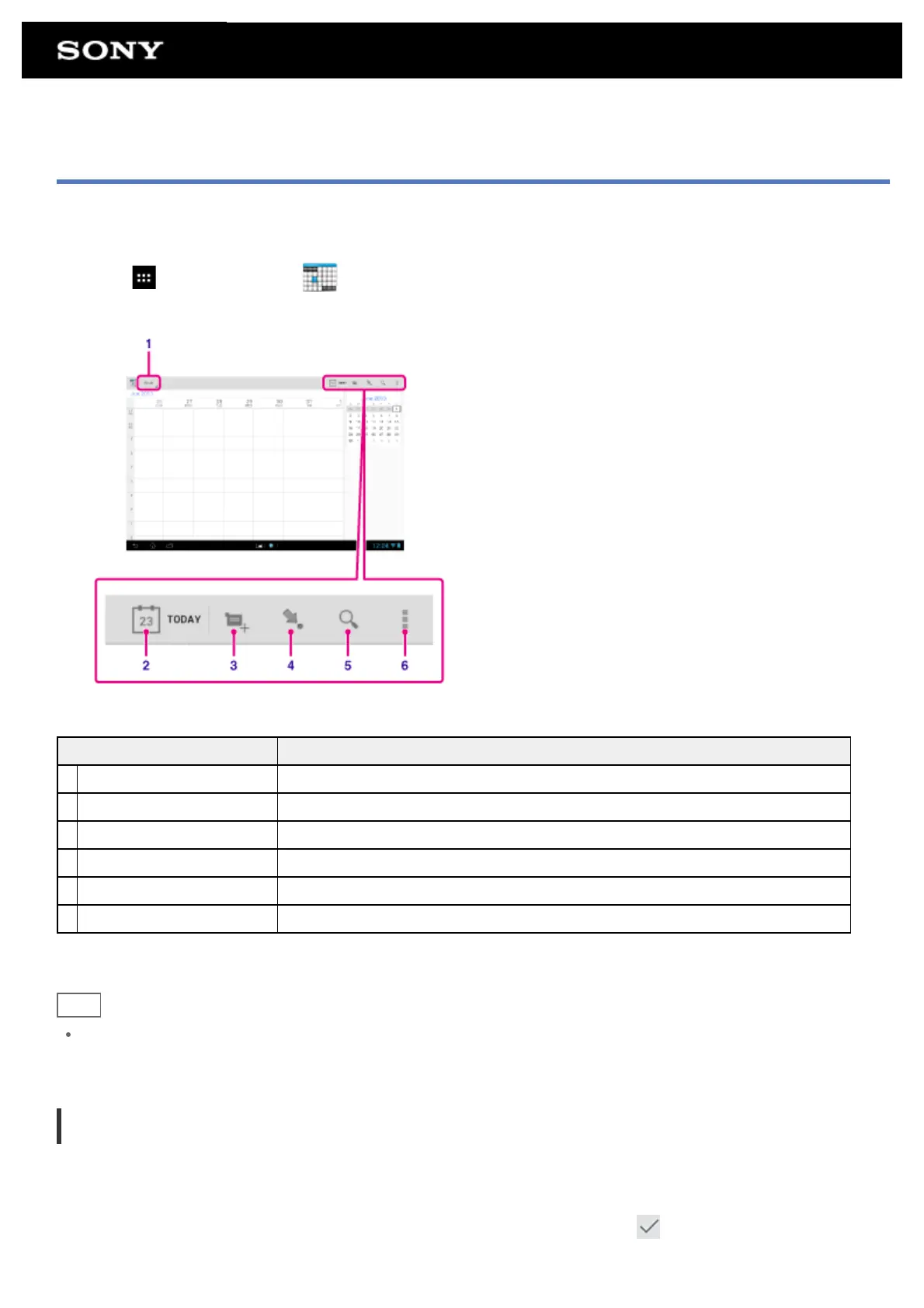
Display on the screen Description
1 Display range of schedule Selects a display range from [Day], [Week], [Month] or [Agenda].
2 TODAY Displays today’s schedule.
3 New event Adds events.
4 Set date Sets a date to be displayed.
5 Search Searches for an event.
6 Option menu Refreshes the display and configures general settings for the [Calendar] app.
Hint
You can flick up/down/right/left on the schedule list or mini-calendar to browse through months or dates and
times to find events.
Adding an event
1. Select the date you want to add an event for.
2. Tap and hold the time you want to add an event for, and then tap [New event].
3. Input the starting date and time and details of the schedule, and then tap [
DONE] at the top right of the
screen.







 To Next Page