SA165 Soleman User’s Guide 19
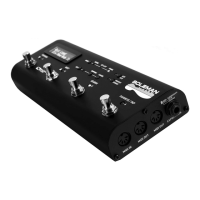
When the expression pedal’s treadle is moved, the LCD will update to display the currently active
expression continuous controller number, its value, and a bar graph that shows the value of the
controller on a scale from 0 to 127. At the same time, a Continuous Control MIDI message will be
output from the Soleman’s MIDI outputs with the CC number and value displayed on the screen.
USB MIDI Interface
The Soleman will appear as a MIDI device in your computer’s operating system (Windows and Mac).
No driver installation is necessary. The Soleman is able to communicate with audio production
software that utilizes MIDI, such as Ableton Live, Logic Pro, Pro Tools, Guitar Rig and more. All MIDI
messages sent on the Soleman’s hardware MIDI outputs will also be sent to the computer over USB.
MIDI messages can also be sent to the Soleman for recalling scenes via Note On messages and
recalling Panels via Program Changes.
Edit Menu
The Edit Menu provides access to a number of settings for the active Scene, List, or Panel. It also
provides options for configuring the expression output on a per-Scene or per-Panel basis. To access
the Edit Menu, press the Edit button. The Edit LED will begin to blink, indicating that Edit mode is
active. Once in Edit Mode, press the Edit button to navigate through the various options in the menu.
To save changes and return to normal operation, press the Confirm button. To cancel changes made
in the Edit Menu, press the Cancel button.
Sleeve : Ground
Ring : Power
Tip : Exp
Passive
TRS (Stereo)
Tip Expression
Expression Bar Graph
CC Number CC Value



 To Next Page