Display bandwidth
Like the receiving filter bandwidth, also the display bandwidth can be changed in
different ways.
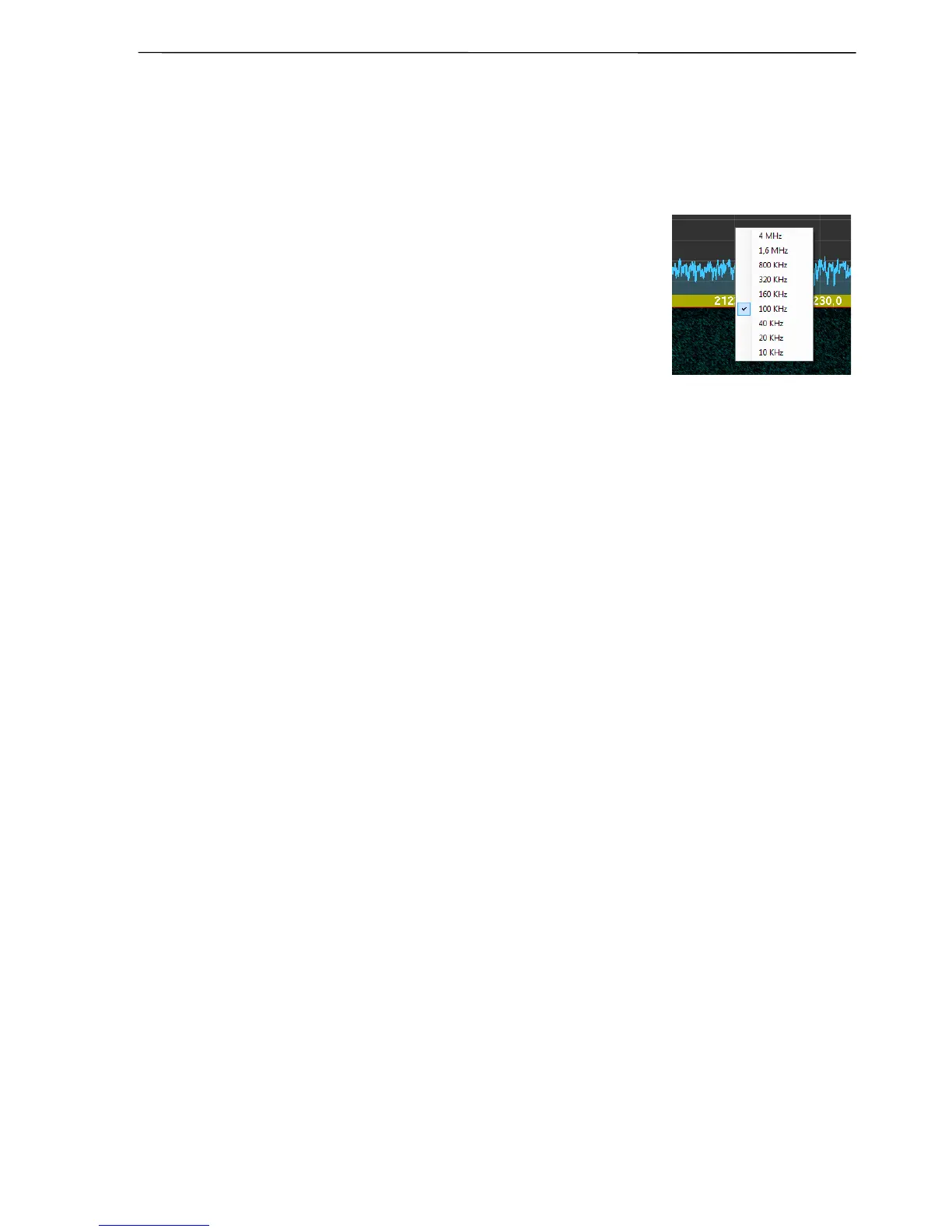
After pressing the right mouse button within the spectrum
or the waterfall a list with bandwidths presets from 10 kHz to
4 MHz appears.
Note: There is an important difference between the bandwidth of up to
max. 100 kHz and above 160 kHz. When a display bandwidth of up to
max. 100 kHz is selected, a continuous stream of IQ data is sent to the
computer for further processing (filtering, demodulation, fourier-
transform) and optional saving to hard disk. Data transfers with bandwidths of 160 kHz and more
are regulated differently: a continuous narrow band stream of IQ data is sent to the computer for
reception of the audio signal (filtering, demodulation), as well as data blocks for the fourier-
transform (spectrum and waterfall display). For this reason, the maximum amount of spectrum
size for bandwidths of 160 kHz and above is limited to 1024 points, and using the Time Machine
feature is only possible without changing the receiver frequency (changes of the receiver
frequency will force the signal buffer to be emptied, and the buffer filling starts again).
The display bandwidth can be changed continuously by moving the frequency axis
of the spectrum with the pressed right mouse button to the right or left.
Moving the frequency axis of the spectrum with the pressed left mouse button to
the right or left will change the displayed range without affecting the bandwidth
(the VFO frequency will not change as long as the frequency stays within the
displayed range).
By reducing the displayed bandwidth the resolution of the spectrum and waterfall
will be increased. At the same time more time is needed for signal accumulation
and spectrum calculation. Hence the spectrum graph looks less fluent and changes
jerkily. To compensate this effect, the function "FFT Rate Balancing" is
implemented, which can be switched on in the Settings window. When switched on,
the spectrum are calculated with a substantial overlap, what demands more CPU
power.
SSB-Electronic GmbH © Page 57 of 88 V2.8.1 Content is protected by Copyright.



 To Next Page