19
The guide below is provided to help you get started prinng with your ST3Di 3D printer. There are two ways to print:
rstly, you can print via the ST3Di Edit Soware; alternavely you can print directly from your printer via an SD card.
The informaon below outlines both processes for you.
PRINTING VIA THE ST3Di EDIT SOFTWARE
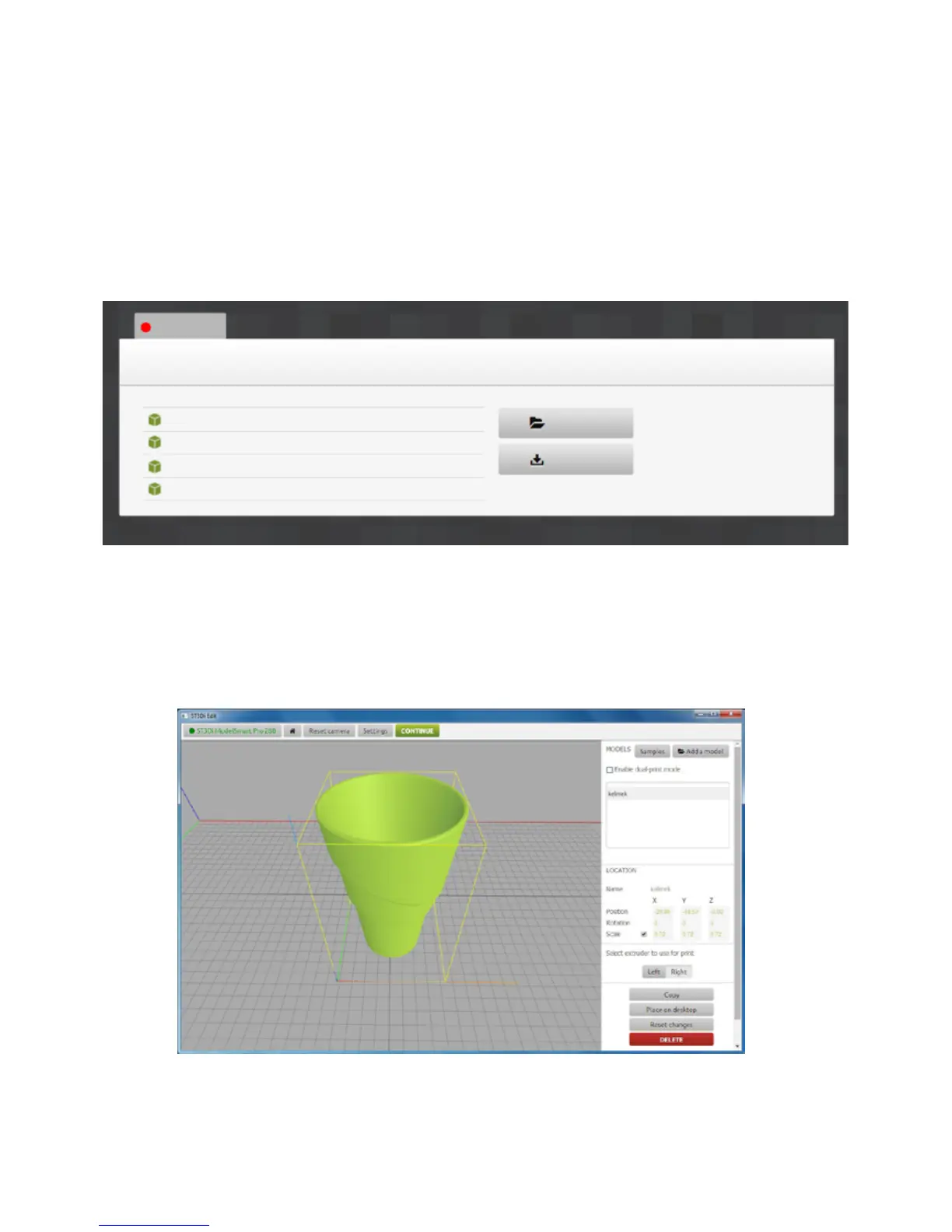
When you rst open the ST3Di Edit Soware (aer having selected your language of choice) you will see the home
screen as below (unless you have not yet connected your computer in which case you will rst be asked to conrm
if you have a ModelSmart Pro 200 or a ModelSmart Pro 280).
The list of les on the le-hand side shows you the model samples that are provided free when you purchase a ST3Di
3D printer. Addional samples can be found by clicking the ‘Samples’ buon on the right-hand side. Alternavely
if you have your own model les located on your computer you can access these by clicking the ‘Open File’ buon.
Once you have opened your selected model you will see the ST3Di Edit Scene as shown above. Any model loaded
from the Home Screen will be placed in 0 value of the X, Y and Z axis.
HOW TO PRINT
not connected
nut.stl
bolt.stl
vase.stl
sherrifbadge.stl
Open le
Samples
RECENTLY OPENED FILES


 To Next Page