22 23
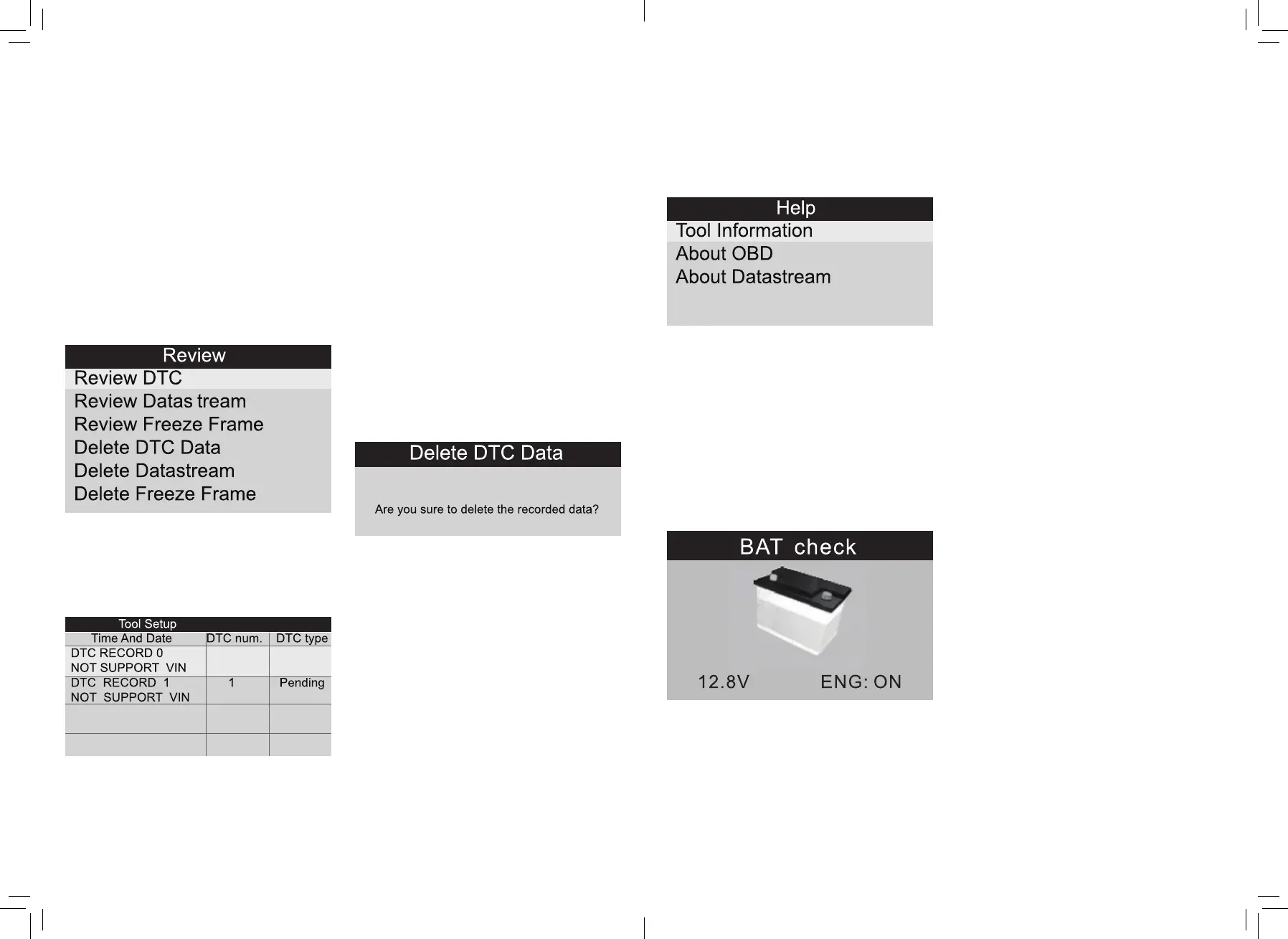
1) Review DTC
Select [Review DTC] in the Review and press
OK and screen will display the interface as
shown below:
The recorded DTC will be displayed as shown
in the above table.
You can use UP/DOWN and press OK button
to view detailed information.
2) Review Data stream
The operation is similar to the ”Review DTC”
function.
3) Review Freeze Frame
The operation is similar to the ‘’Review DTC”
function.
4) Delete DTC
Select [Delete DTC] in the Review and press
OK and the screen will display the interface
as shown below:
You can use DOWN key to change the first
letter. It can be switched among “P” , “B” ,
“C” and “U’ . Press OK moves the cursor to
next And then press UP key to input number.
After you input the code number, press OK to
view the definition of the code.
4.3 Review
This function is used to review the recorded
Data Streams, DTC, and Freeze. Select
[Review] in the Main Menu and press OK
and the screen will display the interface.
Press OK to confirm, and press ESC to return
to Main Menu.
5) Delete Data stream
The operation is similar to the “Delete DTC”
function.
6) Delete Freeze Frame
The operation is similar to the “Delete DTC”
function.
4.4 Help
This function is used to view tool information,
About OBD, and About Data stream.
Tool Information includes: software version,
hardware version, serial number, supported,
time and date.
About OBD: Relevant introductions
information about OBD.
About Data stream: Relevant introductions
information about Data stream.
4.5 BAT Check
4.6 LED Interpretation
1) GREEN LED — Indicates that engine
systems are “OK” and operating normally
(the number of Monitors supported by the
vehicle which have run and performed their
self-diagnostic testing is in the allowed limit,
MIL is off). There are no stored and pending
DTCs. The vehicle is ready for an Emissions
Test, and there is a good possibility that it
can be certified.
2) YELLOW LED ~ With MIL off, there may
be three possible conditions to cause the
yellow LED to light.
A. If a^Stored55 Diagnostic Trouble Code
is causing the Yellow LED to light, it is still
possible that the vehicle will be allowed to be
tested for emissions and certified.
B. If a “Pending” Diagnostic Trouble Code
is causing the Yellow LED to light, it is still
possible that the vehicle will be allowed to be
tested for emissions and certified.
C. If the illumination of the Yellow LED is
being caused by monitors that have not
completed their diagnostic testing, then
the issue of the vehicle being ready for an
Emissions Test depends on the emissions
regulations and laws of your local area.
NOTE: From the code retrieval procedure,
determine the status of each Monitor, take
this information to an emissions professional
to determine (based on your test results) if
your vehicle is ready for an Emissions Test.
3) RED LED — Indicates there is a problem
with one or more of the vehicle’s system.
A vehicle displaying a red LED is definitely
not ready for an Emissions Test. The red
LED is also vehicle’s instrument panel will
light steady. The problem that is causing the
red LED to light must be repaired before an
Emissions Test can be performed . It is also


 To Next Page