24 25
After you have read the information, press
ESC to exit. The other buttons are disabled to
prevent misoperation.
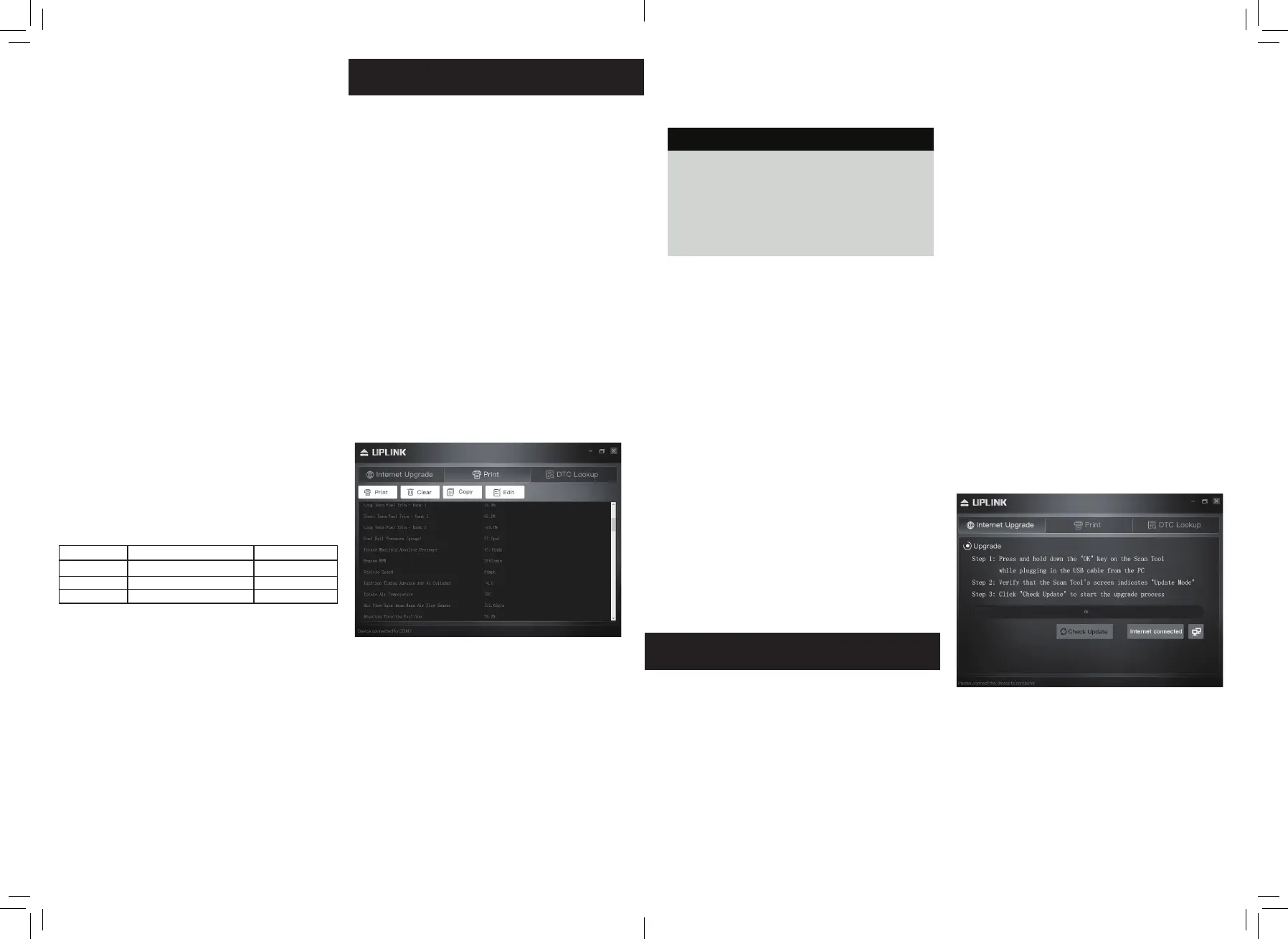
The Print Data function allows printing out
diagnostic data recorded by the scan tool or
customized test reports.
• To print out retrieved data, you need the
following tools:
1. Scan tool
2. A PC or laptop with USB ports
3. A USB cable
1) downloading the applications from www.
itoscanner.com.
2) Connect the scanner to computer with the
USB cable supplied.
3) Run uplink.exe in your computer.
suggested that the vehicle be inspected/
repaired before driving the vehicle further.
A. Repair the vehicle yourself. If you are
going to perform the repairs yourself,
proceed by reading the vehicle service
manual and following all its procedures and
recommendations.
B. Take the vehicle to a professional to have
it serviced. The problem(s) causing the red
LED to light must be repaired before the vehicle
is ready for is ready for an Emissions Test.
4.7 Audio Tone Interpretation
The audio tone is configured according to
the I/M readiness Status. This function is
invaluable when performing diagnostics and
driving at the same time, or working in bright
areas where USD illumination alone is not
sufficient.
Different audio tone with different LED light
indicates different I/M Readiness Status.
LED Light
Green LED
Yellow LED
Red LED
Beep Interval
5 seconds
5 seconds
5 seconds
Audio Tone
Two long beeps
Short,long,short beep
Four short beeps
4) Use the DP/DOWN scroll button to select
Print Data from Main Menu in the scan tool,
and press the OK button.
Print Data
Print All
Print Data Stream
Print Freeze Data
Print DTC
5) Use the UP/DOWN scroll button to select
the desired item to print from Print Data
menu.
• To print all retrieved data, use the UP/
DOWN scroll button to select Print All Data
from Print Data menu.
6) Press the OK button to upload data to the
computer.
7) In the uplink.exe Tool Kit, you could edit
.delete, copy and print the data in the text
box by selecting the by selecting the icons on
the upper right of window.
NOTE: Data stored in a language different
from current system settings of the scan tool
will not be printable, please adjust language
settings before printing. A reminder would
pop up under such circumstances.
This function allows you to update the scan
tool software and DTC library through a
computer.
To update your scan tool, you need the
following items.
1. Scan tool
2. A PC or laptop with USB ports
3. USB cable
1) downloading the applications from
www.itoscanner.com.
2) Run uplink.exe in your computer (Mac OS
does not compatible)
3) Press and hold any button until the USB
cable is connected with computer and
Release it after the scan tool displays a
message “Update Mode”.
4) Open the uplink software, click*’Check
update” button, will download the upgrade
file from internet then update to scan tool.
5) Wait for few minutes until update succeed.
6) During the update procedure.
7) Restart the scan tool to finish the whole
update.
5. Print Data
6. Update Mode
NOTE: When you made a wrong choice and
the scan tool is unable to work property, you
may need to update 1he programs. To hold
LEFT scroll button and power on the scan tool,
you will enter the update mode forcedly. Then
follow the procedure to refresh the program.


 To Next Page