4
PART 1 • English
2.0 YOURRECEIVER
2.1 DEFAULT PIN: 1234
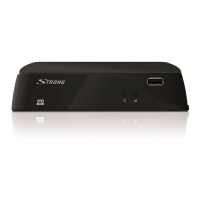
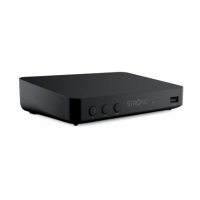
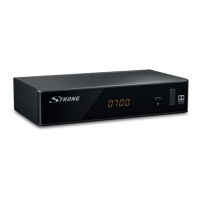
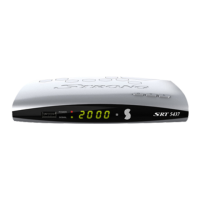
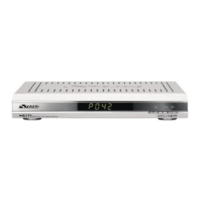
2.2 FrontPanel
Fig.1
1. 4 digits display Indicates current time in STANDBY mode
Indicates current channel number in OPERATING mode
2. USB Connector for USB storage devices.
3. IR sensor Point your remote control towards this sensor.
4. Mode indicator RED indicates that the receiver is in STANDBY mode.
GREEN indicates that the receiver is in OPERATING mode.
2.3 RearPanel
Fig.2
1. ANT IN To connect to your antenna for reception of broadcast signals.
2. TO TV To connect to the terrestrial antenna input of your TV set. This
connection will allow you to watch digital terrestrial programmes
depending on the tuner of your TV.
3. S / PDIF Coaxial To connect your receiver to a digital home theatre, AV
receiver or digital audio amplifier.
4. HDMI To connect your receiver with your TV set using an HDMI cable.
5. TV SCART To connect your receiver with your TV set using a SCART cable.
6. Video Connector To connect your receiver with your TV set using an RCA cable.
7. Audio L/R Connector
To connect your receiver with your TV set using an RCA cable.
8. Power Cord Your receiver requires a voltage of 220~240V AC (Auto-
selectable), 50/60Hz ±5%. Please ensure the local power
specification meets these requirements before connecting your
receiver to the wall outlet.
2.4 RemoteControl
Fig.3
1. q Switches the receiver On/Standby
2. ! Mutes all audio outputs of the receiver
3. PG+/PG- Page up/down in all list modes
4. DTV/VCR No function
5. INFO Opens the current channel information; 2x opens the current
event information and 3x the signal information
6. VOL+/VOL Increases/decreases the volume level
7. MENU Opens the main menu, in any menu you will get one step back
8. EXIT Exits from the menu or sub-menu
9. pq Menu Off: Change channel to previous/next.
Menu On: Moves the cursor up/down.


 To Next Page