EasyManua.ls Logo

Strong SRT 8222 - User Manual

Strong SRT 8222
26 pages
Print Icon
To Next Page IconTo Next Page
Loading...
User Manual
Bedienungsanleitung
Manuel d'ulisaon
Manuale d'uso
Manual del Usuario
Manual do Ulizador
Bruksanvisning
Instrukcja obsługi
Návod k obsluze
Používateľská príručka
Használa útmutató
Посібник користувача
Ръководство за употреба
Руководство пользователя
Digital Terrestrial HD Twin Tuner Receiver
SRT 8222
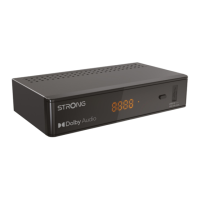
Picture similar

Questions and Answers

Summary

Licenses

1.0 INTRODUCTION

1.1 Safety Instructions

Read all operating instructions and safety guidelines before using the device. Use only specified attachments.

1.2 Storage

Store the device and its packaging carefully, especially during the warranty period, to protect it from damage.

1.3 Equipment Set-up

Consult a professional installer or follow the manual's instructions for proper equipment setup, including TV and antenna connections.

1.4 Accessories

Lists the included accessories: installation instructions, remote control, and AAA batteries.

2.0 YOUR RECEIVER

2.1 PIN-CODE DEFAULT: 1234

The default PIN code for accessing certain features and settings is 1234.

2.2 Front Panel

Details the functions of the receiver's front panel components: power button, channel buttons, display, mode indicator, IR sensor, and USB port.

2.3 Rear Panel

Describes the connectors on the rear panel: RF IN, TO TV, S/PDIF, HDMI, and LAN.

2.4 Remote Control

Explains the function of each button on the remote control for navigating menus and controlling the receiver.

2.5 Installing the batteries

Instructions for opening the remote control and correctly inserting the two AAA batteries.

2.6 Using the remote control

Guidelines for aiming the remote control at the receiver, considering range, angle, and potential signal interference.

3.0 CONNECTION

3.1 Connecting to a terrestrial antenna

Connect your terrestrial antenna to the RF IN connector on the receiver using a shielded cable.

3.2 Connecting to TV with HDMI cable

Connect the receiver to your TV using a high-quality HDMI 1.3 or higher cable for the best picture and sound quality.

3.3 Connecting to TV with SCART cable

Connect the receiver to your TV using a SCART cable for an alternative connection option.

3.4 Connecting to a Digital Audio Amplifier with S;PDIF

Connect your receiver to a digital amplifier or home theatre system using a cinch cable to the S/PDIF connector.

3.5 Connecting to a Digital Audio Amplifier and TV using HDMI

Connect the receiver to a digital amplifier via HDMI, then the amplifier to the TV for optimal audio and video.

3.6 Connecting to Ethernet

Connect the receiver to your network router or modem using a CAT5 cable for internet connectivity.

3.7 Connecting a USB storage device

Connect a USB 2.0 or higher storage device for recording TV events and playing back media files.

3.8 Connecting a secondary TV.

Loop-through the antenna signal to a secondary TV to share the same antenna connection.

4.0 STARTING UP FOR THE FIRST TIME

Initial Setup Guide

Guides through the initial setup, including language selection, country setting, and channel scanning.

5.0 QUICK GUIDE TO USING YOUR RECEIVER

Basic Operation

Covers turning the receiver on/off, changing channels, adjusting volume, and using the twin-tuner technology.

6.0 OPERATION

6.1 Changing channels

Explains four methods for changing channels: direct access, channel list, PG+/- keys, and navigation keys.

6.2 Info Banner

Shows how to display current channel and event information using the INFO button.

6.3 Selection of audio language

Allows selection of different audio streams or languages for supported channels using the AUDIO button.

6.4 Teletext

Accesses and navigates Teletext pages using the TEXT button and remote control keys.

6.5 Subtitles

Selects available subtitle languages for channels supporting multiple subtitle options.

6.6 Timeshift

Allows pausing live TV and resuming playback later using a connected USB storage device.

6.7 EPG (Electronic Programme Guide)

View event schedules, programme information, and schedule recordings using the EPG button.

6.8 Instant Recording

Records the current programme instantly using the recording button on the remote control.

6.9 Sleep

Sets an automatic switch-off timer for the unit to enter standby mode.

7.0 MAIN MENU

7.1 Programme

Manage channels, including moving, skipping, locking, and deleting channels from the list.

7.2 EPG (Electronic Programme Guide)

Detailed guide on using EPG to view schedules, mark programs for recording, and manage timers.

7.3 LCN (Logical Channel Numbering)

Enables or disables broadcaster-defined channel numbering (LCN) for organized channel lists.

7.4 Picture

Adjust picture settings like Aspect Ratio, Resolution, and TV Format to match your display.

7.5 Channel Search

Search for available channels automatically or manually. Note: this may delete existing lists.

7.6 Time

Set up time zone, auto standby, and scheduled power on/off times for the receiver.

7.7 Option

Configure OSD language, subtitle language priority, audio language priority, and digital audio output.

7.8 System

Configure system settings including parental guidance, password, software updates, recall list, and network.

7.9 USB

Manage USB devices for multimedia playback, PVR recording, and configure settings like photo display and subtitle preferences.

8.0 TROUBLESHOOTING

No Signal Issues

Troubleshoot 'No signal' issues by checking antenna connection, cable integrity, and signal strength.

Power and LED Indicator Problems

Resolve issues where the LED indicator or display is not switching on by checking power connections.

Picture and Sound Distortion

Address frozen picture, macro blocks, or distortion by checking signal quality and antenna adjustment.

Audio and Input Configuration Issues

Troubleshoot 'No sound' issues by checking volume levels, input selection, and cable connections.

Remote Control and Service Access

Resolve scrambled service access, no response from the remote control, or battery problems.

Post-Relocation Reception Problems

Troubleshoot reception issues after moving the receiver by checking antenna signals and settings.

Receiver Standby and Security Settings

Address automatic receiver standby issues, forgotten PIN codes, or channel lock codes.

USB Device and Recording Errors

Resolve playback or recording issues related to USB device speed, formatting, or storage capacity.

9.0 TECHNICAL SPECIFICATIONS

Demodulator, Transmission, and Video Specifications

Details specifications for the demodulator, transmission modes, and video decoder, including supported resolutions.

Audio, Tuner, and Memory Specifications

Provides specifications for the audio decoder, sampling rates, tuner frequency ranges, and memory.

Connectors and General Data

Lists receiver connectors and general data like supply voltage, power consumption, and operating conditions.

Overview

This document describes the Digital Terrestrial HD Twin Tuner Receiver SRT 8222, a device designed to enhance your television viewing experience with high-definition digital terrestrial broadcasts. It offers a range of features for channel management, recording, and multimedia playback, all accessible through a user-friendly interface.

Function Description

The SRT 8222 is a digital terrestrial receiver equipped with twin tuners, allowing you to record one channel while simultaneously watching another, even if they are on different frequencies. It supports high-definition video and various audio formats, including Dolby Digital Plus. The receiver connects to your terrestrial antenna to receive broadcast signals and outputs video and audio to your TV via HDMI or SCART. For digital audio, it offers an S/PDIF coaxial output. An Ethernet port allows for network connectivity, enabling access to network applications. The USB port supports external storage devices for recording and multimedia playback.

Usage Features

Initial Setup: When first powered on, the receiver guides you through an "Installation Guide" menu. Here, you can select your preferred On-Screen Language (OSD) and Country. The "Antenna Power" setting can be toggled On for active antennas (providing 5V power) or Off for passive antennas. "Scan mode" allows you to choose between scanning for "All" channels (scrambled and free-to-air) or "FTA" (Free-To-Air) channels only. After configuring these settings, initiate a "Channel Search" to find all available channels. If the "Installation Guide" doesn't appear, you can reset the receiver to factory settings via the "MENU" button and "System" submenu, using the default PIN 1234.

Channel Management:

  • Changing Channels: You can change channels directly by inputting the channel number using the 0~9 buttons on the remote, by navigating the "Channel List" (accessed with the "OK" button), or by using the ▲▼ or PG+/PG- keys.
  • Channel List: Pressing "OK" in viewing mode displays the "Channel List." You can toggle between "TV List" and "Radio List" using the ◄► buttons and access "Favourite Lists" with the "FAV" button.
  • Programme Edit: This menu, accessible with a password (default 1234), allows you to customize your channel lists.
    • Moving Channels: Select a channel, press "RED," move it to the desired position using ▲▼, and confirm with "OK."
    • Skipping Channels: Select a channel, press "GREEN" to mark it for skipping. Skipped channels will be bypassed when zapping but remain available in the channel list.
    • Locking Channels: Select a channel, press "YELLOW," and enter the PIN code to lock it. Locked channels require a password to view.
    • Deleting Channels: Select a channel, press "BLUE" to mark it for deletion, and confirm.
    • Favourite Lists: Add channels to up to four different favourite groups by pressing "FAV" in the "Programme Edit" menu, selecting the channel, pressing "FAV" again, choosing a "Favourite Type," and confirming.
    • Rename: Rename channels using the "Recall" button to bring up an on-screen keyboard.
  • LCN (Logical Channel Numbering): If activated and supported by the broadcaster, channels will be stored in a broadcaster-defined order. You can set LCN to "On" or "Off" in the "Channel Search" menu.

Information and Display:

  • Info Banner: Pressing "INFO" displays information about the current channel and event. Pressing it twice provides more detailed programme and technical information.
  • Teletext: Access Teletext with the "TEXT" button. Use 0~9 to input page numbers and coloured buttons for quick navigation.
  • Subtitles: Press "SUB" to view and select available subtitle languages.
  • Audio Language: Press "AUDIO" to select different audio streams or languages if available for a channel.
  • Picture Settings: The "Picture" menu allows you to match the receiver's output to your TV. Settings include "Aspect Ratio" (4:3 Letterbox, 4:3 Pan&Scan, 4:3 Full, 16:9 Widescreen, 16:9 Pillarbox, 16:9 Pan&Scan), "Resolution" (576i, 576p, 720p, 1080i, 1080p(50Hz), Auto), and "TV Format" (PAL, NTSC).

Recording and Timeshift:

  • Timeshift: Pause live broadcasts and resume playback later by pressing "II/TIMESHIFT." A connected USB storage device with sufficient speed and free space is required.
  • Instant Recording: Press ● to start recording the current programme. Press ■ to stop. The twin tuner allows you to record one channel while watching another.
  • EPG (Electronic Programme Guide): Access the EPG with the "EPG" button. View event schedules, detailed information, and mark programmes for recording. You can set timers for recording, changing the "Mode" from "View" to "Record." Coloured buttons allow adding, editing, or deleting timers. A suitable USB device must be connected for recording.

Multimedia Playback:

  • USB Multimedia: The USB port supports playback of various file types from connected USB storage devices (HDD or memory stick). Select "Music" for MP3s, "Photo" for JPGs, and "Movie" for video formats. "PVR" allows you to view recorded programmes. The unit supports FAT32 and NTFS formatted devices.
    • Photo Configure: Set preferences for photo viewing, including "Slide Time" and "Slide Mode" (e.g., random order).
    • Movie Configure: Adjust subtitle settings for movie playback, including "Subtitle Specific" (normal, big, small), "Subtitle BG" (background colour), and "Subtitle FontColor" (font colour).
    • Record Device: If multiple partitions exist on your USB device, select the one to use for recording.
    • Timeshift Size: Allocate free space on the USB device for the Timeshift function (default 1GB).

System Settings:

  • Sleep: Press "SLEEP" repeatedly to set an automatic switch-off time for the receiver.
  • Parental Guidance: Block programmes based on age ratings (Off, 1 to 18) using a password.
  • Set password: Change the default password.
  • Information: View receiver-specific details like hardware and software versions.
  • Recall List: If set to "On," pressing "RECALL" displays a list of last-watched channels. If "Off," it instantly returns to the previous channel.
  • Network Setting: Configure network connectivity via the Ethernet port. "DHCP" can be set to "On" for automatic IP settings or "Off" for manual configuration.

Maintenance Features

  • Battery Installation: Open the remote control cover, insert 2x AAA batteries, observing correct polarity, and replace the cover.
  • Remote Control Usage: Point the remote towards the front of the receiver within 5 meters and an angle of approximately 30 degrees. Ensure no obstacles block the sensor.
  • Software Update: Update receiver software via the USB port. Download the software file from the manufacturer's website, place it in the root directory of a USB storage device, and then select "Software Update" in the "System" menu.
  • Restore Factory Default: Reset the receiver to its default factory settings via the "System" menu. This will delete all channels, favourite lists, and settings, and the receiver will reboot to the initial "Installation Guide."
  • USB Device Formatting: The receiver can format USB devices to FAT32. Be aware that this will delete all data on the device.
  • Troubleshooting: The manual provides a comprehensive troubleshooting guide for common issues like no power, no signal, picture/sound distortion, no access to scrambled services, and remote control unresponsiveness. It suggests checking connections, antenna settings, power supply, and remote control batteries. For persistent issues, contact customer support.


Strong SRT 8222 Specifications

General IconGeneral
Aspect ratio16:9
Signal sourceTerrestrial
Video resolutions704 x 576, 720 x 576, 848 x 720, 1080 x 720, 1280 x 720, 1440 x 1080, 1920 x 1080 pixels
Supported video modes576i, 576p, 720p, 1080i, 1080p
Digital signal format systemDVB-T2
Personal Video Recorder (PVR) included-
Audio formats supportedAC3, MP3, PCM
Image formats supportedBMP, JPG
Video formats supportedH.264, H.265, MPEG2, MPEG4
Wi-FiNo
Ethernet LANYes
USB 2.0 ports quantity1
USB 3.2 Gen 1 (3.1 Gen 1) Type-A ports quantity0
Tuner typeDigital
Product colorBlack
Audio decodersDolby Digital, Dolby Digital Plus
Number of tuners1 tuner(s)
Channels quantity400 channels
Audio output channels- channels
Screen format adjustments4:3, 16:9
AC input voltage220 - 240 V
AC input frequency50 - 60 Hz
Power consumption (standby)1 W
Power consumption (typical)10 W
Storage temperature (T-T)-25 - 60 °C
Operating temperature (T-T)0 - 40 °C
Operating relative humidity (H-H)10 - 85 %
Display typeLCD
Weight and Dimensions IconWeight and Dimensions
Depth105 mm
Width170 mm
Height40 mm
Weight270 g

Related product manuals