37
• The “Auto adjust marker length” checkbox will set your markers to automatically
add length to accommodate the longest string of text or otherwise display all
elements on your marker. Uncheck this for fixed-length markers—when a line of text
is too long to fully display, the editor will notify you by changing the text to be red.
• “Marker security margin” allows you to set (in Inches) the amount of blank
marker to be left at either end.
Use the “Preview (front)” window to verify that your marker template is arranged
properly, then click OK to progress to the Basic Editor where you can begin entering text.
The Set Editor
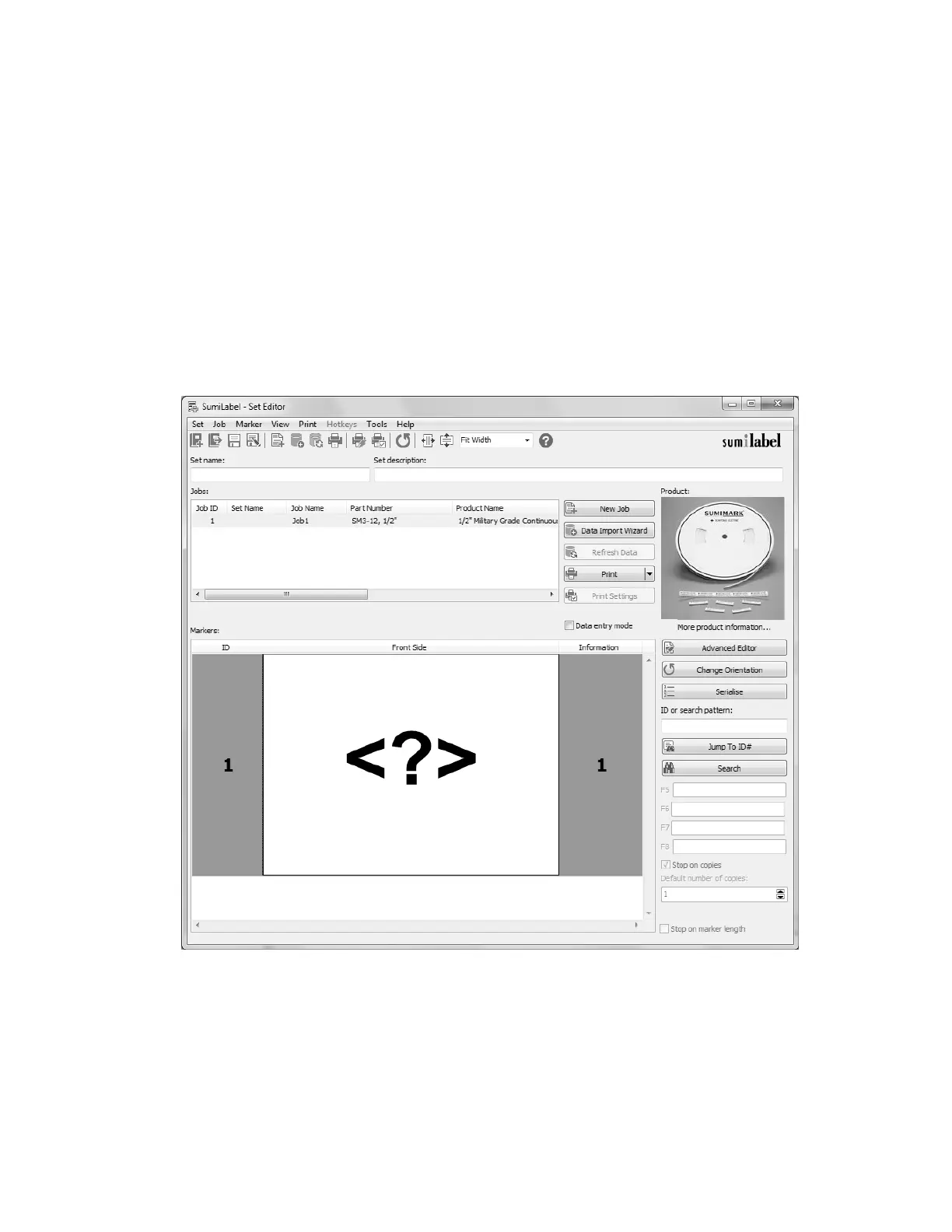
In the Set Editor, your view should look something like this:
Welcome to the Set Editor
The <?> symbol indicates a blank text element on your marker, ready to be filled with
information. Bear in mind that the <?> symbol is a placeholder; if you were to print this
marker, the result would be a completely blank marker sized to your default length.
To begin entering text, either double click the marker in question or check “Data entry
mode” to enter the mode for editing your markers.



 To Next Page