43
“Padding type” designates to which side of the serialization the “Padding string” will be
found, and defaults to Left. Within the padding string, you can specify placeholder digits for
the serialization on the appropriate side with zeroes. (e.g. “S/N00” and type Left means that
you have up to two digits for serialization before other characters in the padding begin to be
overridden.)
With the type set to Left, the string of text will precede the serialization in the finished
product. It is best to consider that the actual serialization will occur on the opposite side of
the string than the padding. (e.g. Type Left means the serialization will occur on the right
side of the string.)
Choosing the wrong “Padding type” means that data could potentially be overridden in the
serialization process if the wrong side is specified as padding vs. where the placeholder
digits are. Be cautious before you proceed to verify that all settings are correct.
The “Start On” box enables you to start serialization at thee marker that was selected when
you opened the Serialization tool, or to specify a specific marker to begin serialization from.
Advanced Editor
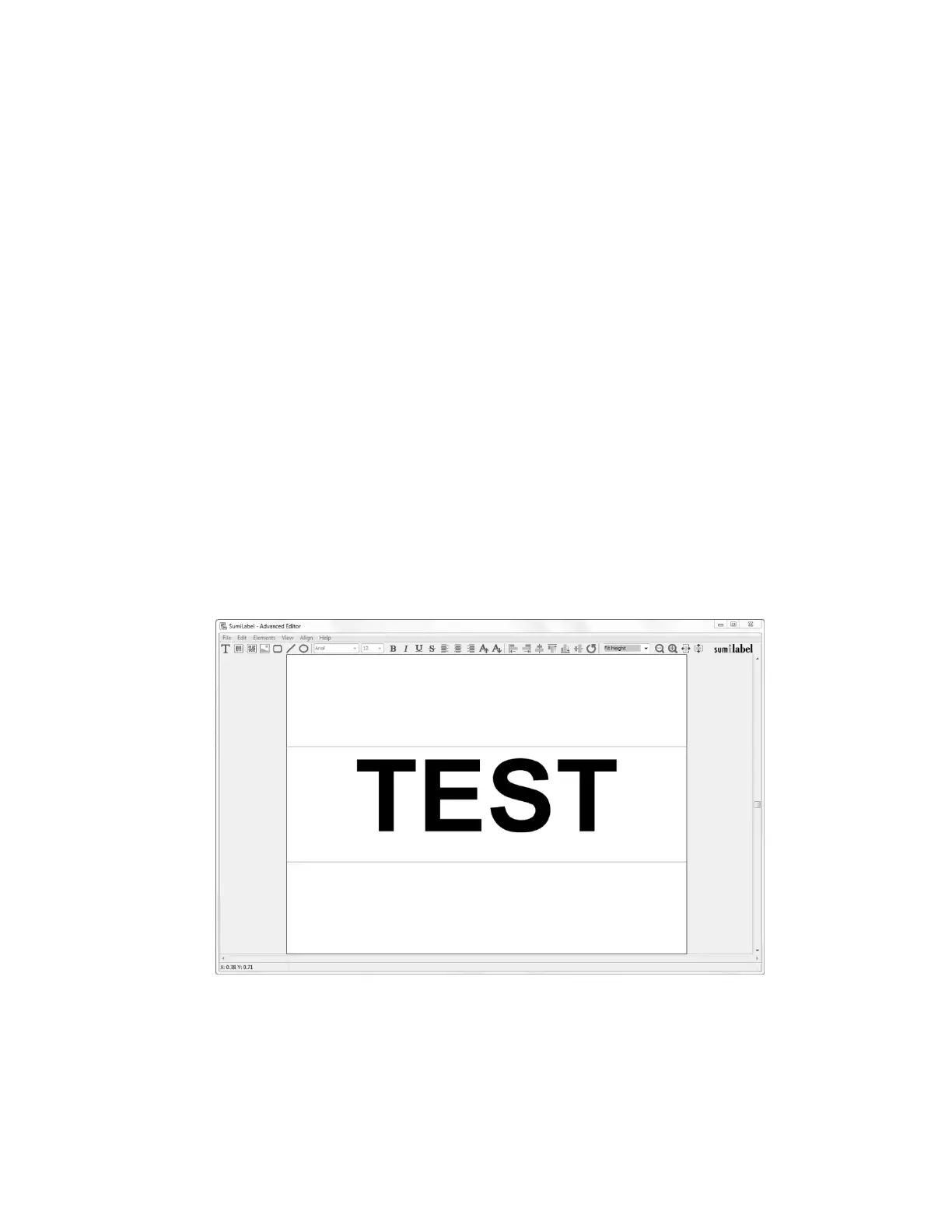
Used for adding important marker elements like graphics and barcodes in addition to
positioning and scaling, the Advanced Editor can be your one-stop-shop for all things
marker editing—that is, if you’re willing to brave the awesome responsibility that comes with
such unbridled power.
The Advanced Editor considers every individual bit of your marker to be an Element—be it a
line of text, a graphic, or a barcode. You can add, move, scale, rotate, and edit Elements
from within the Advanced Editor.
Please Note: When saving changes to a marker in the Advanced Editor, before exiting the
window, navigate to the “File” menu to view your options. To save a template of the marker
as it appears, choose “Save” or “Save As”. To apply the changes made in the Advanced



 To Next Page