SunFounder PiCrawler Kit
Windows Users
If you’re a Windows user, you can use Windows PowerShell to login Raspberry Pi remotely.
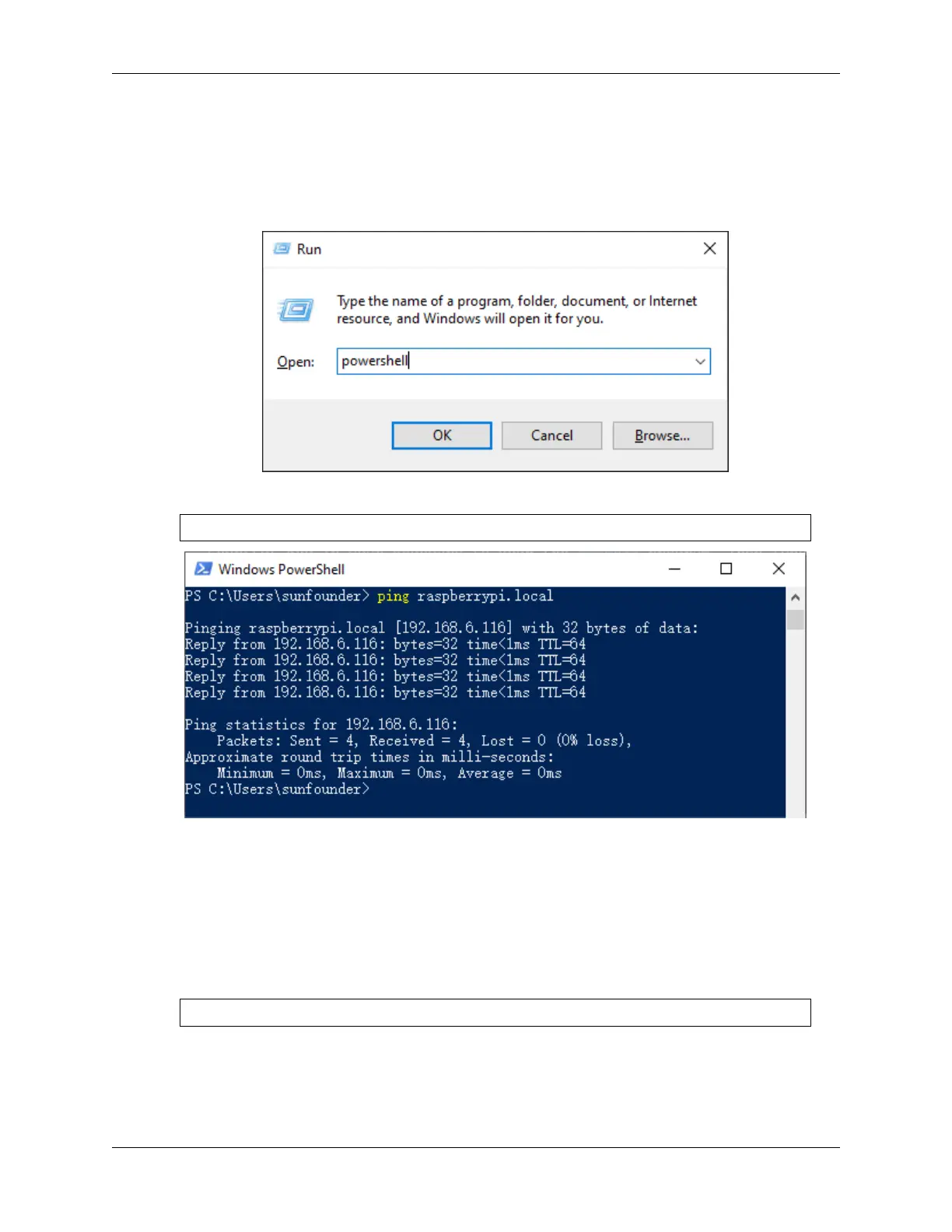
1. Press the windows + R shortcut key in your keyboard to open the Run program. Then type powershell in the
input box.
2. Check if your Raspberry Pi is on the same network by type in ping <hostname>.local.
ping raspberrypi.local
• If terminal prompts Ping request could not find host <hostname>.local,
it is possible that the Raspberry Pi failed to connect to the network.lease check the network.
• If you really can’t ping <hostname>.local, try to Get the IP address and ping <IP
address> instead. (e.g., ping 192.168.6.116)
• If multiple prompts like “Reply from <IP address>: bytes=32 time<1ms TTL=64” appear, it
means your computer can access the Raspberry Pi.
3. Type in ssh <username>@<hostname>.local (or ssh <username>@<IP address>).
ssh pi@raspberrypi.local
4. The following message may appear.
3.1. Quick Guide on Python 29



 To Next Page