SunFounder TS-10 10.1-inch Touch Screen
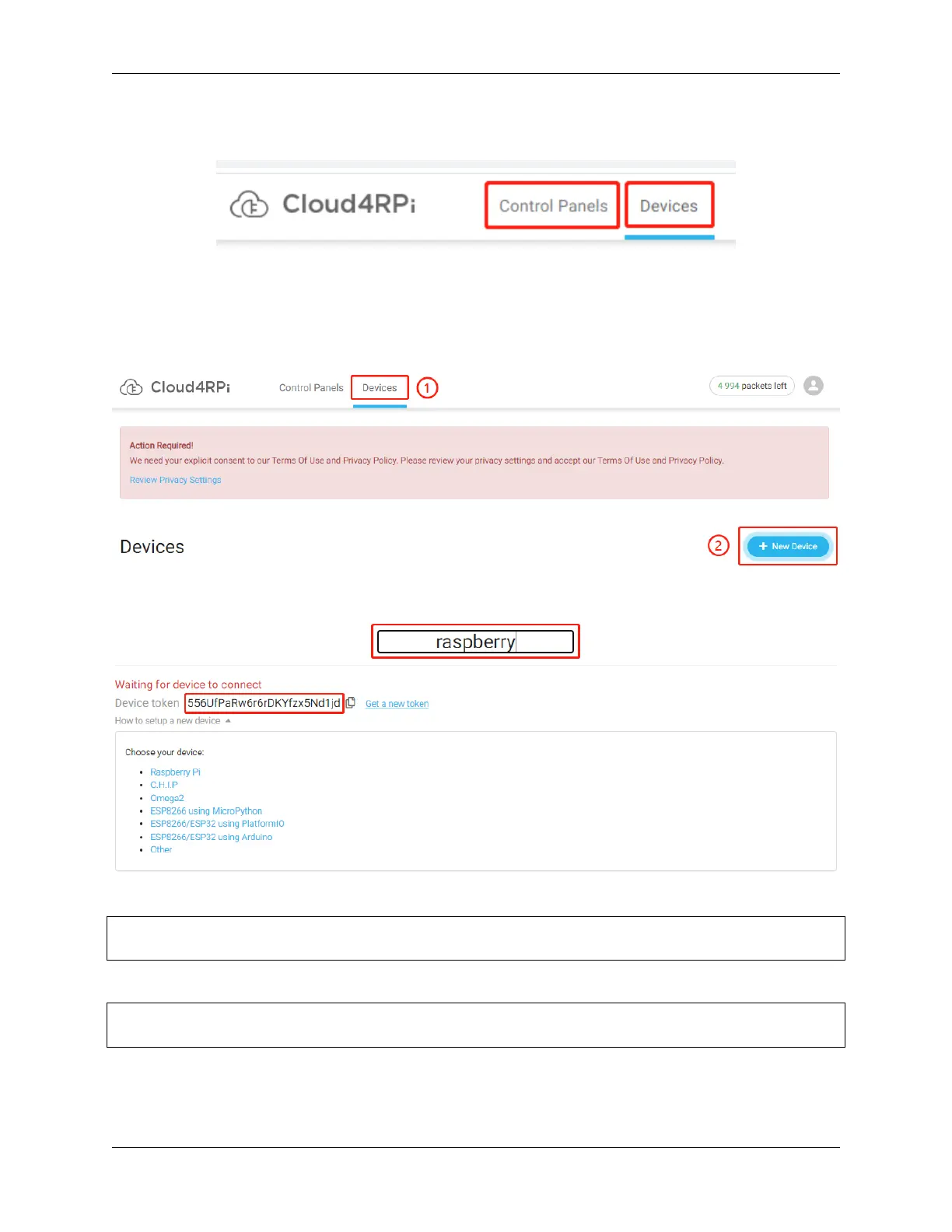
Once logged in, you should see two buttons at the top of Cloud4RPi, Devices to display the device connections and
Control Panels to display the information received or sent from the Raspberry Pi on the webpage.
Connect Your Raspberry Pi to Cloud4RPi
After logging in, click the Devices option, and then click New Device.
Give the new device a name, and copy the current Device token to the clipboard.
Open the terminal of the Raspberry Pi and download the test examples provided by Cloud4RPi.
cd /home/pi
git clone https://github.com/cloud4rpi/cloud4rpi-raspberrypi-python.git
Use a text editor such as Nano to modify the content of the control.py file.
cd cloud4rpi-raspberrypi-python
sudo nano control.py
Find the following line of code.
5.5. Cloud4RPi 79



 To Next Page