41
2
2-3. Apple CarPlay/Android Auto
Basic function
COROLLA_HV(TMUK)_OEM_MM_(EE)
2-3.Apple CarPlay/Android Auto
*
: This function is not available in some
countries or areas.
1 Enable Siri on the device to be
connected.
2 Connect the device to the USB
port. (P. 5 8)
3 Select “Always enable” or “Ena-
ble once”.
If “Do not enable” is selected, an
Apple CarPlay connection will
not be established. In this case,
the device can be operated as a
normal Apple device, such as an
iPod.
Apple CarPlay will remain disa-
bled until “Preferred service” on
the general settings screen is set
to “Apple CarPlay”. (P. 48)
Depending on the device con-
nected, it may take approxi-
mately 3 to 6 seconds before the
system returns to previous
screen.
The screen may change to “step
6” depending on the system.
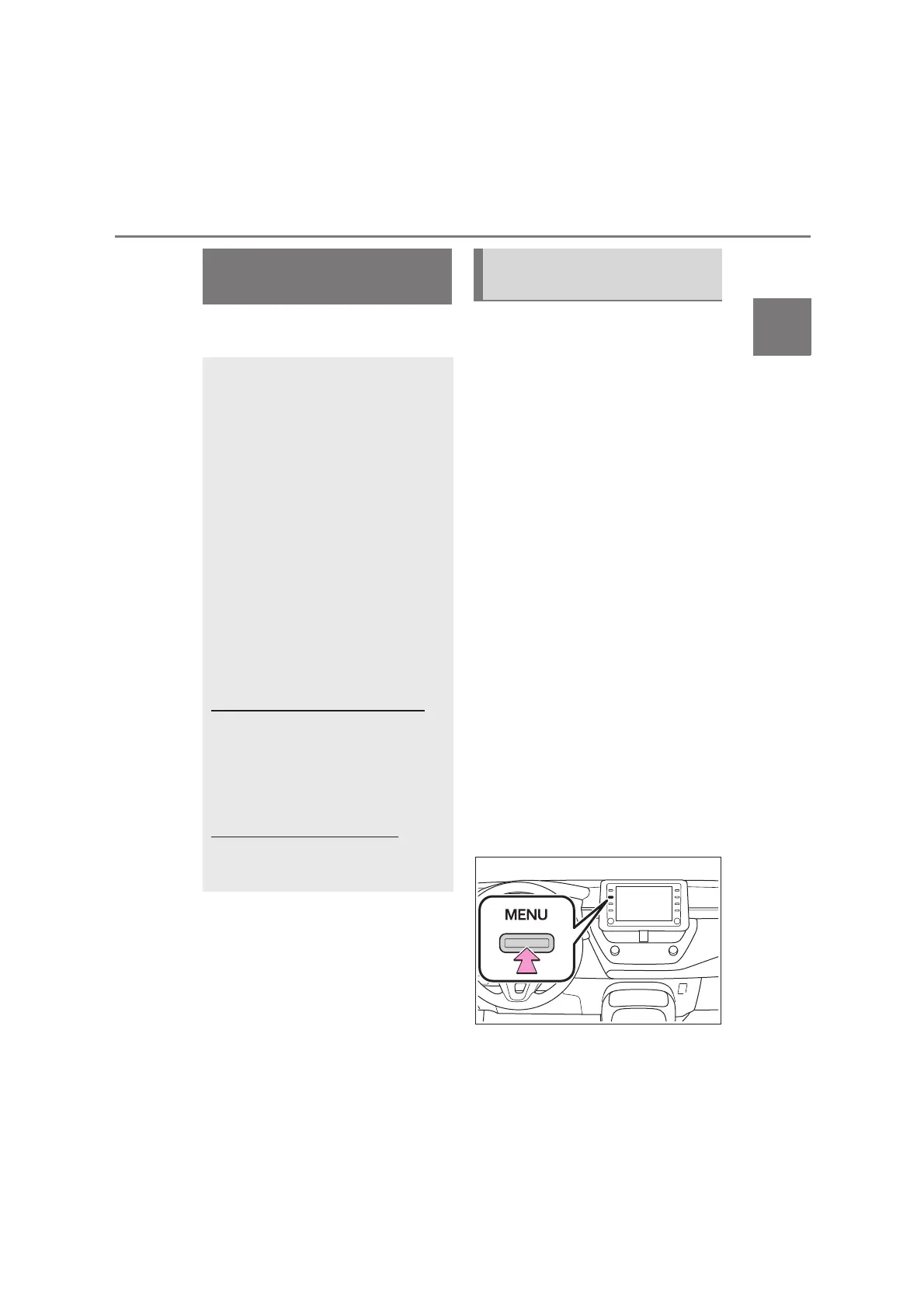
4 Press the “MENU” button.
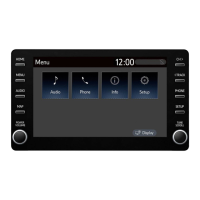
5 Select “Apple CarPlay”.
Apple CarPlay/Android
Auto
*
Apple CarPlay/Android Auto
allows some applications,
such as Map, Phone, and
Music, to be used on the sys-
tem.
When an Apple CarPlay/
Android Auto connection is
established, Apple CarPlay/
Android Auto compatible appli-
cations will be displayed on
the system display.
Compatible devices
Apple iPhone (iOS Ver. 9.3 or later)
that supports Apple CarPlay.
For details, refer to
https://www.apple.com/ios/carplay/
.
*
Android™ devices with Android OS
ver 5.0 or higher which support
Android Auto and have the Android
Auto application installed.
For details, refer to
https://www.android.com/auto/
.
*
*
: Some devices may not operate
with this system.
Establishing an Apple
CarPlay connection


 To Next Page