HM10 Home AC Charger Mobile Application (APP) User Guide
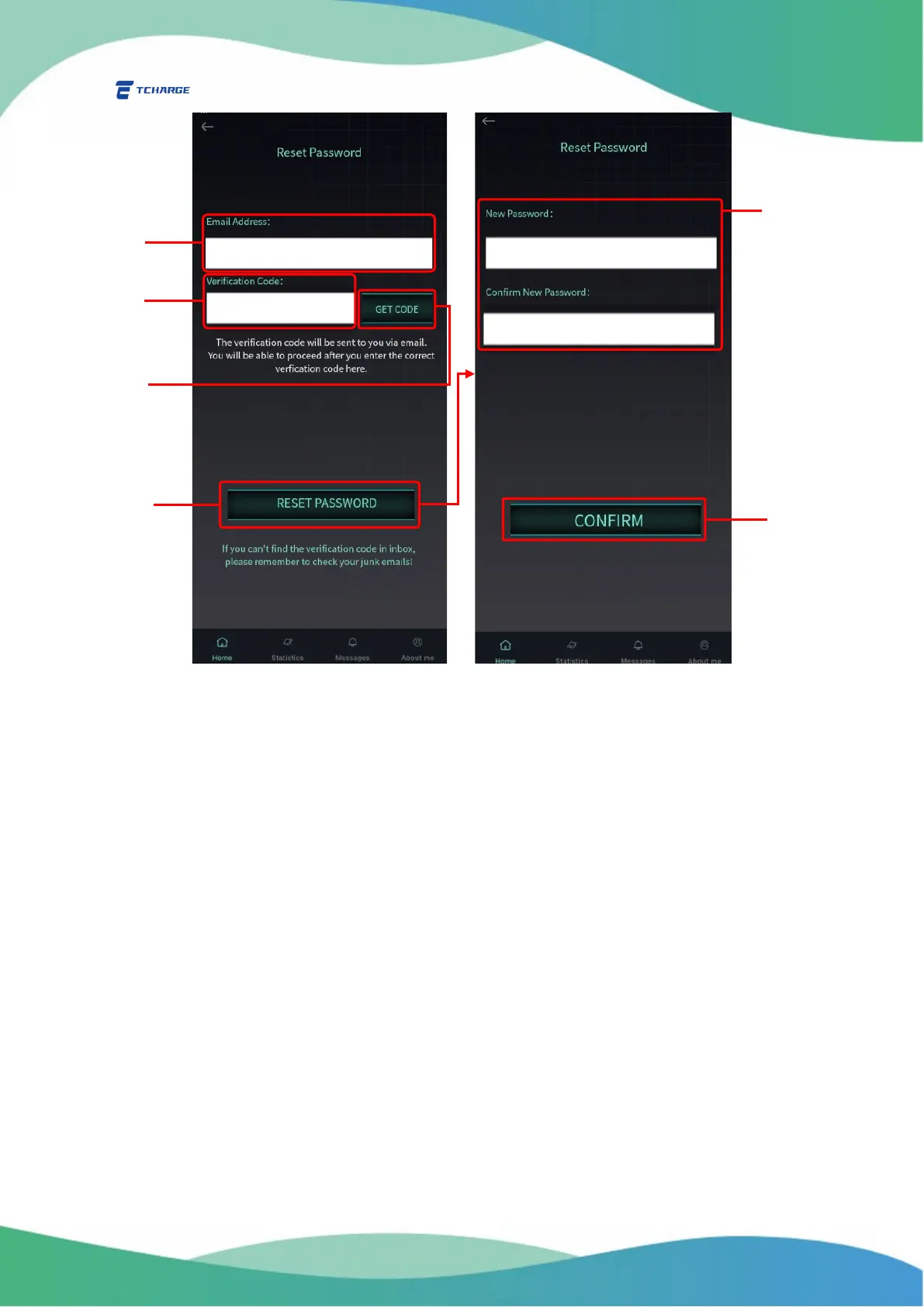
Figure 2.2 Reset Your Password
3. Configuring Wi-Fi for Your Charger
Before using your TCHARGE
®
HM10 charger at home, you need to connect the charger to your
home wireless network. This process must be done through TCHARGE
®
home charging APP.
Following steps below to configure Wi-Fi network connection on your home charger.
1) The TCHARGE
®
HM10 charger has a built-in hotspot. When the hotspot is activated, it can
be found in the list of nearby Wi-Fi hotspots on your mobile device. It is named in the
pattern of M3C-XXXXXXXX (Xs here represent 8-digit numbers) and has no password. This
hotspot is activated within 10 minutes every time the charger is powered up.
Prepare your mobile device with the APP installed on it. Power up your charger once
again if necessary (shut off the power supply temporarily, then restore).
2) You can use the APP’s QR-code-scan-connection function to connect your mobile device
to the charger’s hotspot.
To find the configure charger Wi-Fi function, either go to the Homepage through
the navigation bar at bottom and click on “Connect Your Charger to Wi-Fi” button


 To Next Page