HM10 Home AC Charger Mobile Application (APP) User Guide
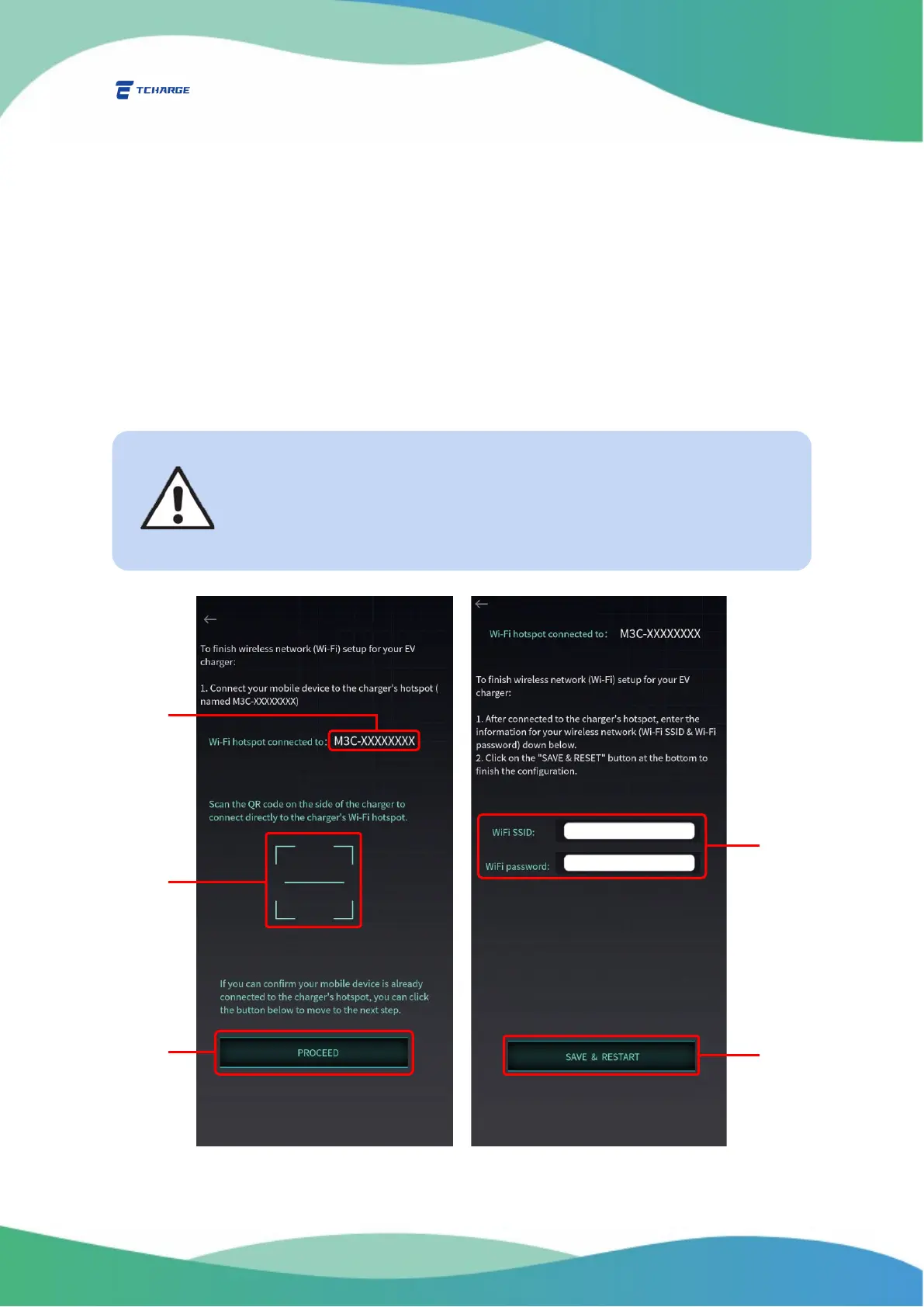
3) On Wi-Fi configuration page (Figure 3.2 left), click on QR code scanning icon in the center
(marked as C in Figure 3.2) to open your mobile device’s camera. Scan the QR code on
the label to the side of the charger with the camera. The APP will analyze the code and
connect your mobile device to the charger’s hotspot.
You can also skip this step if you have already connected your mobile device to the
charger’s hotspot. Click on “Skip” button (D1 in Figure 3.2) if you want to do so.
However, please note that the next step will not succeed if your mobile device is
not connected to your charger’s hotspot.
A message on this page will inform you of the name of the network your mobile
device is connected to (D2 in Figure 3.2). Please ensure that your device is
connected to the correct charger’s hotspot before you skip this step.
Figure 3.2 Configuring TCHARGE
®
HM10 Charger’s Wi-Fi Connection
Please note that when your mobile device is connected to the charger’s
hotspot, it will lose internet connection temporarily. Internet connection
is not required for the remaining steps of TCHARGE
®
HM10 charger’s Wi-
Fi configuration.


 To Next Page