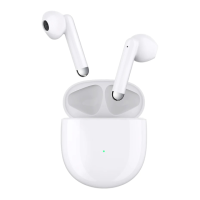
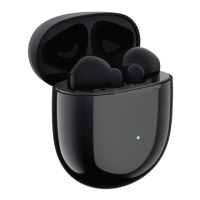
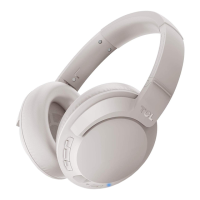
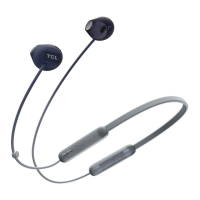
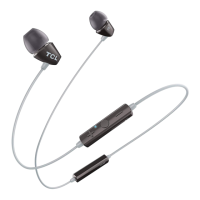
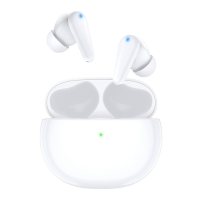
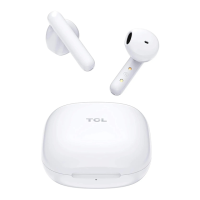
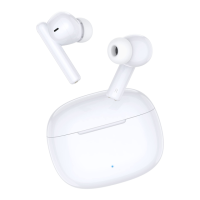
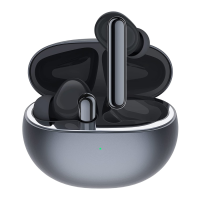
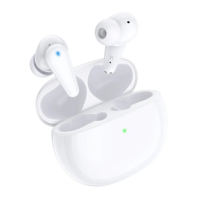
The TCL MOVEAUDIO Neo are wireless earbuds designed for an immersive audio experience, offering high-quality sound for music and phone calls. These earbuds are accompanied by a charging case, a USB Type-C cable, earplugs, a quick start guide, and a warranty card, ensuring a complete package for the user.
Function Description
The primary function of the TCL MOVEAUDIO Neo is to provide wireless audio playback and hands-free calling. They connect to your device via Bluetooth, allowing you to enjoy music and manage calls without being tethered by wires. The earbuds feature touch control areas, enabling intuitive operation for various functions.
A key feature of these earbuds is Active Noise Cancellation (ANC), which reduces external sounds, allowing for an undisturbed listening experience. In addition to ANC, they offer a Transparency mode, which allows external sounds to pass through, keeping you aware of your surroundings. An OFF mode is also available to disable both ANC and Transparency.
For calls, the earbuds include a mute microphone function, providing privacy when needed. They also support voice assistant integration, allowing users to activate Siri® or Google Assistant™ on their smartphone for voice commands. A low latency mode is available to synchronize sound and visuals, enhancing the experience for videos and games on supported devices.
The charging case serves as both a storage unit and a portable charger for the earbuds. It features a case LED indicator that displays the charging and communication status of both the earbuds and the case itself. The earbuds also have their own LED indicators to show their individual status.
Usage Features
To begin using the TCL MOVEAUDIO Neo, the earbuds must first be activated. This involves placing them in the open charging case for at least 5 seconds, after which the earbud LED indicators will flash blue. Closing and then reopening the case completes the activation process. If activation fails, charging the earbuds and repeating the process is recommended.
For optimal comfort and sound quality, users can replace the ear tips. The manual provides instructions on how to remove and attach new ear tips, ensuring a secure and comfortable fit in the ear canal. Proper wearing of the earphones is also emphasized, with instructions to twist them into the correct position for a snug fit.
Pairing the earbuds with a Bluetooth device is a straightforward process. After opening the charging case and keeping it near the device, the earbud LED indicators will flash blue. Users then unlock their device, turn on Bluetooth, and select "TCL MOVEAUDIO Neo" from the list of available devices to establish a connection. The earbuds automatically enter pairing mode when opened for the first time or after a reset. If pairing isn't established within 3 minutes, the pairing mode will be canceled, and the earbuds will turn off.
Once paired, the earbuds will automatically reconnect to the last paired device when taken out of the charging case, provided the device's Bluetooth is on and within range. Disconnecting can be done by placing both earbuds back in the charging case and closing the lid, or by turning off the Bluetooth function on the device.
Playback controls for music are managed by tapping the right earbud. A double tap plays or pauses music, a 2-second press and hold on the right earbud skips to the next song, and the same action on the left earbud goes to the previous song. Triple tapping the right earbud switches between four preset EQ modes: Music, Bass, Podcast, and Treble, with Music mode being the default.
Call management is also intuitive. A double tap on either earbud answers or ends a call, while a 2-second press and hold rejects an incoming call. During a call, a 2-second press and hold on either earbud mutes or unmutes the microphone.
Activating the low latency mode involves touching and holding the right earbud for 5 seconds. For voice assistant activation, a triple tap on the left earbud will prompt Siri® or Google Assistant™.
Switching between ANC, Transparency, and OFF modes is achieved by pressing and holding both earbuds simultaneously for 3 seconds. A prompt tone will indicate the mode change.
Maintenance Features
Regular maintenance is crucial for the longevity and performance of the TCL MOVEAUDIO Neo. The manual advises handling the earbuds and case with care, as they contain sensitive electronic components and batteries that can be damaged by drops, burns, punctures, crushing, disassembly, excessive heat, or liquids.
Cleaning the device regularly with a dry and soft cloth is recommended. It's important not to use liquids or cleaning products. Before cleaning, users should remove the earbuds from the case and disconnect the USB cable from both the case and the computer or power adapter.
Charging the charging case is done by connecting it to a computer or a compatible USB adapter using the supplied USB Type-C cable. The LED indicator flashes orange during charging and green when fully charged. It takes approximately 2 hours to fully charge the case. Only the supplied USB charging cable should be used to prevent product damage. The charging environment should be well-ventilated.
To charge the earbuds, they should be placed in the charging case, and the lid closed. The case LED indicator will flash green for 3 seconds when charging begins. It's important not to insert wet or dirty earbuds into the charging case to ensure optimal results.
Checking the battery status of the charging case involves opening or closing the case. The LED indicator will show orange for 3 seconds if the battery power is less than 20%, and green for 3 seconds if it's 20% or more. For the earbuds, a low battery prompt will be heard when their charge drops below 10%, indicating they need to be placed in the case for charging.
If connection or pairing issues arise, restarting the earbuds can help. This involves placing both earbuds in the charging case, closing the case, waiting for more than 2 minutes, and then taking them out. The pairing information is retained after a restart.
For more persistent issues, resetting the earbuds to factory settings is an option. This is done by placing the earbuds in the open charging case and pressing and holding either earbud for 8 seconds. The earbud LED indicators will flash blue, stay on for 5 seconds, and then turn off, signaling a complete reset. This action deletes all pairing information, and the earbuds will automatically enter pairing mode afterward.
The manual also provides troubleshooting tips for various problems, including issues with powering on, charging, battery life discrepancies, connection problems (such as inability to pair or frequent disconnections), and audio problems (like no sound from one earbud, sound lags, music playing through the device speaker, poor audio quality, or issues with call audio). These tips guide users through checks like ensuring Bluetooth is enabled, checking connection range, removing earbuds from pairing lists, and resetting the device. For noise canceling function issues, it suggests checking if the function is enabled, ensuring proper ear tip fit and seal, and cleaning sound openings.



 To Next Page
 General