TV SETUP
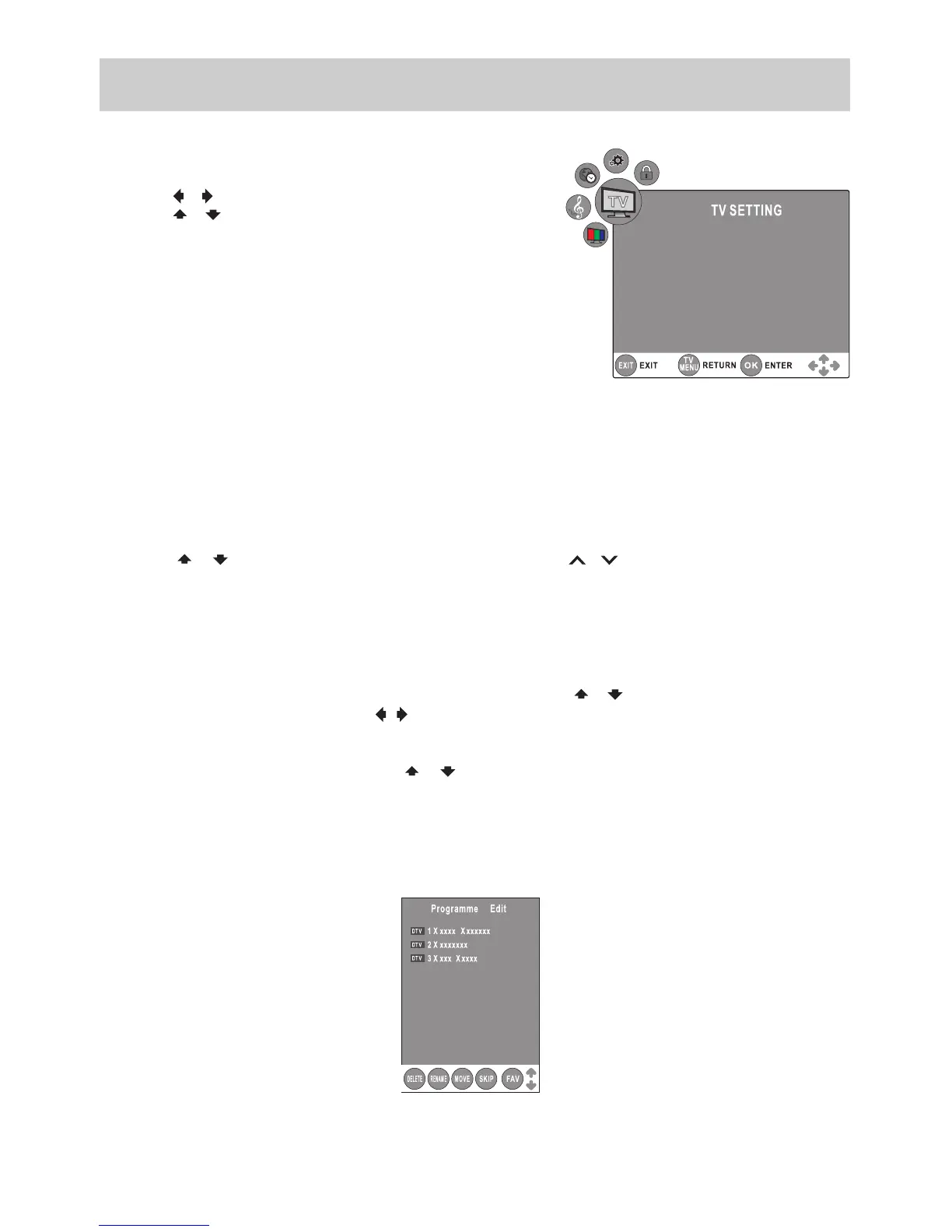
TV SETTING MENU (only in ATV or DTV mode)
1. Press the TV MENU button.
2. Usethe
or
button to select the TV SETTING.
3. Usethe
or
button to select the options (Auto Tuning, DTV
Manual Tuning, ATV Manual Tuning, Programme Edit or CI
Information), and then press the ENTER/OK button to enter
the settings.
4. PresstheTV MENU button to return to previous menu, repeat
step2toadjustothersettings.
5. Toexitthesetupmenuandreturntothenormalscreen,press
the EXIT button.
• AutoTuning
Automatically scan, sort and store all available programmes.
• DTVManualTuning
Perform manual search for DTV (Digital TV) programmes.
• ATVManualTuning
PerformmanualsearchandnetuneforATV(AnalogTV)programmes.
• ProgrammeEdit
All channels stored are listed in the Programme Edit menu, you can edit the channels by the following steps:
1. Use the
or
button to select a channel. (Press the PAGE/CH / button to skip to previous / next
page.)
2. PresstheRED / GREEN / YELLOW / BLUE button or the FAV button to edit the channel.
• DELETE
Press the RED button to delete the selected channel and press the ENTER/OK buttontoconrm.Pressthe
TV MENU button to stop delete.
• RENAME(for ATV mode only)
Press the GREEN button to rename the selected channel. Use the
or
button to select the characters to
represent the station name, use the
/
button to move the next position of character, and then press the
TV MENUbuttontoconrm.
• MOVE (for ATV mode only)
Press the YELLOW button and use the
or
button to move the selected channel, then press the TV
MENUbuttontoconrm.
• SKIP
Press the BLUE button to skip or not skip the selected channel.
• FAV(Favourite)
Press the FAV button to set or cancel the selected channel as one of the favourite programmes.
• CIInformation
DisplayCAMandSmartcardinformation;selectthelanguageifavailable.




 To Next Page