• Show CooTVGuide on epg button pressed
• Enable VFD scrolling
: If set “yes” text will scroll on VFD.
• Infobar timeout
: Set the desired time after which you want the Infobar to disappear.
• Show event-progress in channel selection
: If set to “yes” the progress of the current event in the channel list is displayed.
• Show channel numbers in channel selection
: If set to “yes” the channel numbers in the channel list will be displayed.
• Show infobar on channel change
: If set to “yes” the inforbar will be displayed when changing channels.
• Show infobar on skip forward/backward
: If set to “yes” the inforbar will be displayed when Fast Forwarding or Rewinding during media
player.
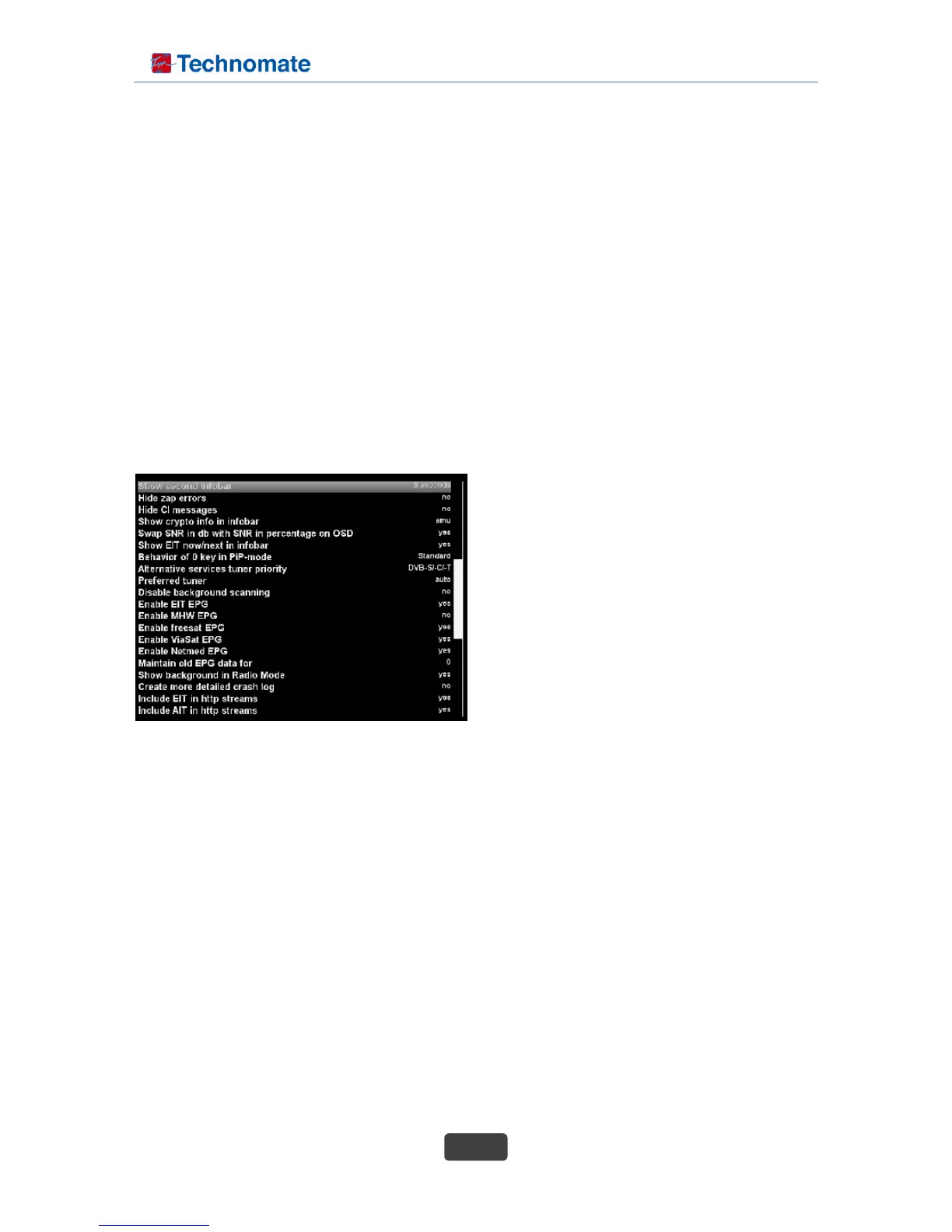
• Show second infobar
: Set the desired time after which you want the 2
nd
Infobar to disappear. You can choose between
one and ten seconds or “no timeout”.
• Hide zap error
: This option allows you to hide any zap error
messages.
• hide CI messages (in available model only)
: This option allows you to hide any Common
Interface card error messages.
• Show crypto info in infobar
:Show encryption info in the inforbar (if the skin allows that).
• Swap SNR in db with SNR in percentage on OSD
: This option allows you to the SNR as a percentage
• Show EIT now/next in infobar
: Allows the EIT now/next event data to be displayed in infobar.
• Behavior of “0” key in PiP-mode
: Choose what you want the button “0” to do when PIP is active.
• Alternative services tuner priority
: Choose the order in which the tuner types will be used (for watching and recording).
• Preferred tuner
: Choose with tuner will be used first. If set to “auto” the system will give priority to the tuner having
the lowest number of channels/satellites..
• Disable background scanning
: When tuned to a service the system will normally scan the transponder for any changes and save
them. Only set to “no” if you’re absolutely sure what you’re doing.



 To Next Page