5. Select the required firmware file from the list under the Released tab.
6. Check the release notes section related to this version before upgrading.
7. Click Program button to upgrade NAC to your desired version.
If you are unable to upgrade the firmware using the above method in case the
panel is non-responsive please follow the instructions below as an alternative.
Using the Firmware Loader
This method requires USB connection directly to NAC.
Method
To upgrade the NAC panel firmware:
1. Remove power to the NAC panel and wait for all LEDs to turn off.
2. Fit test links 1 and 2.
3. Reconnect power to the panel.
4. Use the USB cable to connect the computer to the NAC panel’s USB port.
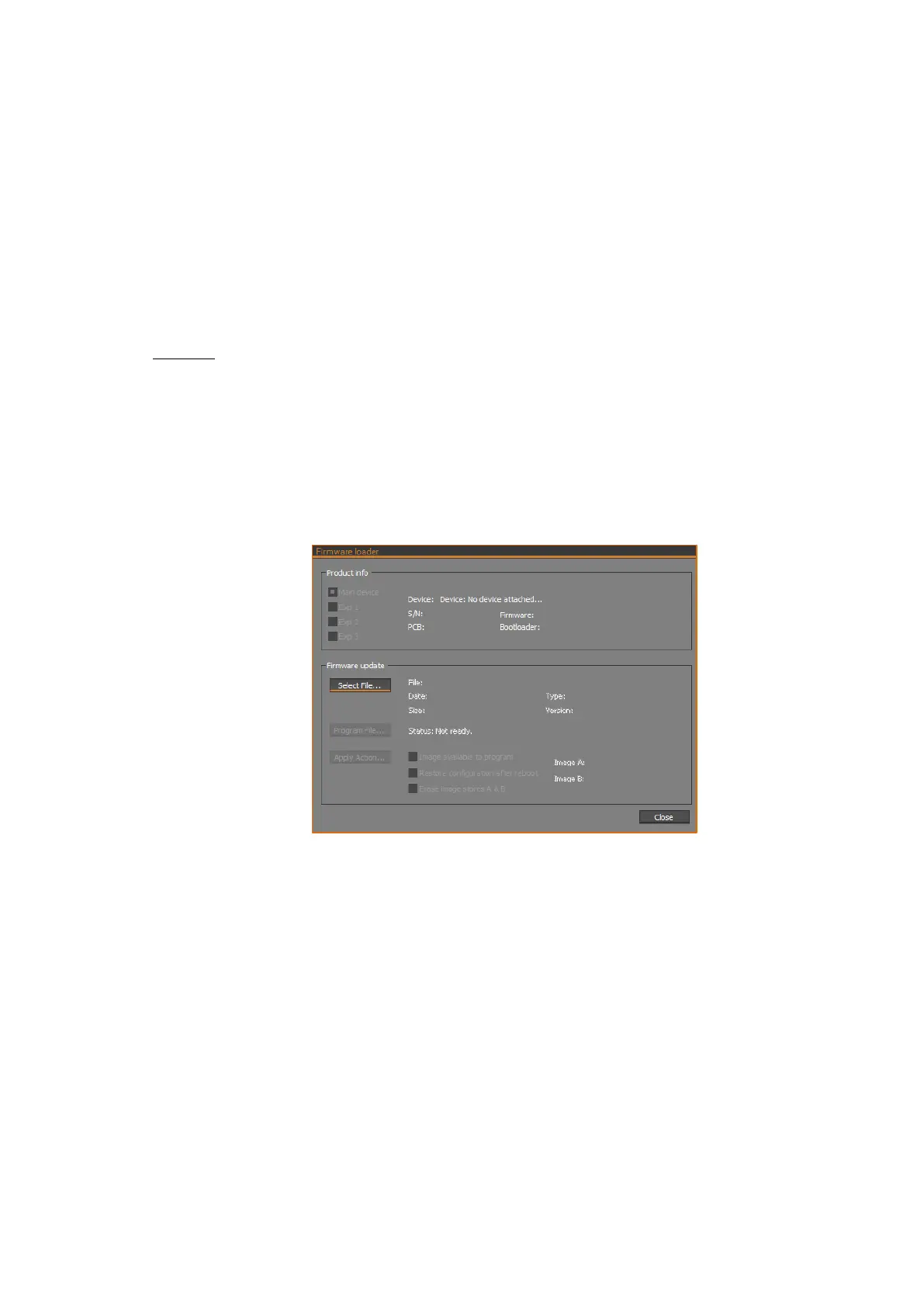
5. In CTPlus, select Administration -> Firmware loader from Navigation bar to
open the Firmware Loader form.
6. When running, it will tell you if the device is ready otherwise you can’t
program a file.
7. Ensure that the Product Info section displays the information of the Device,
S/N, Firmware, PCB and Bootloader.
8. Under the Firmware update section, click on Select File button.



 To Next Page