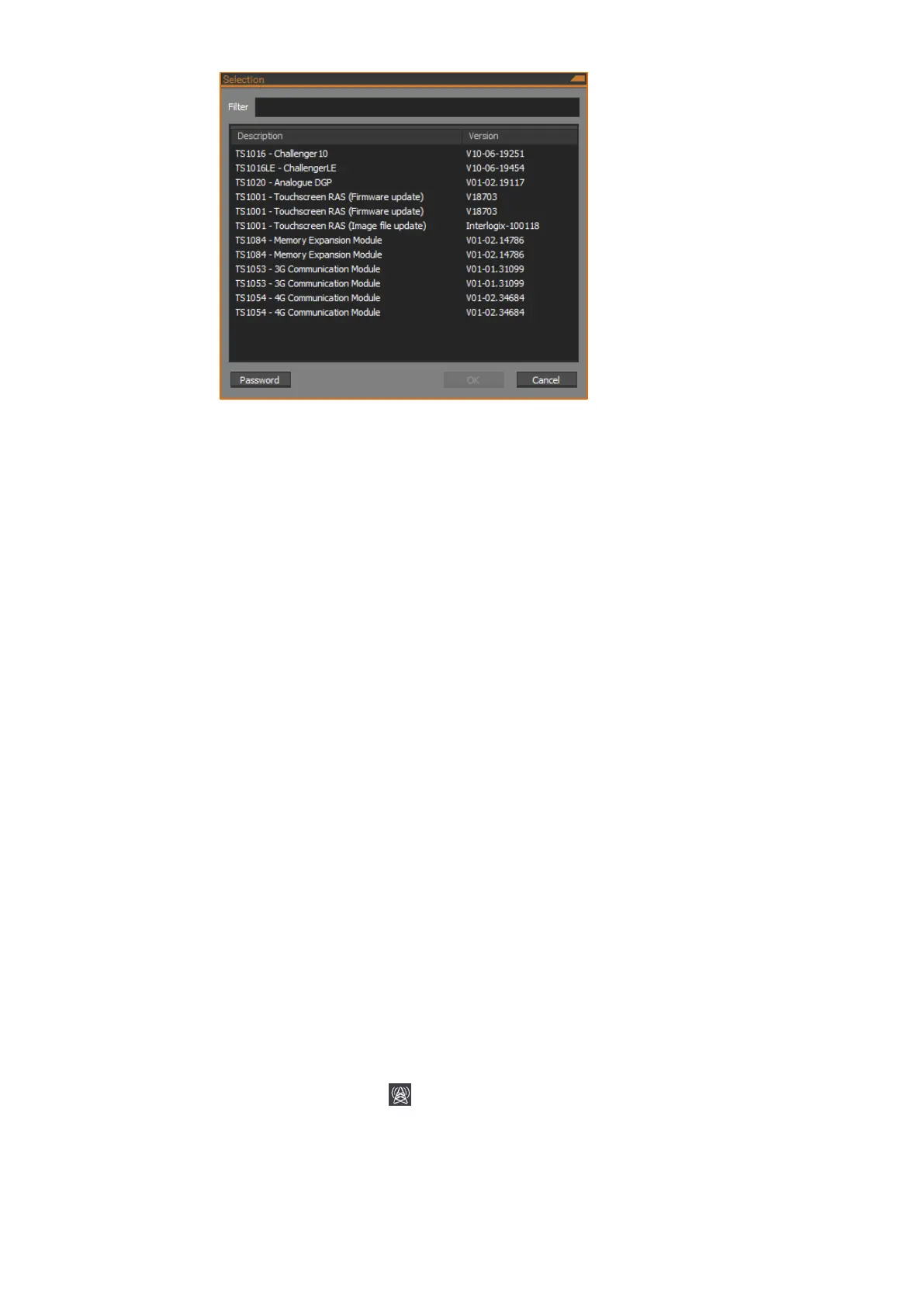
8. Selection form pops up. And then choose the firmware file to be
programmed. If no file is available for selection, ensure you are online and
click on Administrator ->Sync firmware from the Navigation bar in CTPlus.
Once the Sync is complete, try this step again.
9. Ensure that the Firmware update section displays the information of the
File, Date, Type, Size and Version.
10. Click Program File button to send the firmware file to the panel. The
process will take several minutes. The percentage completion displays in
the Status text. When finished, a “Programming is complete” message
displays.
11. Remove the USB cable from the NAC panel.
12. Remove power to the NAC panel and wait for all LEDs to turn off.
13. Remove test links 1 and 2.
14. Reconnect power to the panel.
Programming IP communications
If the Network Access Controller is operating in IP Direct or IP Extended mode,
then set up IP communications on the NAC.
Once IP communications have been configured on the NAC, you can reconnect
CTPlus to the NAC using IP instead of USB, if desired.
Configuring Ethernet
Configure Ethernet communications on the NAC. Using CTPlus, follow these
steps:
1. Click the Communications button on the Panel programming ribbon
tab and select Comm devices to open the Comm devices form.
2. Select the NAC’s onboard communications device record (ensure the
record’s associated Panel field matches the NAC panel).



 To Next Page