P/N 95B-6131-00 (April 2022) RiverRay Deployment Guide
Page 6
EAR-Controlled Technology Subject to Restrictions Contained on the Cover Page.
Serial Connection
Use a RS-232 Serial connection on a manned boat deployment.
For more information on how to set up Serial communications with WinRiver II, see the
WinRiver II Serial Communications Setup Card and Chapter 2 in the WinRiver II Software
User's Guide.
To set up the Serial connection on a RiverRay ADCP:
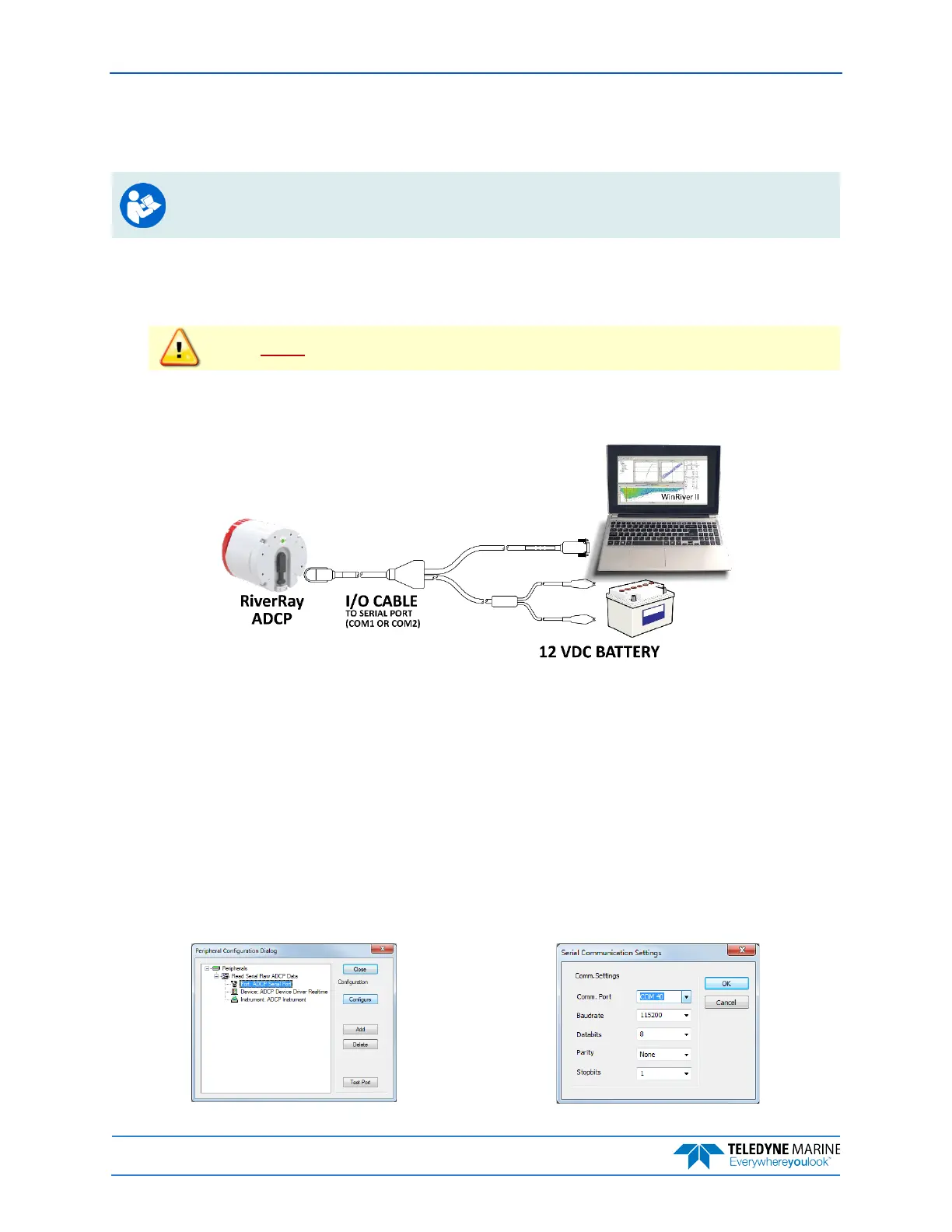
1. The I/O cable connector must be lubricated before connecting. Connect the I/O cable to the Ri-
verRay ADCP.
Always apply silicone lubricant before connecting the I/O cable.
2. Attach the I/O cable to the computer’s communication port. The standard communications set-
tings are RS-232, 115200-baud, no parity, 8 data bits and 1 stop bit.
RiverRay Serial Connection
3. Connect a battery or DC power supply to the power connectors. Verify that both the red and green
LEDs light. After a few seconds, the red LED should go out and the green LED will blink twice and
then stay on. This indicates that the RiverRay self-test has passed. If the red LED stays on, wait a
few minutes, cycle the power off, and back on and check the LEDs again.
4. Start WinRiver II.
5. On the Configure menu, select Peripherals.
6. Select Port: ADCP Serial Port and then click the Configure button.
7. Select the Comm. Port number the cable is connected to on the computer. The Baudrate must
be set to 115200. Leave the Databits, Parity, and Stopbits as shown.
8. Click OK to close the Serial Communication Settings screen.


 To Next Page