RiverRay Deployment Guide P/N 95B-6131-00 (April 2022)
EAR-Controlled Technology Subject to Restrictions Contained on the Cover Page.
Page 7
Note it may take several seconds to accept the Comm. Port selection.
In this example, the Comm. Port is set to Com Port 40.
9. Click the Test Port button. The RiverRay banner appears.
>break
RiverRay
Teledyne RD Instruments (c) 2015
All rights reserved.
Firmware Version: 44.xx
>
10. Click the Close button to exit the Test Port Dialog.
11. Click the Close button once more to exit the Peripherals Configuration Dialog.
12. Start a new measurement in WinRiver II.
13. On the Configuration Dialog, ensure the ADCP type matches the RiverRay and the indicator
next to the RiverRay is green.
Quick Review
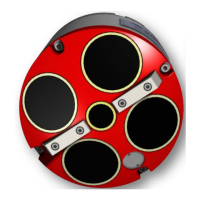
Install the ADCP in the Boat
or on a manned boat.
See the RiverRay ADCP Guide, Chapter 2.
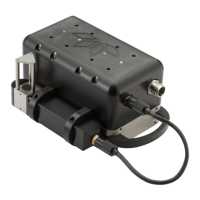
Connect to the ADCP using
a Bluetooth connection
(Boat)
For instruction on using the SD1000U USB Bluetooth
device, see Chapter 2 in the WinRiver II Software User's
Guide and the instructions and Bluetooth CD included
with the device.
See the WinRiver II SD1000U Bluetooth Communication
Setup Card for instructions. A PDF copy is installed with
the software
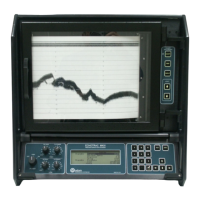
Connect to the ADCP using
a RS-232 Serial connection
(Manned boat)
For more information on how to set up Serial
communications with WinRiver II, see the WinRiver II
Serial Communications Setup Card and Chapter 2 in the
WinRiver II Software User's Guide.


 To Next Page