● Sync - Sync all currently loaded LUTs from the receiver's memory.
After syncing, the LUTs will be displayed in the manager
window.
● Apply to Video - Apply the selected 3D LUT file to the video output. Once
applied, the LUT file can be turned On, O, or applied to
half the display using the Split option.
● Read LUTs - Read Bolt’s storage and overwrite the contents of the LUT
management window.
● Send to Bolt
- Load your LUT presets to your device.
● Reset LUTs - Reset Bolt’s storage to default values. A number of pre-defined
LUTs are contained in the default configuration.
Manage LUTs - The LUT manager allows you to select up to 16 3D LUT files to
store on Bolt. LUTs can be rearranged, renamed, added, and removed using the
corresponding buttons.
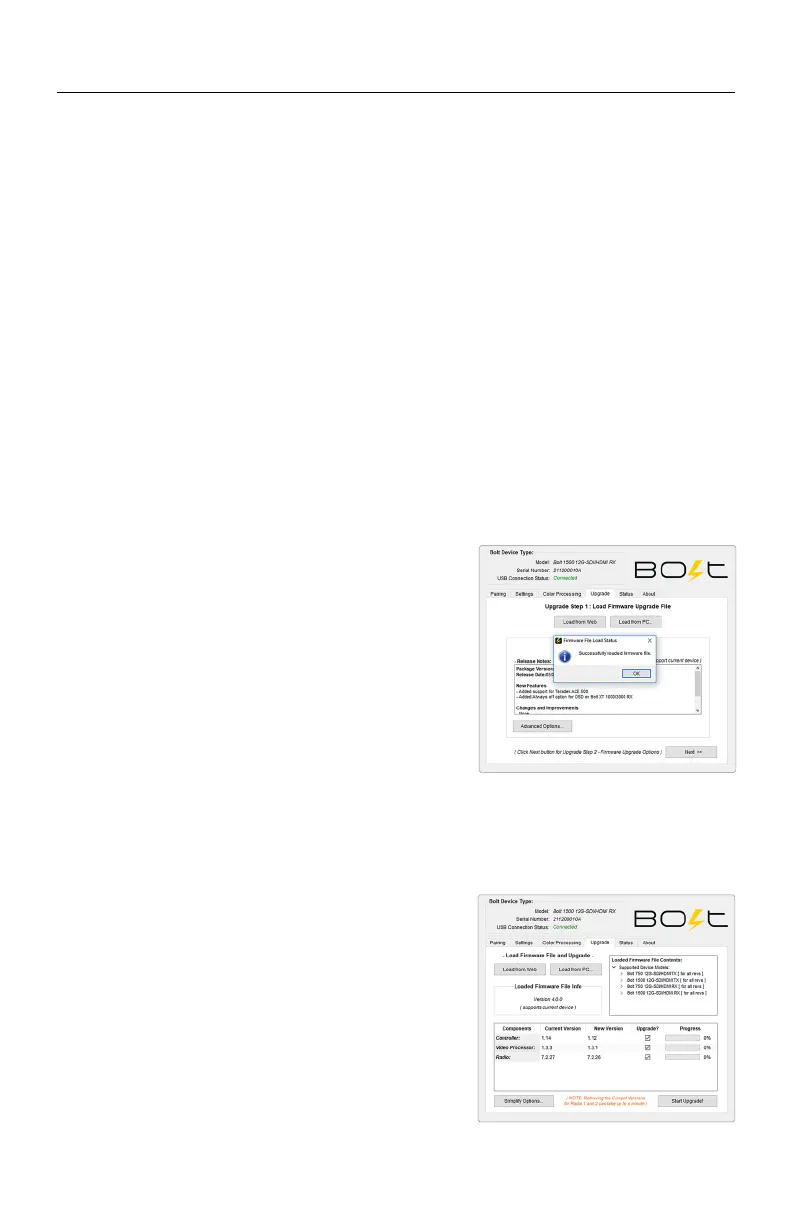
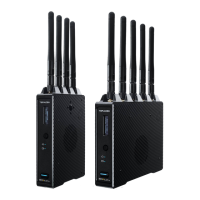
Once the firmware is loaded, and information about the package is displayed, click
Next to proceed with the upgrade. You will then be presented with a list of device
components and whether or not they are scheduled to be updated, along with two
options:
Start Upgrade - Update your Bolt 4K device(s)
with the latest firmware version.
Advanced Options - View detailed version
information for each component and the
firmware upgrade package components. The
Advanced screen also allows users to select
which components to upgrade.
UPGRADE
Teradek releases firmware updates periodically that add new features, improve
performance, and fix vulnerabilities. To update Bolt 4K, you’ll need to load a
firmware package into Bolt Manager.
Load from Web - If you have an Internet
connection, click Load from Web to download
the latest firmware package from Teradek’s
servers.
Load from PC - Click Load from PC if you
have already downloaded the firmware package
you wish to use. For latest firmware, visit:
https://www.teradek.com/pages/downloads#bolt4k
22



 To Next Page