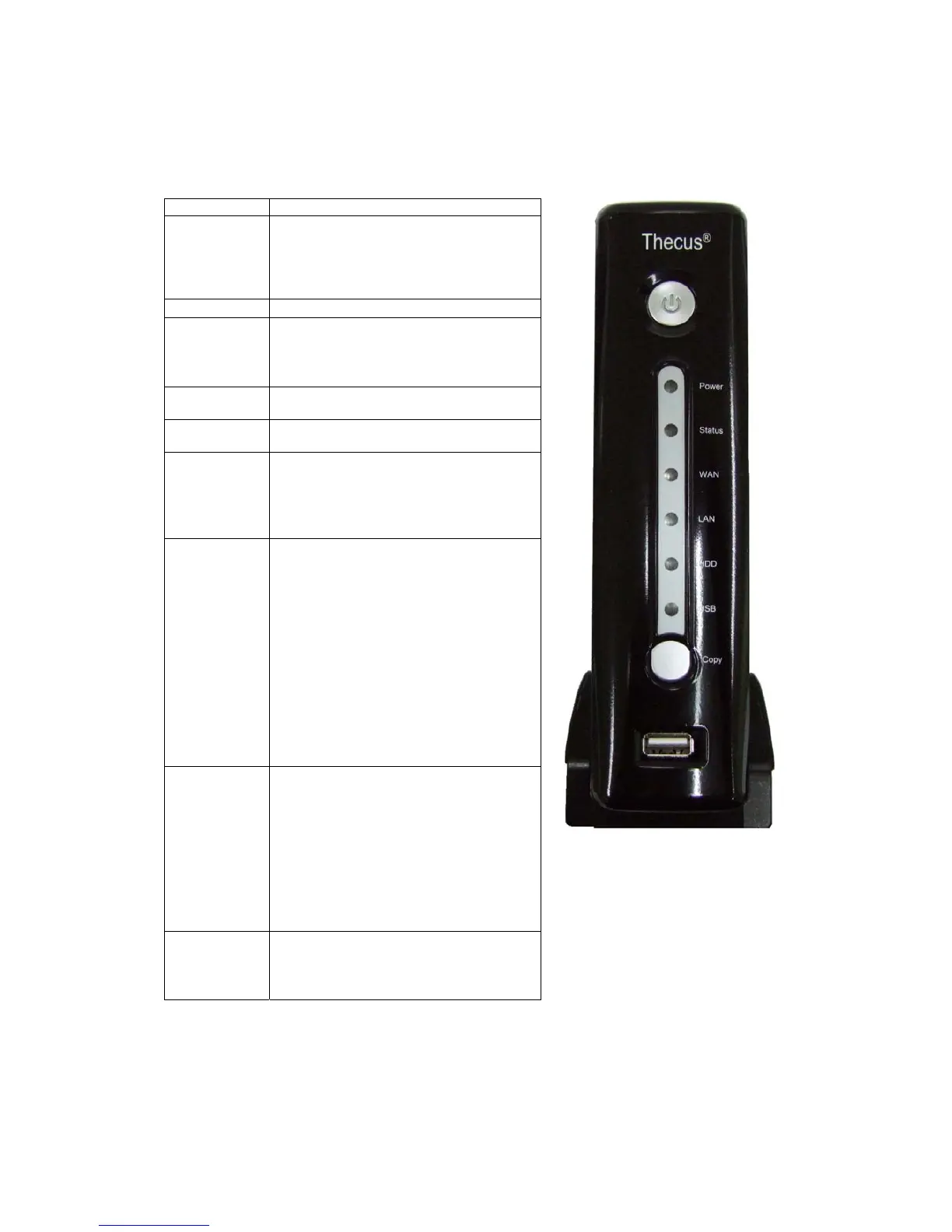
Front Panel
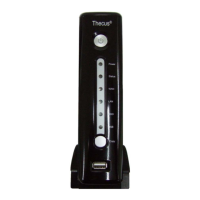
The N1200’s front panel displays the unit’s array of status LEDs, and is also
where you’ll find the USB port, one-button copy button, and the power button.
See the table below for a detailed explanation of each:
Item Description
Power
Button
• Power on/off N1200
• To power off, press and hold for
three seconds. The system will
beep twice, and the power off
process will begin.
Power LED
• Solid blue: N1200 is powered on
System
Status LED
• Blinking orange: system startup
• Blinking red: system error
• Off: system startup complete;
system operating normally
WAN LED
• Blinking orange: network activity
LAN LED
• Solid green: network link
HDD LED
• Solid blue: HDD detected
• Blinking blue: data transfer active
• Solid red: HDD error detected
• Blinking red: HDD capacity is
nearly full (90% or more)
USB LED
• When connecting USB devices:
o Blinking blue (5 seconds):
USB device connected
successfully (USB card readers
will activate the USB LED when
one or more cards are mounted
successfully)
o Blinking red (5 seconds): USB
device connection failure
• When transferring data:
o Blinking blue: data transfer
active
o Blinking red: USB device
read/write error
One-Button
USB Copy
• Push this button to copy the entire
USB volume to the N1200
• Files are stored in a folder named
by the current time stamp
(YearMonthDayHHMM)
• NOTE: Before pushing the USB
Copy Button, make sure that the
USB device is connected
successfully. Please refer to the
section on USB LED.
USB Port
• USB 2.0 port for storage expansion




 To Next Page