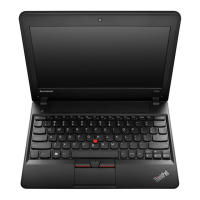
1Camera
Usethecameratotakepicturesorholdavideoconference.Formoreinformation,see“Usingtheintegrated
camera”onpage34.
2Systemstatusindicator(illuminatedThinkPadlogo)
TheilluminatedThinkPadlogoonthepalmrestfunctionsasasystemstatusindicator.Yourcomputerhas
severalstatusindicators.Formoreinformation,see“Systemstatusindicators”onpage6.
ThinkPadpointingdevice
3TrackPointbuttons
4Touchpad
5TrackPointpointingstick
ThekeyboardcontainstheLenovouniqueThinkPadpointingdevice.Pointing,selecting,anddraggingareall
partofasingleprocessthatyoucanperformwithoutmovingyourngersfromatypingposition.Formore
information,see“UsingtheThinkPadpointingdevice”onpage21.
6Microphones
Thebuilt-inmicrophonescapturesoundandvoicewhenusedwithaprogramcapableofhandlingaudio.
7Powerbutton
Usethepowerbuttontoturnonthecomputer.
Toturnoffthecomputer,usetheStartmenushutdownoptionontheWindows
®
7operatingsystem.For
theWindows8operatingsystem,movethecursortothetop-rightorbottom-rightcornerofthescreento
displaythecharms.ThenclickSettings➙Power➙Shutdown.
Ifyourcomputerstopsrespondingandyoucannotturnitoff,pressandholdthepowerbuttonforfour
secondsormore.Ifthecomputerstillisnotresponding,removetheacpoweradapterandthebattery
toresetthecomputer.
Youalsocanprogramthepowerbuttonsothatbypressingthepowerbuttonyoucanshutdownthe
computerorputitintosleeporhibernationmode.Toachievethis,youneedtochangeyourpowerplan
settings.Toaccesspowerplansettings,dothefollowing:
•ForWindows7:StartthePowerManagerprogramandthenclickthePowerPlantab.Forinstructionson
howtostartthePowerManagerprogram,see“AccessingLenovoprogramsontheWindows7operating
system”onpage12
.
•ForWindows8:ClickthebatterystatusiconintheWindowsnoticationareaandclickMorepower
options.ThenclickChoosewhatthepowerbuttonsdo.
2UserGuide


 To Next Page











