11
English
Using the continuous recording features
Connect the power cable to the product’s DC-IN power port and then turn
on the vehicle’s electrical accessories or start the engine. The status LED
and the voice guide are turned on, and the continuous recording starts.
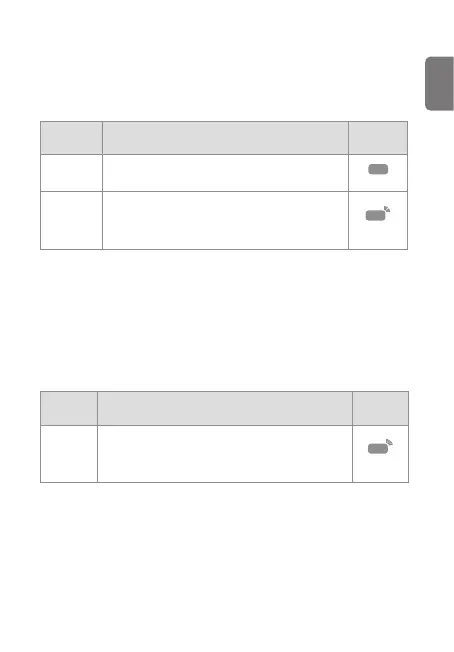
Mode Operation description
Recording
LED (REC)
Continuous
recording
During driving, videos are recorded in 1 minute
segments and stored in the "cont_rec" folder.
On
Incident
continuous
recording
When an impact to the vehicle is detected, a video is
recorded for 20 seconds, from 10 seconds before the
detection to 10 seconds after the detection, and stored
in the "evt_rec" folder.
Flickers
Recording manually
You can record a scene you want to capture while driving and store it as a
separatele.
To start manual recording, press the manual recording (REC) button. Then,
manual recording will start with the voice guide. During manual recording,
the product operates as follows.
Mode Operation description
Recording
LED (REC)
Manual
recording
When you press the manual recording (REC) button, a
video will be recorded for 1 minute, from 10 seconds
before to 50 seconds after pressing the button, and
stored in the "manual_rec" folder.
Flickers



 To Next Page