9
EN
EN
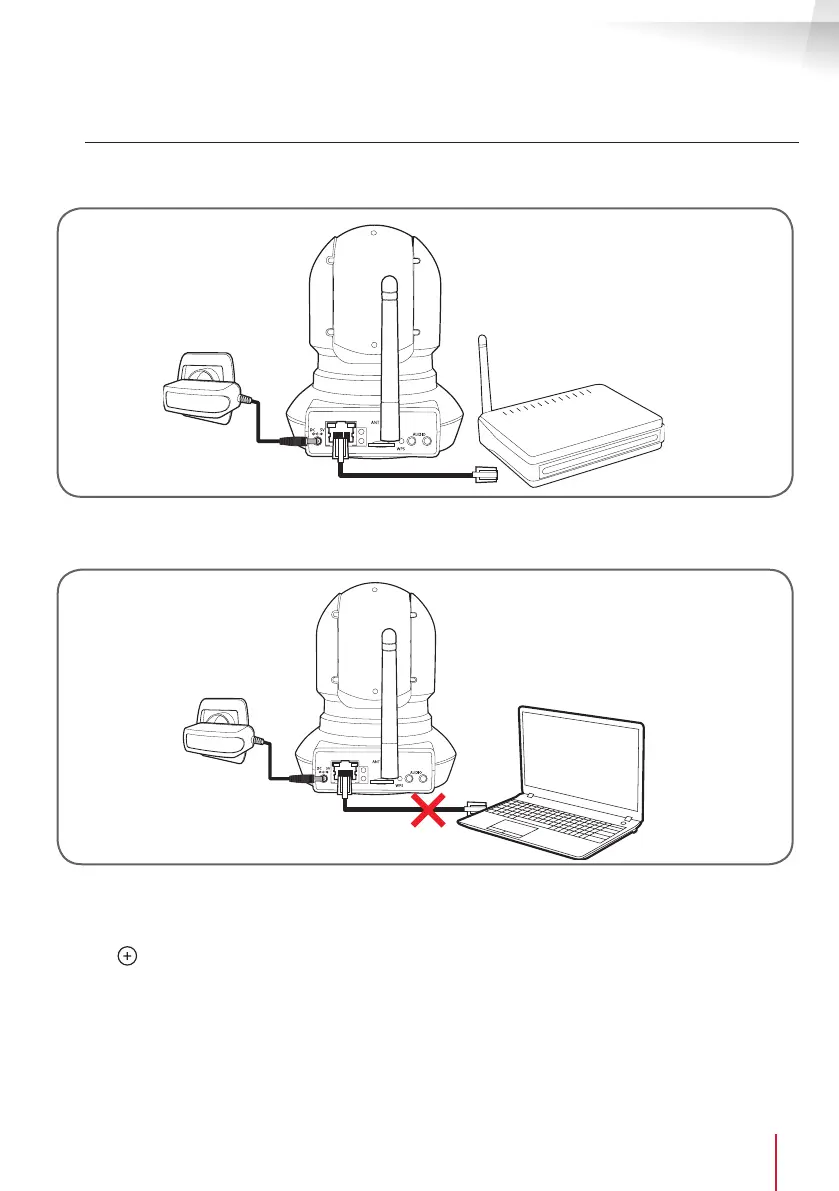
2.3. WIRED CONNECTION
If you do not want to use a wireless connection or the device does not have EzLink, connect your camera
to the Internet using an RJ45 network cable.
OUT
MicroSD
IN
camera
Modem/router
connected to the
internet
Mains adapter
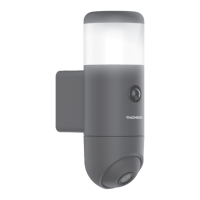
IMPORTANT: Do not connect your camera to your computer. This will not provide it with access to the
Internet.
OUT
MicroSD
IN
camera
Computer
Mains adapter
In most cases, the camera is immediately detected by the modem/router, which grants it access to the
Internet. After a few seconds, the camera's network activity LED should ash.
Click on , then scan the QR code on the camera. If your camera is properly connected to the Internet,
it will be automatically added.
NOTE: If your camera is not added automatically and the app asks you to choose between LAN and
WiFi, your camera or smartphone has an Internet access problem. Check the connection of your camera,
smartphone or tablet, and perform a camera reset by pressing the Reset button for more than 15 seconds.
Note: If you want to use your camera with WiFi but cannot use either the WPS or EzLink function, set it up
with a wired connection so that you can then change to a wireless connection.
MOTORISED 720P HD WIFI IP CAMERA


 To Next Page