EN
12
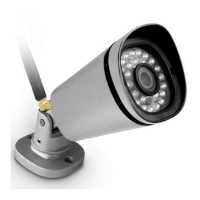
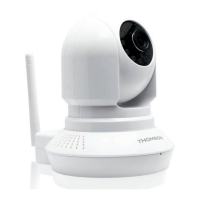
MOTORISED 720P HD WIFI IP CAMERA
D - CONFIGURATION AND USE
2 - CONFIGURATION USING THE THOMVIEW
SOFTWARE
The ThomView software allows you to con gure and
manage one or more cameras connected to the
same local network. On another network, it enables
remote access to the camera image.
ThomView is available for download from our
website:
http://www.thomsonsecurity.eu/docs.
php?lang=FR&type=5&ref=512392
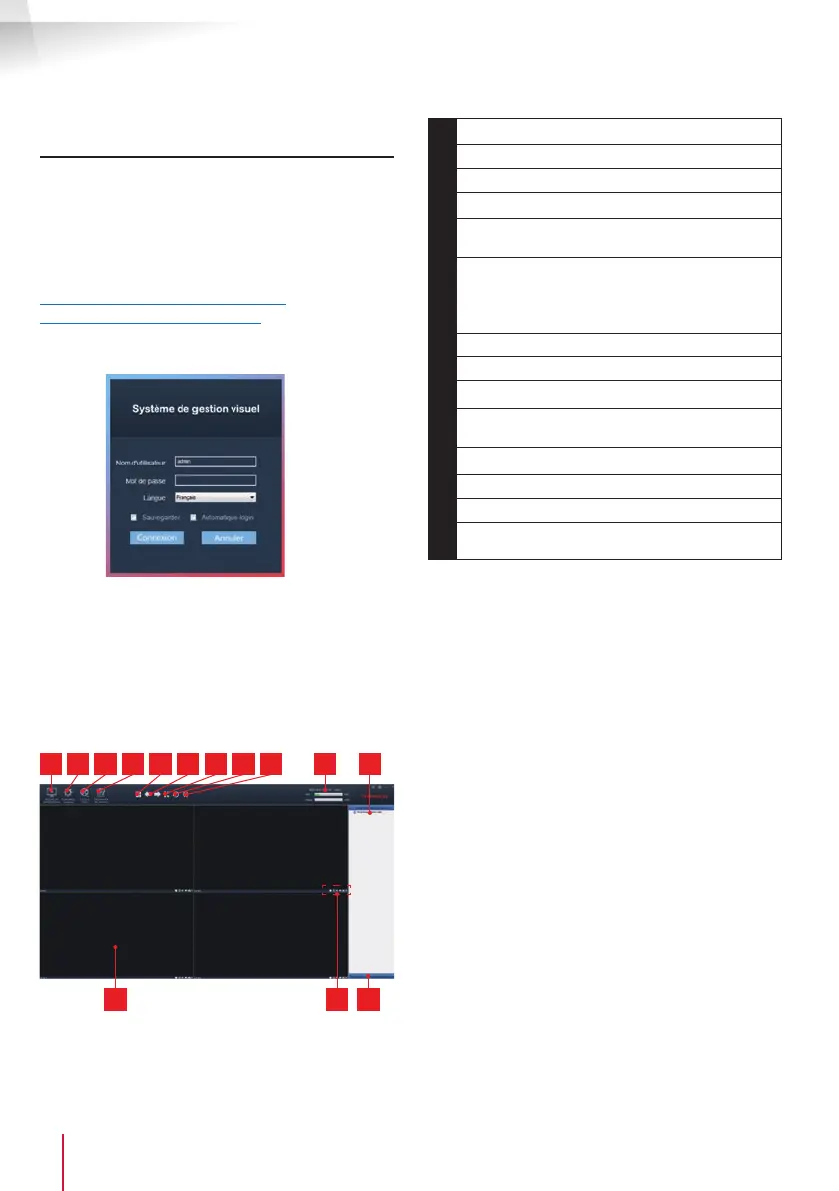
Install then run the software on your computer:
The ThomView software asks you for a user name
and password to connect: The default user name is
"admin", and there is no password.
Important note: this user name and password is not
the same for your camera. They are speci c to the
ThomView software and prevent shut-down of the
software by unauthorised persons, for example.
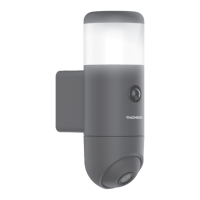
The main software window opens:
1 10 112 3 4 98765
12 1413
1
Add a new camera
2
Software settings
3
Access to videos saved on the computer
4
Access to the operations log in the software
5
Selection of the number of cameras on the
screen at one time
6
Previous/next page. The software can
manage up to 64 cameras: these arrows let
you switch from cameras 5 to 8 then 9 to 12,
etc.
7
Go to full screen
8
Launch a patrol (compatible cameras only)
9
Cut the image display for all of the cameras
10
Date, current time, processor load and hard
disk use
11
List of cameras saved to the software
12
Display frames for camera images
13
Controls available for the selected camera
14
Display of direction and zoom controls
(compatible cameras only)
To add your camera, click on "Add a device" at the
upper left.
Note: The camera must be linked by Ethernet
cable to your Internet box or router or have been
con gured with the EzLink function


 To Next Page