EN
16
MOTORISED 720P HD WIFI IP CAMERA
D - CONFIGURATION AND USE
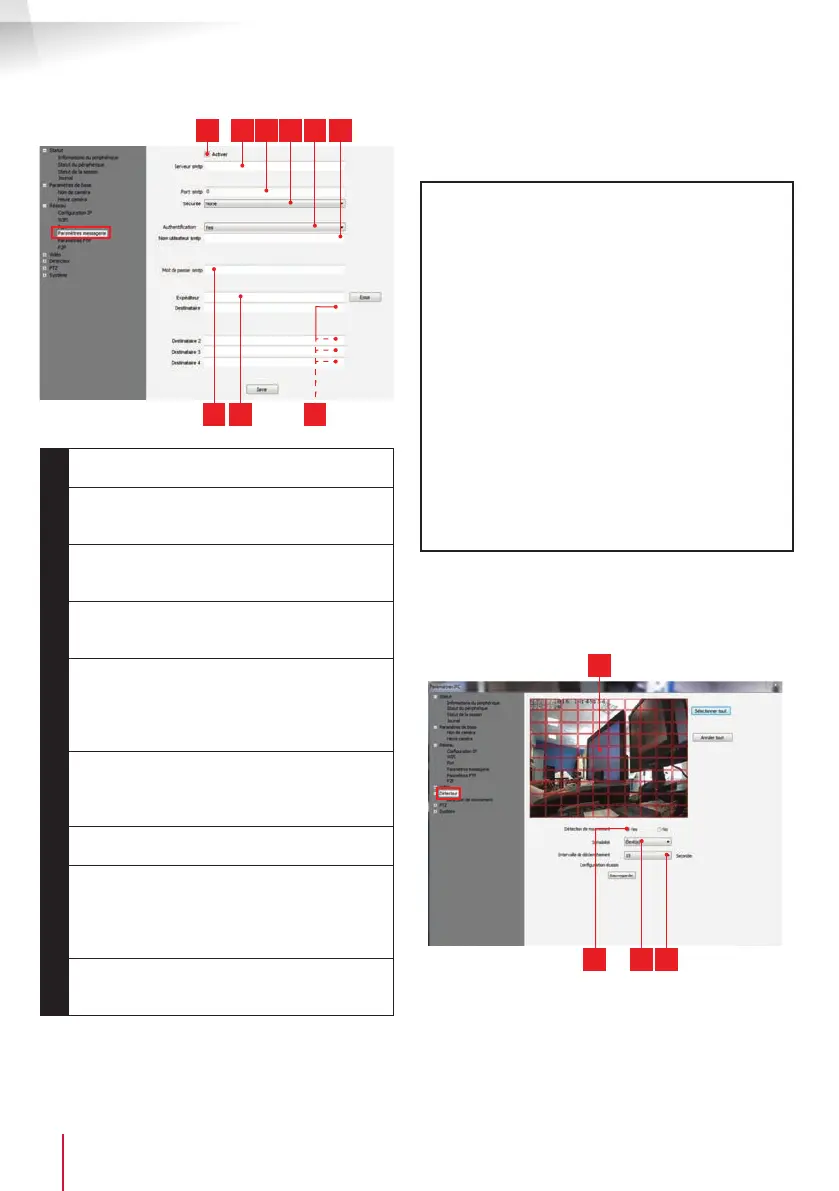
1 2 3 4 5 6
7 8 9
1
Tick the "Activer [Enable]" box to enable email
sending
.
2
SMTP server: varies with the email provider of
the address sending the alert. In our Gmail
example, smtp.gmail.com
3
SMTP port: varies with the email provider of
the address sending the alert. In our Gmail
example, 465
4
Security: security when connected to the email
provider. In our example using Gmail, TLS
5
Authentication: indicates whether connection is
compulsory (authentication) to send an email.
In our example using gmail: Yes (in other
words: you cannot send an email via Gmail if
you are not logged into your account).
6
SMTP user name: Name that you must enter to
log in to the email box that sends the alerts.
In our Gmail example, this is the sender
address: adresse-envoi@gmail.com.
7
SMTP password: The password used to log in
to sender-address@gmail.com in our example
8
Sender: Enter the new address used to send
the alerts: adresse-envoi@gmail.com. Click on
"Test" to check that your settings are correct
and that the camera can connect to the
email account you entered for sending alerts.
9
Recipient, etc.: Use this space to enter the
address(es) which will receive the alerts. In our
example: addressee@gmail.com
IMPORTANT: When you have nished conguration,
remember to click on "Save" to save everything you
entered.
Note: it does not matter who the email provider
of the recipient is, as it is the email provider of
the sender that dictates what needs to be entered.
However, you must ensure that the alerts are not
treated as spam by the recipient's inbox.
Warning: Some email providers do not allow
cameras to send notications without your
authorisation. Refer to your mailbox safety settings
for more details. In our example, for the rst alert,
by default, adresse-envoi@gmail.com receives a
notication email asking whether it is normal that
the camera is trying to use this address. Accept this,
and subsequent e-mail notications will be sent
properly.
Information: Our technical support will not be able
to help you with these settings if you contact them,
as it depends solely on your mailbox. For more
information, contact your email provider.
When you have nished conguring your camera,
it will be able to send emails. You must now tell
it when to send them by clicking on "Détection de
mouvement [Movement detection]
":
4
2 31


 To Next Page
 Loading...