E-DOC-CTC-20060609-0001 v2.0
Chapter 7
Thomson Gateway Wireless Configuration
47
7 Thomson Gateway Wireless Configuration
Overview
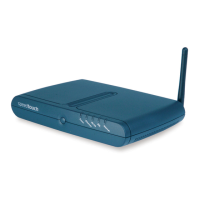
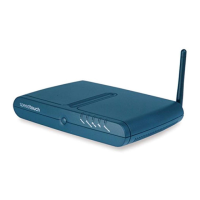
The Thomson Gateway IEEE802.11b/g compliant WLAN interface allows you to share its high-speed Internet
connection with multiple networking stations in a local network, without needing to (re-)wire your home.
The Thomson Gateway acts as a wireless Access Point (AP), connecting wireless stations and transferring
data between them.
Depending on whether you have a residential (500 or 700 series) or business (600 series) device, your
configuration can be fine tuned. This section is divided into two parts:
> The first part describing basic configuration (all products). See “7.1 Basic Configuration” on page 48.
> The second part describing advanced or expert configuration (business products only). See “7.2 Expert
Configuration” on page 67.
Accessing the Web pages
You can configure your Thomson Gateway via the Web pages or via CLI commands. The configuration
described in this section is done via the Web pages.
To access the Thomson Gateway Web pages:
> Open a Web browser.
> In the address bar, type your Thomson Gateway’s IP address or DNS host name (http://dsldevice.lan or
192.168.1.254 by default.
!
Virtual Access Point functionality (multiple SSIDs) can - if supported by the Thomson Gateway - be
configured via the device’s Command Line Interface (CLI). For more information, see the “CLI
Reference Guide” of your Thomson Gateway model.
i
The wireless Web page is only available on Thomson Gateway devices equipped with a wireless
access point.





 To Next Page