E-DOC-CTC-20060609-0001 v2.0
Chapter 7
Thomson Gateway Wireless Configuration
62
Registering stations via Web pages
To add a wireless station to the ACL:
1 Go to the Thomson Gateway Web pages.
2 In the menu, select Home Network > Devices.
3 In the Pick a task list, click Search for wireless devices.
The Thomson Gateway searches for new wireless stations that use the encryption key of the Thomson
Gateway AP.
The Thomson Gateway takes you to the Home Network. The new station will be shown next to the name
of the Thomson Gateway WLAN.
4 Click the name of the new station.
5 Click Configure.
6 Select Allowed on WLAN, and then click Apply.
The wireless station is added to the ACL and will always be allowed to connect to the Thomson Gateway.
Registering stations via the association button
To register new wireless stations via the association button:
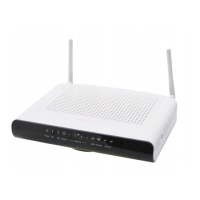
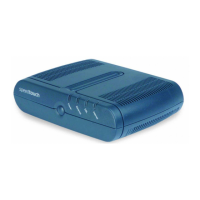
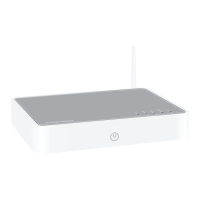
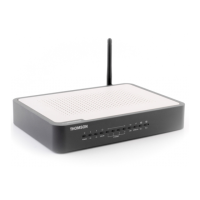
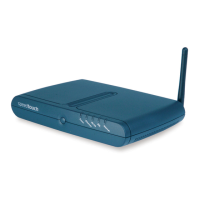
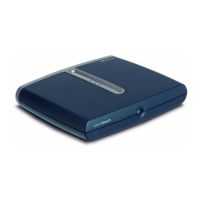
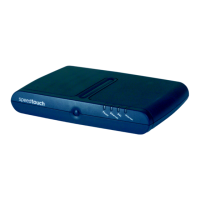
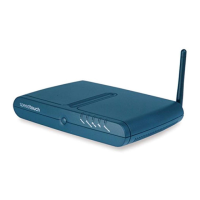
1 Push the Association button on the Thomson Gateway front or back panel (depending on the device) for
at least two seconds.
The WLAN LED toggles between green and red.
The ACL will be unlocked for a time frame of one minute. Any new wireless station successfully
attempting to connect to the Thomson Gateway (having the correct wireless settings, that is the network
name and, if required, the network key) within the time frame of one minute, will be added to the table.
The Thomson Gateway automatically saves your current configuration at the end of the registration
phase.
2 Successfully registered stations are associated to the Thomson Gateway WLAN. Depending on your
WLAN client adapter, a wireless icon may become green or a message similar to the following may
appear: “Successfully joined Wireless network SpeedTouch123456”.
3 The wireless stations will be added to the Thomson Gateway ACL.
4 After one minute, the ACL is locked.
i
Some WLAN stations do not automatically join a WLAN. If so, follow the instructions for the
WLAN station software to initiate the association.
i
The registration procedure can be repeated as often as needed.





 To Next Page