E-DOC-CTC-20060609-0001 v2.0
Chapter 7
Thomson Gateway Wireless Configuration
76
Access control
Wireless station access control allows to authorize or explicitly inhibit access between specific wireless
stations and the Thomson Gateway AP based on the wireless station's MAC address.
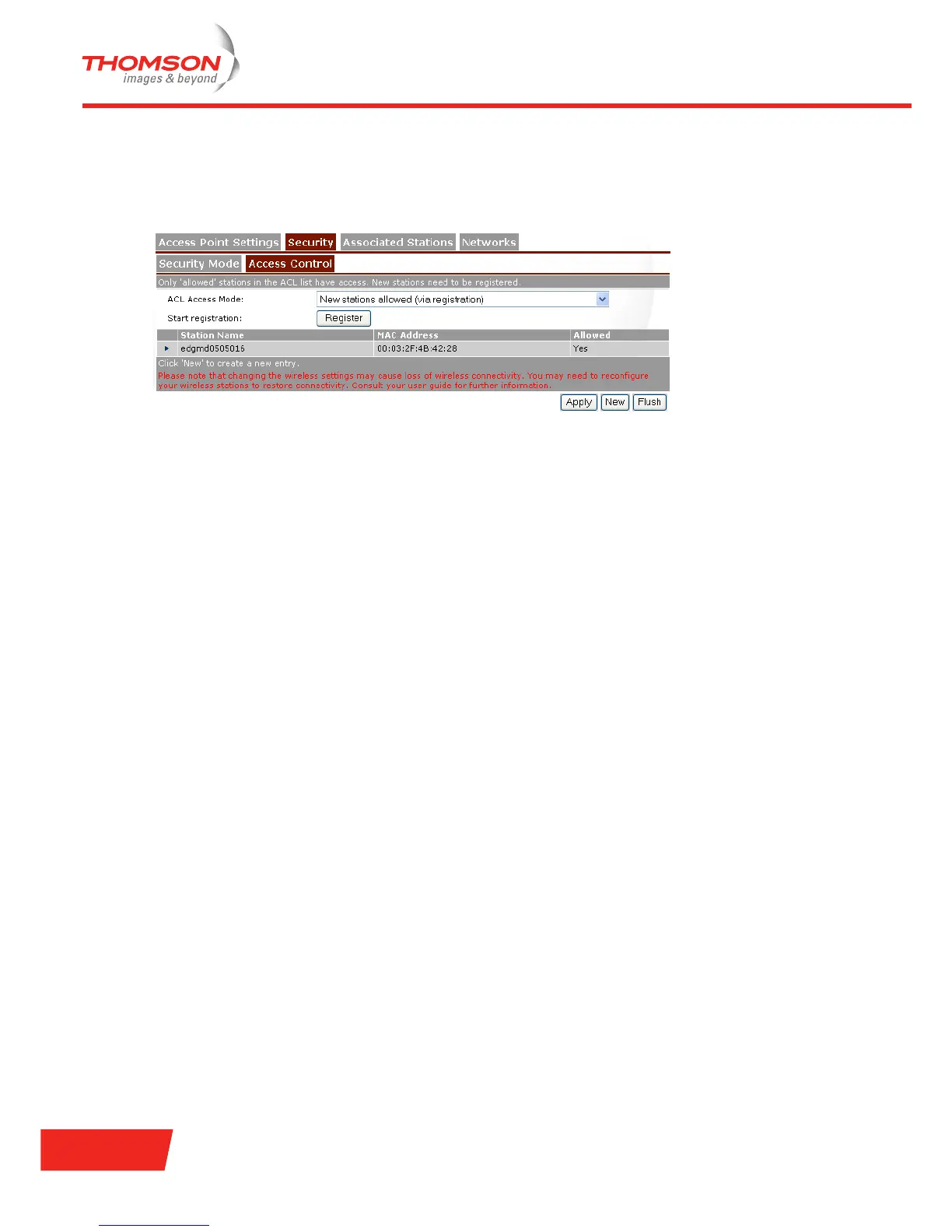
The Access Control tab allows you to manage the Thomson Gateway Access Control List (ACL).
By default New stations allowed automatically is selected. Any station with the correct wireless settings
(Network Name and, if required, Network key) will be automatically associated to the Thomson Gateway and
will be allowed to send/receive data via the Thomson Gateway AP. In case New wireless client allowed is not
selected, you must manually add the wireless stations and their authorization to the access control list.
You can use the Association / Registration button to allow wireless stations to enter the access control list.
This button can be found on the back panel of the Thomson Gateway, or on the Access Control tab. Pressing
this button triggers the Thomson Gateway to unlock the access control list for a time frame of one minute,
after which the access control list is locked again. Any wireless stations trying to associate with the Thomson
Gateway with the correct wireless settings (Network Name and, if required, Network key) will be added to the
table.
For each wireless station present in the access control list, the following information is provided and can be
reconfigured:
> You can choose an intuitive name for the wireless station.
> You can decide whether the wireless station is allowed (select yes) or not (select no) to exchange data
between the wireless stations and the Thomson Gateway.
Regardless of the whether registration of wireless stations is controlled via the Association / Registration
button or not, you can always manually add/delete stations to/from the access control list or define wireless
stations that are specifically allowed (select yes) or not allowed (select no) to access the Thomson Gateway
wireless network.
To delete all wireless stations from the access control list, click Flush. Be aware that if you are connected
wirelessly to the Thomson Gateway, you will loose your connection.





 To Next Page