20
4. YouTube
Learn to view and upload videos via the YouTube™ video sharing service.
This feature may be unavailable depending on your region or service provider.
Play a video
1. In the application list, select YouTube.
2. Select a video.
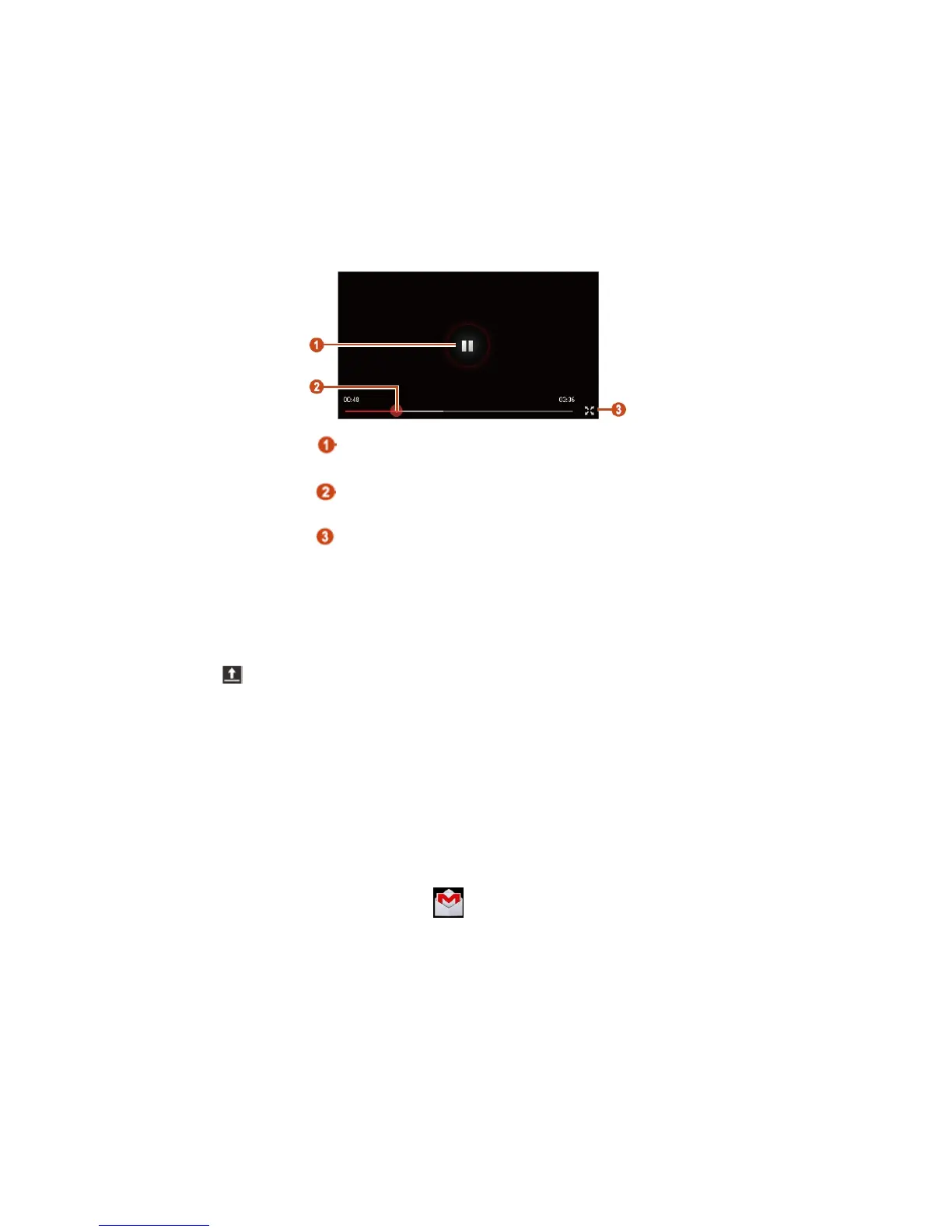
3. Control playback with the following keys:
Pause or resume playback.
2 Scan forwards or backwards in the file by dragging the bar.
3 Play the video on the full screen.
Upload a video
1. In the application list, select YouTube.
2. Select your Google account if it is linked to YouTube. Alternatively, you can select Sign in and
set up an account to sign in to YouTube.
3. Select → a category → a video
If you are uploading a video for the first time, select a network type to upload a video.
4. Enter the details of the upload and select Upload.
5. Gmail
Learn to send or view email messages via the Google Mail™ webmail service.
- This feature may be unavailable depending on your region or service provider.
- This feature may be labeled differently depending on your region or service provider.
Send an email message
1. In the application list, select Gmail → .
2. Select the recipient field and enter an email address.
3. Select the subject field and enter a subject.
4. Select the text field and enter your email text.
5. Select and attach a file.
6. To send the message, select SEND.
If you are offline or outside your service area, the message will be held in the message thread until
you are online and inside your service area.
View an email message
1. In the application list, select Gmail.



 To Next Page