9
Desktop
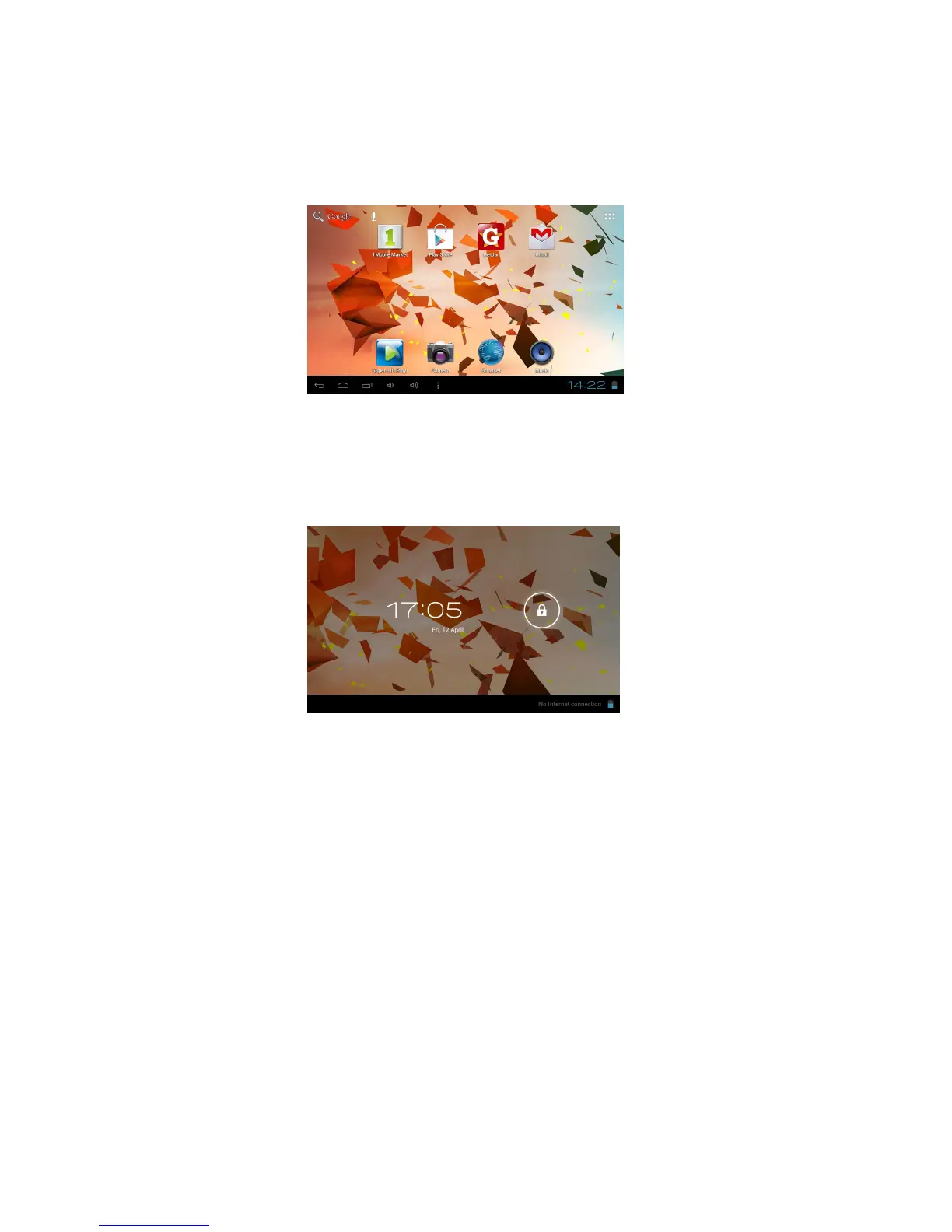
After turning on the device the home screen displays with primary shortcuts, App shortcut icons, Widgets
and the Status Bar.
Standby mode (Screen off mode)
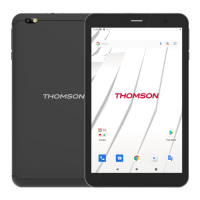
To lock the touch screen press the Power button, to unlock press again.
Touch the Lock icon and slide to the right in order to unlock the screen.
Navigating the Touch Screen
On the Touch Screen you may –
• Touch an icon to select or launch the App
• Touch and Hold an icon to activate a pop up menu or create a shortcut
• Swipe or Slide your finger across the screen to unlock the screen or scroll through screens or
menus
• Pinch two fingers together or spread them apart to zoom in or out of an image
System settings
On the desktop, press menu button on the Status Bar and select the system settings icon.
Or press in the bottom right corner of the screen and select the system settings icon to enter the system
settings.


 To Next Page