24
Video recording
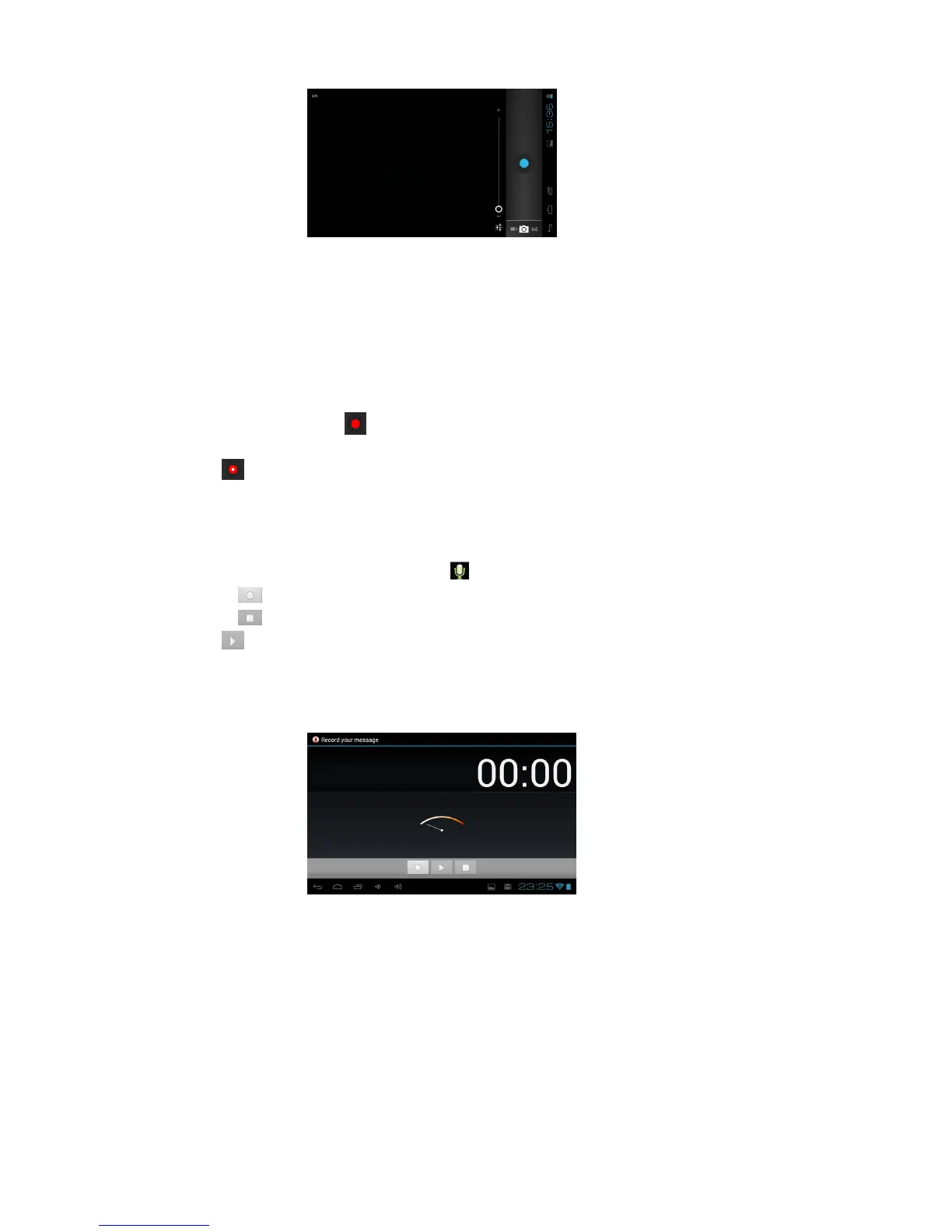
1. In the application list, select Camera.
2. Rotate the device to the landscape view.
3. Drag the slider to switch to the camcorder.
4. Aim the lens at the subject and make any necessary adjustments.
5. To zoom in, press and hold the “+/-“ bar on the screen and slowly to move up. To zoom out, press
and hold the “+/-“ bar on the screen and slowly to move down.
6. Click the camera shutter to start recording.
7. Select to stop recording.
The video is saved automatically in the File Manager. The camcorder may not be able to properly
record videos on memory cards with slow transfer speeds.
8. Sound Recorder
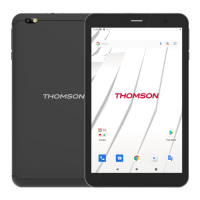
1. In the application list, select the Sound Recorder .
2. Click the to start recording.
3. Click the to stop recording.
4. Select to view the recording message.
5. Click Done to save the recording message in the File Manager, click Discard.to discard the
recording message and exit the recording mode automatically.
9. Super-HD Player
To use the video player.
- Some file formats are not supported depending on the device’s software.
- If a file size exceeds the memory available, an error may occur when you try to open the file.
- Playback quality may vary by content type.
- Some files may not play properly depending on how they are encoded.
Play a video
1. In the application list, select Super-HD Player.
2. Select a video in the Camera or Micro SD card and play.
3. Control playback with the following keys:


 To Next Page