-
-
-
-
- 37-
Once you have completed setting up your phone, tap
the button below the screen in order to return to the
.
Then tap the “Maps” icon to launch the mapping
application.
Notes:
Home
screen
Once the map appears on the screen, tap the icon
to locate yourself.
Positioning may take several minutes. It can be difficult
or impossible when you are inside a building,
with many obstacles such as in
urban areas.
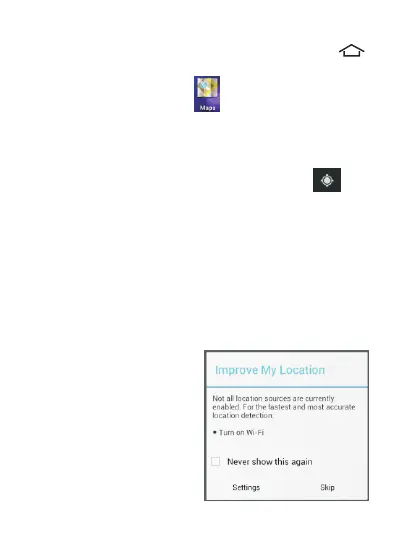
To accelerate positioning in urban areas, turn on Wi-Fi
in addition to the GPS feature. Once Wi-Fi is enabled,
the phone can load the mapping data through the Wi-Fi
network.
in cloudy
conditions, or in areas
To view the Maps on the screen, you must first activate
data connection.
G e o l o c a t i o n w i l l n o t
work if data connection
mod e is no t ena ble d
(activating GPS alone is
not enough).
-


 To Next Page